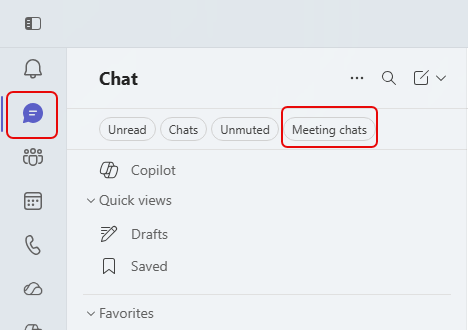
Microsoft has a calendar feature in Teams that is often overlooked. It’s called a Channel Calendar, and it allows you to set up a calendar that is specific to a channel in a Teams workspace. Here’s how that works…
Author: oneminuteofficemagic
Microsoft 365 Pulse Roadmap webcast – Episode 272
Episode 272 of the Microsoft 365 Pulse Roadmap webcast is now out on YouTube. Join Jennifer Mason, Tamara Bredemus, and Thomas Duff as we cover this week’s updates.
Using emojis in section names in Microsoft Teams
If you use custom sections in your Microsoft Teams client, it can get a little difficult to quickly pick out which custom section name you’re looking for. Now it’s a bit easier, as you can use emojis in those names. Here’s how that looks…
Using the Follow thread option in Microsoft Teams
In Microsoft Teams, you will see a Followed Threads option in the Activity pane. This automatically shows you any Teams conversations you’re part of when looking at the Teams option. But you can also use that to follow threads where you’re not explicitly mentioned. Here’s how that works…
Searching for content in a Microsoft Teams chat
Have you ever been in Microsoft Teams looking for something that you know you chatted with a colleague about, and you’re having a hard time scrolling through all the chat content to find that particular file or link? If you use the chat pop-out icon in a Teams chat, you’ll have a much easier time finding what you’re looking for. Here’s how that works…
Retirement of the Sway Windows Desktop App on June 1, 2026
I’m guessing that there will be a number of readers that will have the most important question… What is Sway? For those who don’t know, it’s a Microsoft presentation tool that allows you to present and navigate content in unique ways. However, most people prefer the tried and true PowerPoint approach, and Sway has never really taken off. But for those who have drank the Sway Kool-Aid, they love it. This is a heads up that Microsoft is retiring the Windows desktop app version of Sway, and your only option for ongoing use is the browser version.
Copilot now supports GPT-5.2
In the world of AI, things move fast and furious. Following close on the heels of GPT-5.1 becoming the default in Copilot, you now have the ability to let Copilot use the latest and greatest Large Language Model (LLM)… GPT-5.2. Here’s how you can use that…
Scheduling a meeting from an email thread in Copilot
One thing I really dislike doing is trying to turn a lengthy email thread into a meeting. You have to find all the people who were involved in the thread, try to find a time that works for *most* of the people, try to somehow come up with a summary and agent… But with Copilot, you can let it do most of the heavy lifting for you, turning email threads into cohesive meetings with little effort. Here’s how that works…