I learned this tip by listening to my wife do a presentation on PowerPoint tips and tricks. 🙂 Did you know you can easily replace one font with another in a PowerPoint side deck without manually searching through the entire deck? The Replace Fonts feature does this very nicely. Here’s how it works…
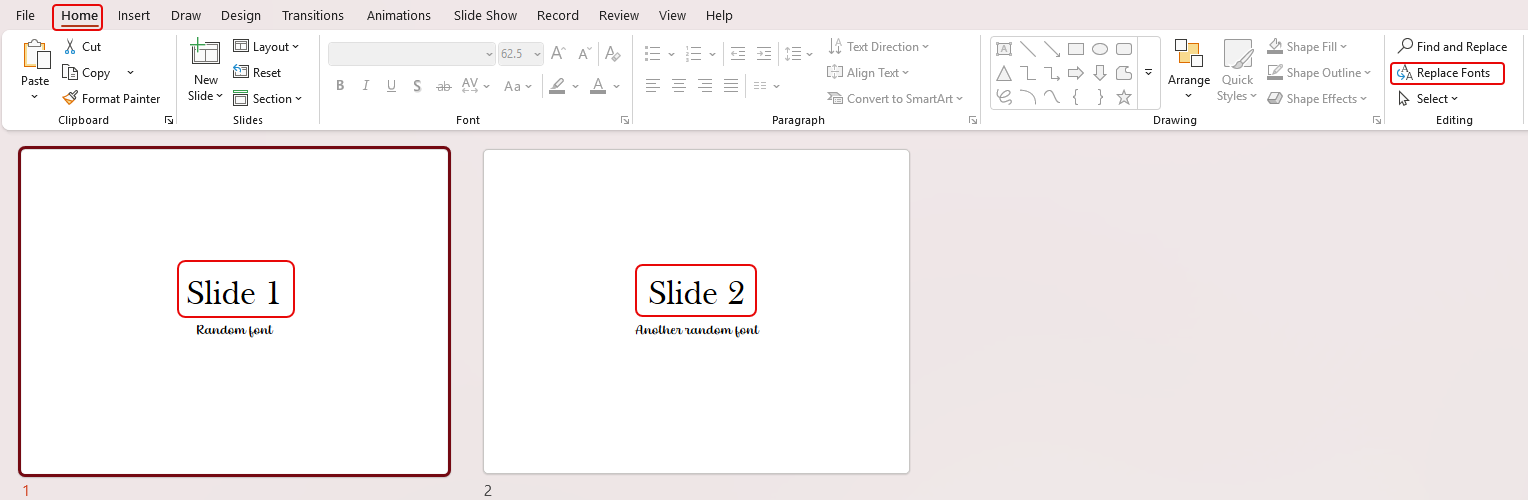
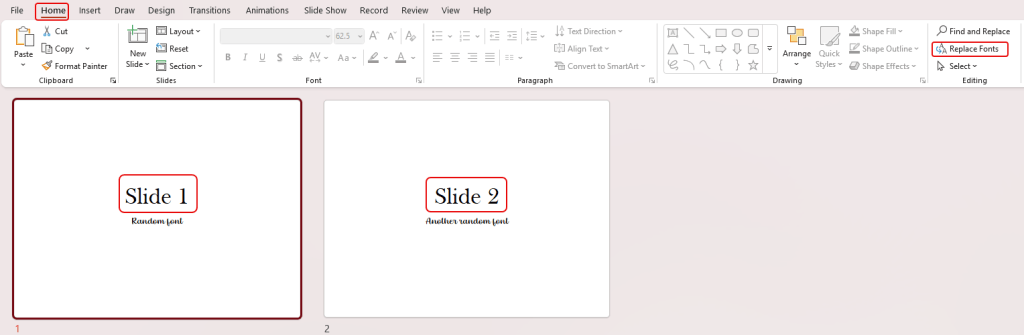
In this example, I have two slides that use Baskerville Old Face, and I really don’t want to use that font. To replace it everywhere in the slide deck, I can open up the first slide, highlight the Slide 1 text, and select Home > Replace Fonts:
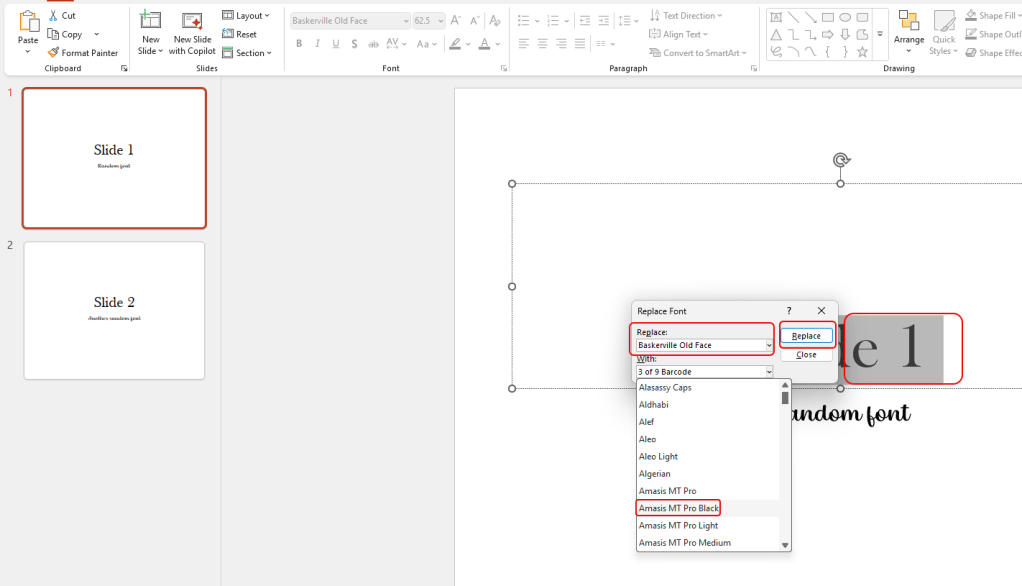
The Replace Font dialog box automatically shows the font that was selected, and allows you to choose from any other font you have installed on your computer. Once you find the alternative font you want to use, click Replace:
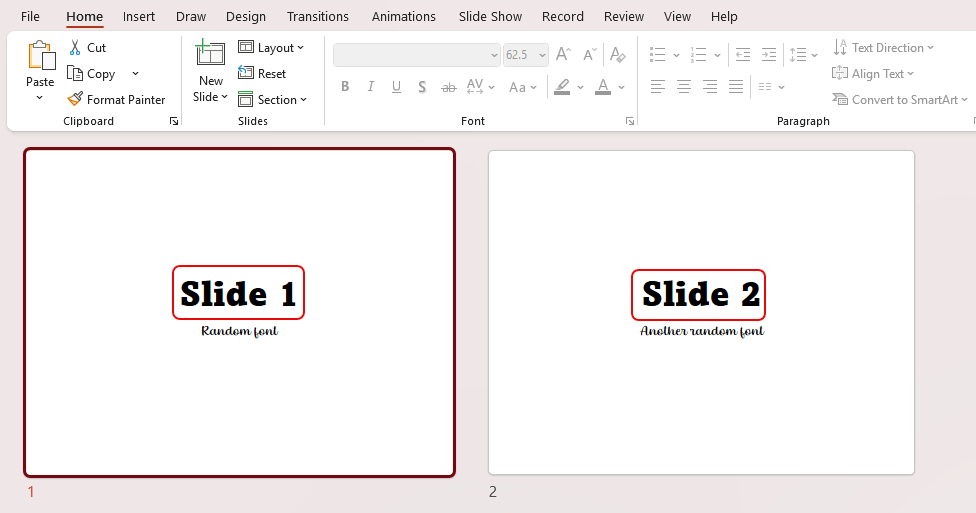
As you can see, all occurrences of Baskerville Old Face has now been changed to Amasis MT Pro Black:
Check out Change the fonts in a presentation | Microsoft Support for more options depending on your particular scenario…


