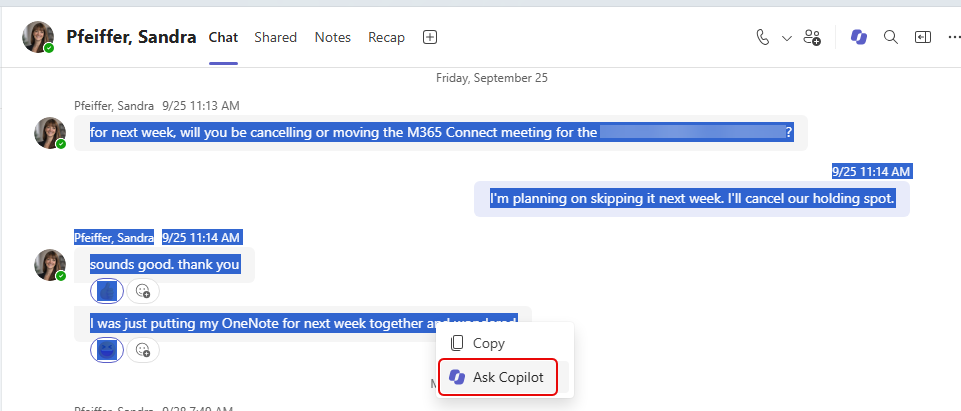
If you’re in a Microsoft Teams chat with a person or a group, you may want to use Copilot to get more context on what someone said or what was discussed. You can do that by using the Ask Copilot option on the highlighted content. Here’s how that works…
In this example, I wanted Copilot to figure out what was going on with this highlighted text by analyzing it and looking for context. I highlighted the content and right-clicked to get the dropdown menu, and then selected Ask Copilot:
Copilot launched the Copilot panel on the right side of the screen, analyzed the highlighted text and other information it could find related to that, and gave me a response that went into a fair amount of detail beyond what was just typed in:
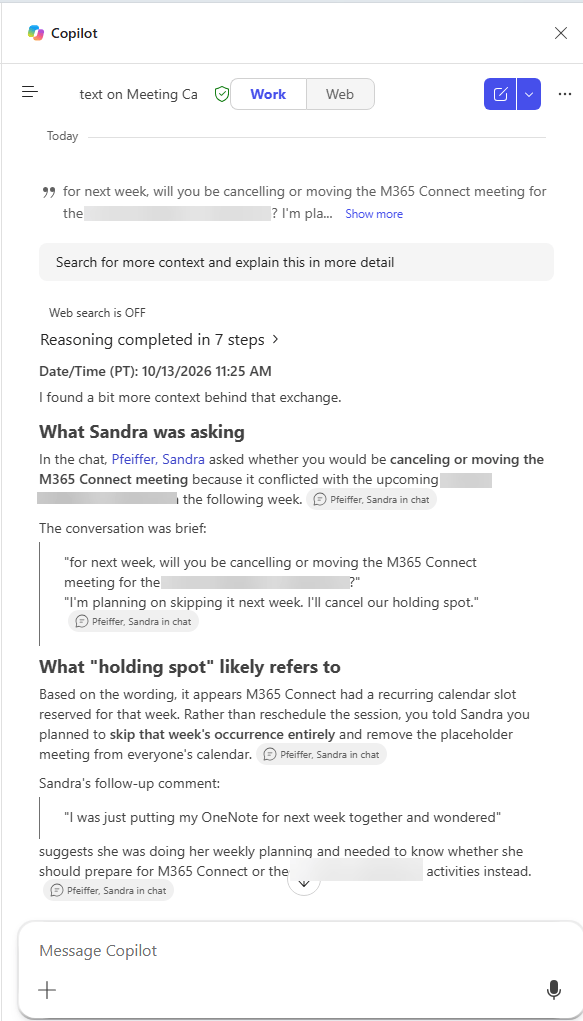
This is a rather simplistic example, but imagine if you had a longer conversation that you had missed, and you needed to have Copilot explain what happened as well as any background information that would help you understand everything more quickly. It’s a very nice feature…


