You’ve been able to view your organization chart in the People Card for quite some time, but they are always tweaking it to make it even more useful. The latest tweak was pointed out to me by Sandra, and it’s pretty cool. You can now use it to find out how many Reports and Direct Reports someone in management has. Here’s how that looks…
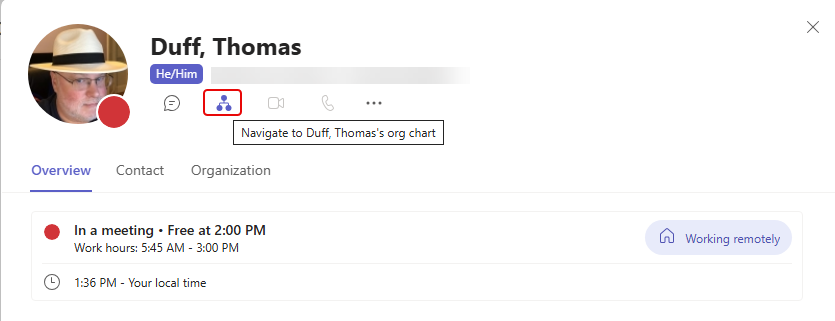
In the People card (found in both Teams and Outlook), click on the Org Chart icon:
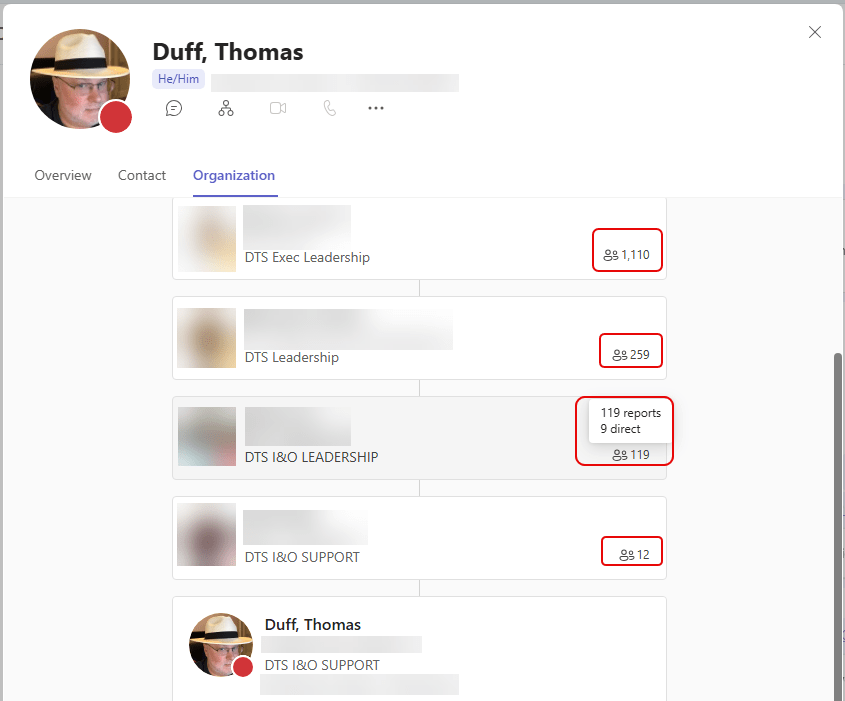
Your name will be at the bottom of the chart, with the layers of management above you. If you are in management (or at the bottom of the chart), you will see the overall reports and the direct reports for your position. In this example, the top level has 1110 reports. The next level has 259 reports, followed by the level that has 119 reports, of which 9 are direct reports:
You probably don’t need that information all the time, but it’s helpful to see how many people are in your particular part of the organization.

 One Minute Office Magic