When you’re trying to add a new channel into a Teams workspace, it can be a bit confusing to find the options if you don’t do it regularly. If you add channels this way, it’s WAY too easy. 🙂 Here’s how it works…
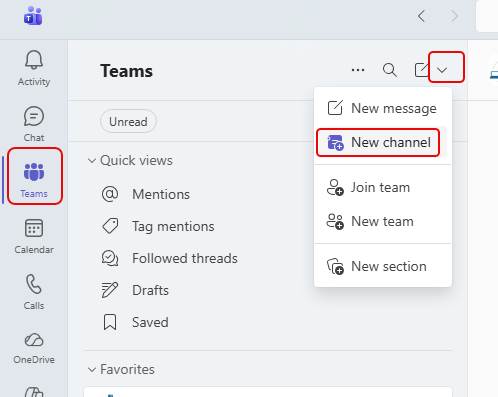
When you’re in the Teams section of Microsoft Teams, click the drop-down arrow in the Activity pane and select New channel:
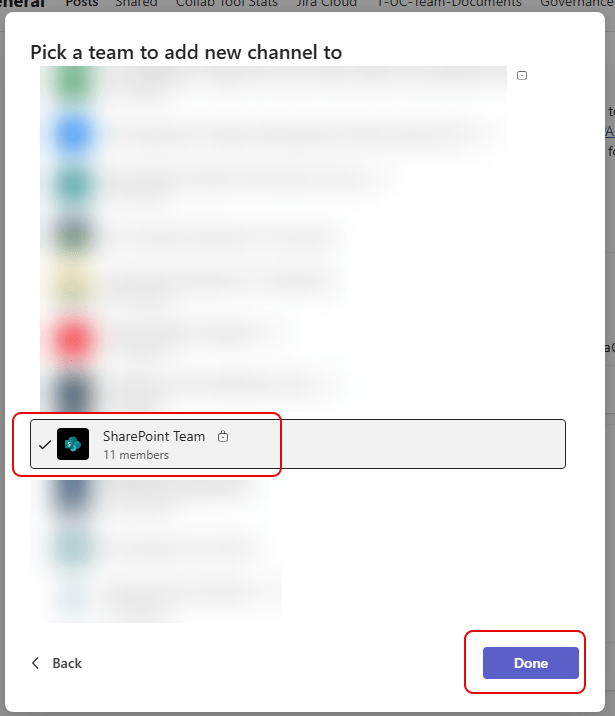
Teams will let you select any of the Teams that you have access to and/or the ability to add channels to. Pick one and click Done:
You can then fill in the details of the channel and click Create:

It will display a panel showing the channel is being created:

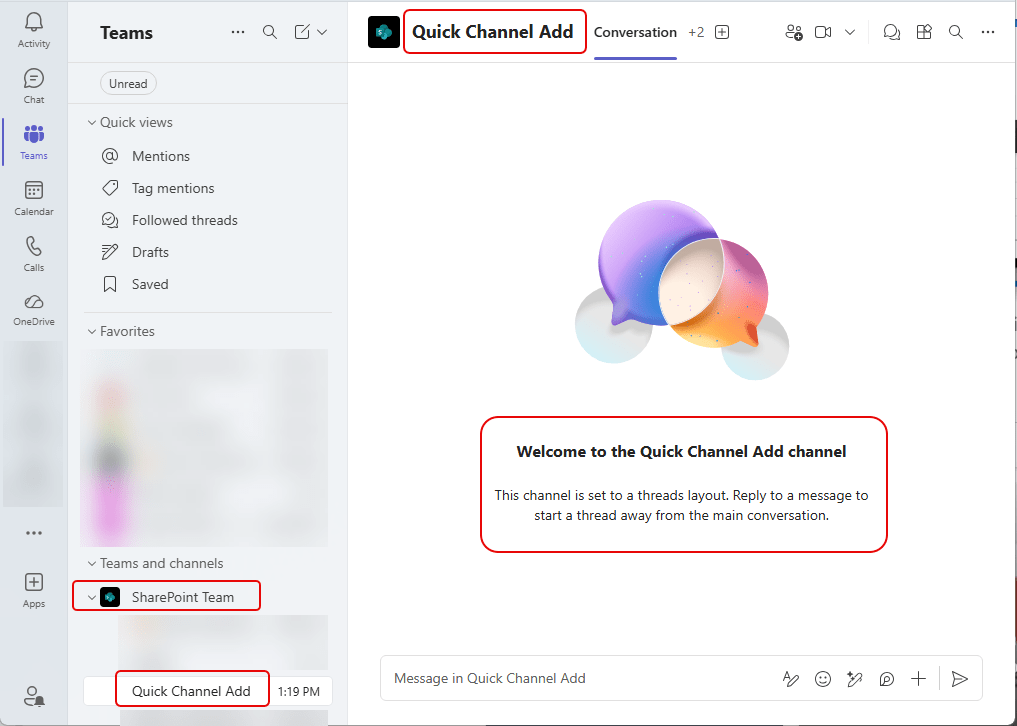
And finally, your channel is created and Teams takes you to that channel. It is now ready for use:

 One Minute Office Magic