Microsoft has a calendar feature in Teams that is often overlooked. It’s called a Channel Calendar, and it allows you to set up a calendar that is specific to a channel in a Teams workspace. Here’s how that works…
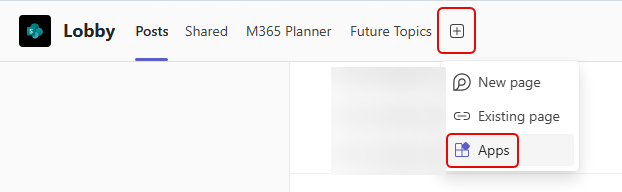
To add a calendar to your Teams channel, click the Add Tab icon and select Apps:
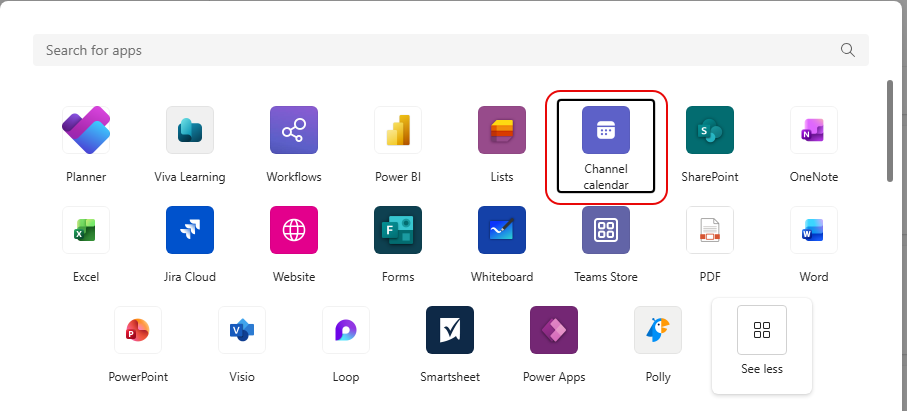
In your list of Microsoft Apps, select Channel calendar. If you do not see that, you may need to click on the See more icon to get the full list:
Select a name for the calendar that will be displayed in the tab, and click Save:

You now have a Teams calendar that is available to everyone in that channel. You can create meetings and send invites, and invitees will get notifications:

Do keep in mind that there are some pros and cons to this:
- Pros:
- Helps keep project-specific meetings organized.
- All channel members can view and add events.
- Sends automatic notifications for scheduled events.
- Cons:
- Does not sync with individual Outlook calendars.
- Only visible within the specific channel.

 One Minute Office Magic