When you’re working in a busy Teams channel with multiple people responding to multiple posts, it can get hard to follow and/or scroll through what is going on. Microsoft has a new formatting option for Teams channels called Threads. It enables you to respond to a post with replies that do not clutter up the main screen, and appear in a separate Threads panel. Here’s how that works and looks…
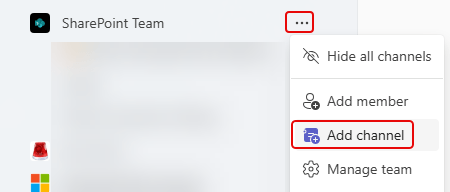
To start, go ahead and add a new channel to your Teams space:
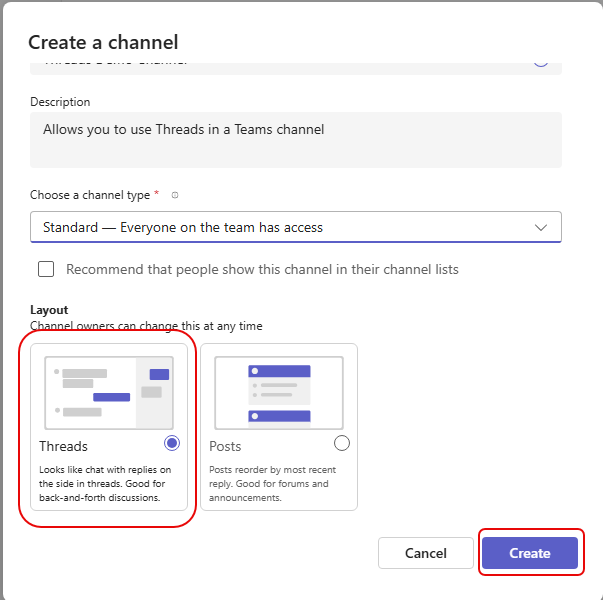
When you get the Create a channel screen, you’ll notice the new Layout option for Threads. It is now the default option, so you can click Create:
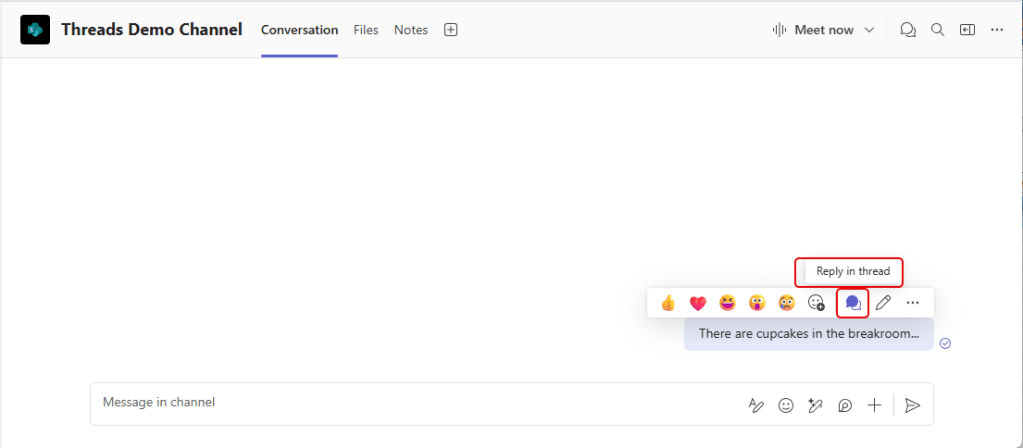
The channel will look similar to what you see in the old Posts format. To start responding to the message using threaded replies, hover over the message and click the Reply in thread icon:
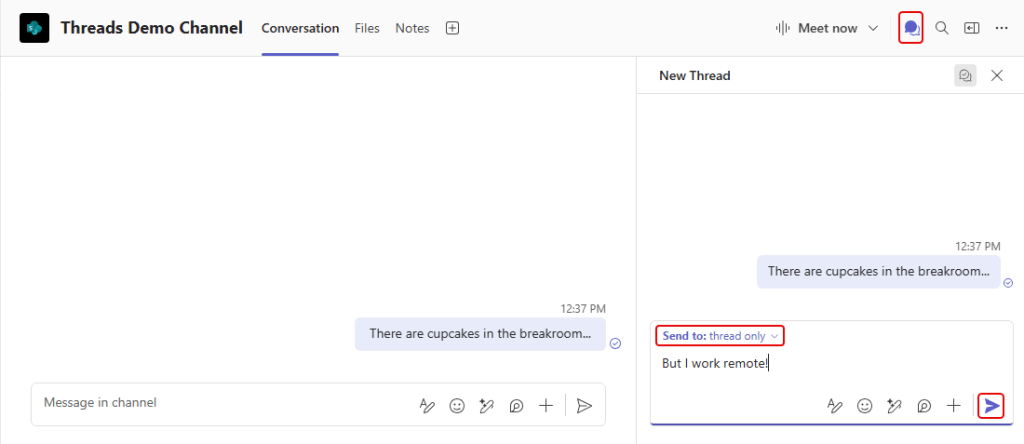
You now see the Threads panel to the right, and you can respond there to that post. You can post your reply either in just the Threads panel or in both Threads and the main channel. Once you have your response, click the Send icon:
Your response is now in the Threads panel, and the channel post has a clickable link to show how many replies the post has. If you click that link, the Threads panel will show the threaded replies for that post:

As each reply is made, the reply count in the post increases:
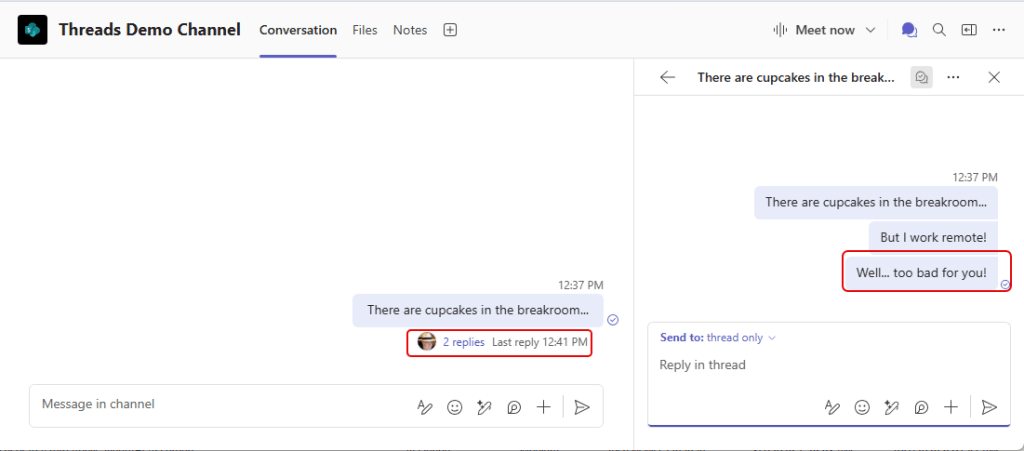
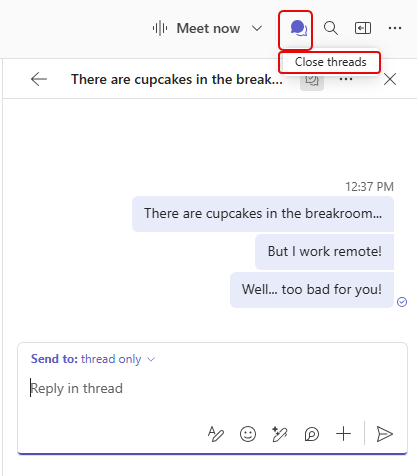
You can close the Threads side panel by clicking on the Threads icon at the top of the panel. It’s a toggle to open and close it:
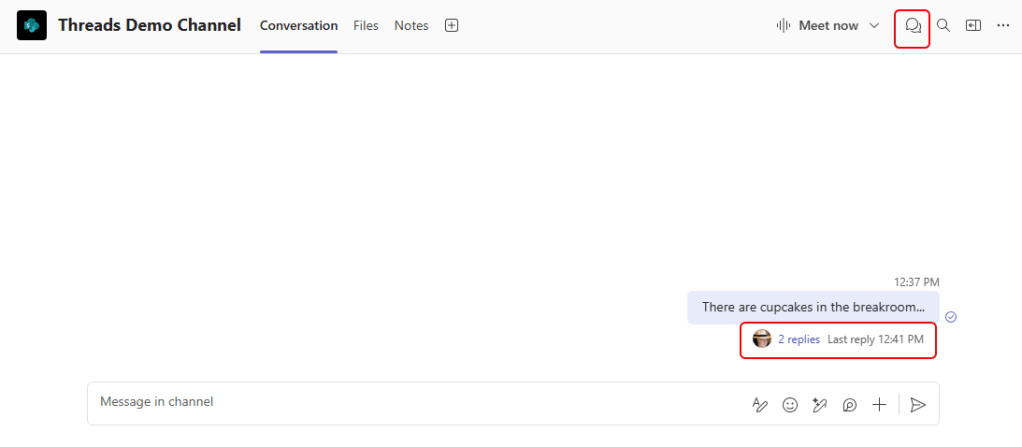
Once the panel is closed, you will see how many replies are in the post, you can click on the list to open the panel again, and your overall channel is clean and easy to navigate in terms of topics:
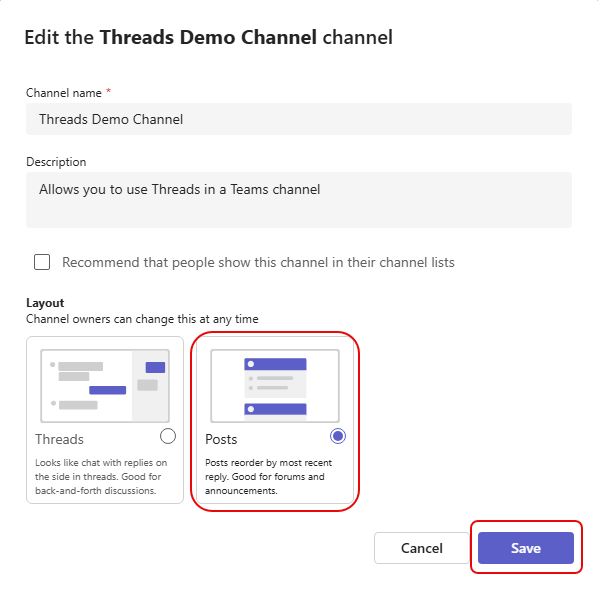
You also have the option to go back to the Posts format if Threads doesn’t work the way you hoped. Just click the ellipsis next to the channel and select Edit channel:

In the Edit Channel screen, you can switch back to the Posts format:
This change can take some time to get used to, as it’s easy to just reply directly in the channel and not get the benefits of the threading. There are additional features involved in the Threads format, and you can find them here: Threads Layout in Teams Channels

 One Minute Office Magic