
Have you ever been in a Teams meeting where you have an agenda item that should take a set amount of time, like five minutes? Do you still find yourself stuck on that agenda item after 15? Teams has a new feature that can help control time sprawl on those discussions… the Timer! Here’s how that works…
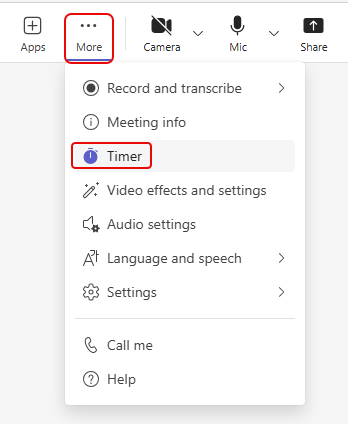
To find the timer, click on More > Timer:
Set the timer for the amount of time you want to count down, and then click Start:

The Timer bar will show the amount of time left on the timer, as well as some of the available controls:
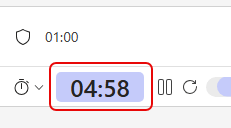
If you want to reset the timer, you can click the Reset timer icon (circular arrow). If you need to edit the time, click the Edit button:

If you need to pause the timer for any reason, click the Pause icon:

To restart the timer after a pause, click the Play icon:

And finally, if the timer expires, everything turns red and the timer starts to count the amount of time you’ve gone over:

This is a great feature and should help you be more efficient in your meetings.
Please note: This feature is available only in scheduled meetings. Also, it is not supported in instant meetings, Teams calls, and webinars.
For more information, check out Add A Timer To Teams Meetings.

 One Minute Office Magic