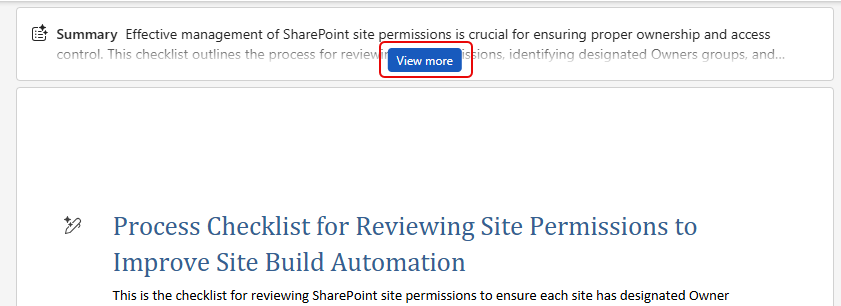
If you are looking at a large document in the browser-based version of Microsoft Word, you might feel a bit overwhelmed when it comes to getting an overall understanding of what it contains. Copilot can help with a Summary at the top of the document, along with a variety of options to tailor your overview to what you need. Here’s what that looks like…
When you open up the Word document in the browser, the Summary will be created automatically. Click View more to expand it:
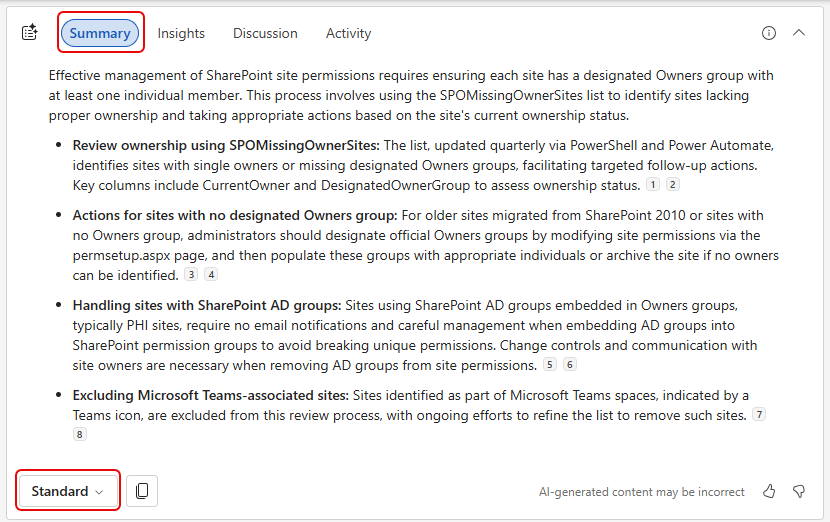
The initial Summary is set to Standard, which is the “medium” version:
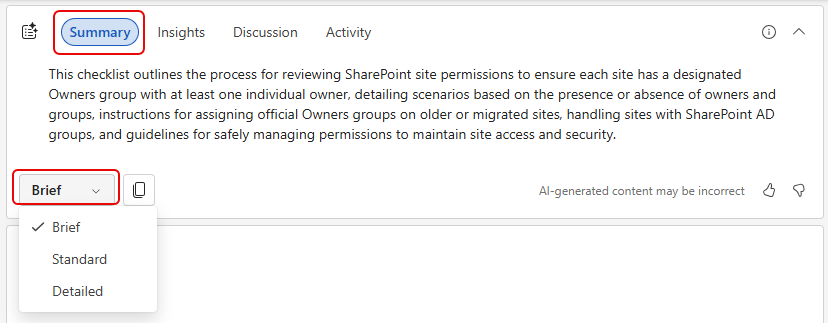
If you want something more concise, you can change the Summary to Brief:
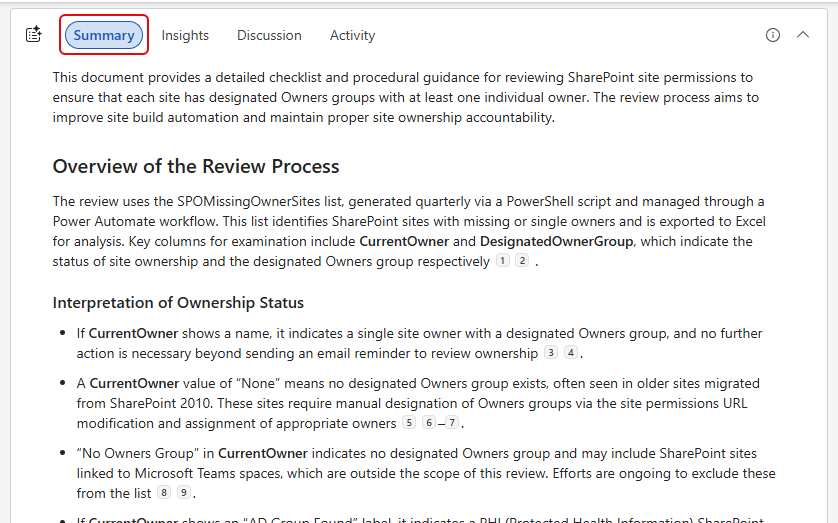
As you could see in the last example, you can also select Detailed for something much more in-depth:
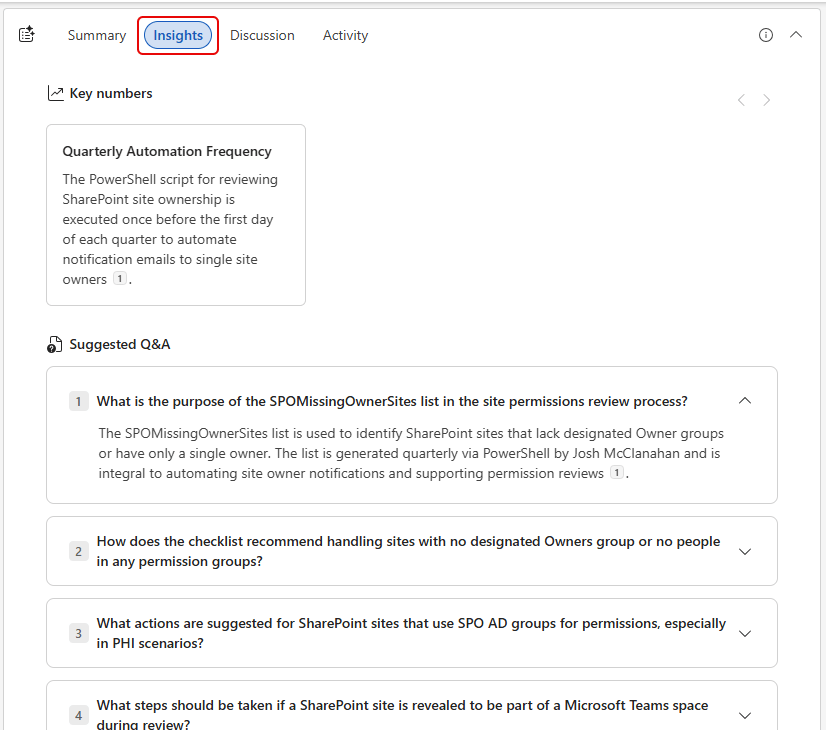
Alongside Summary, you can select Insights. That will give you an overview of any key numbers or a suggested Q&A for the document:
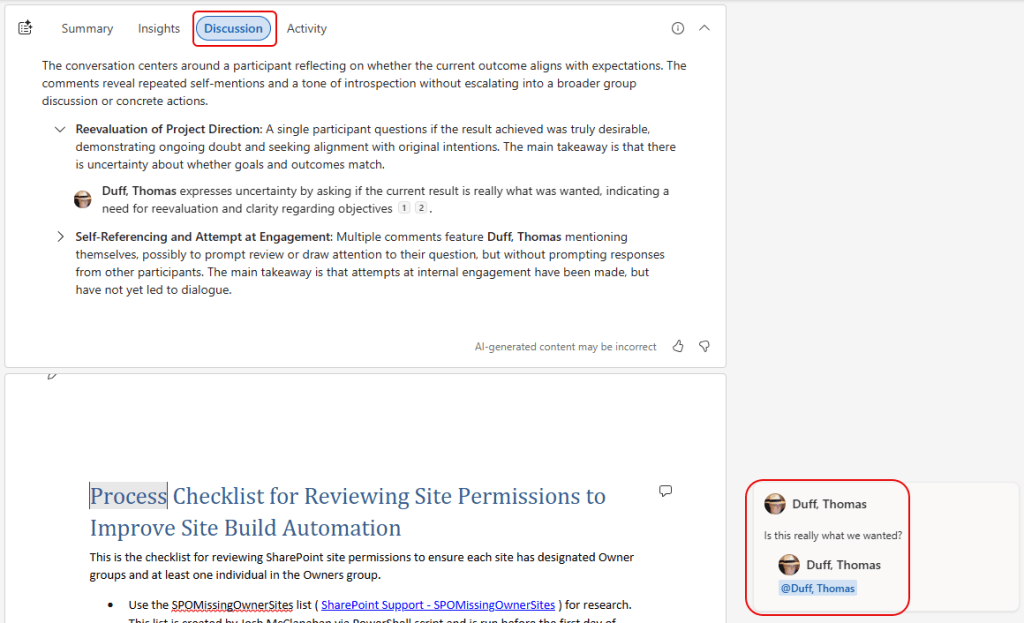
Selecting Discussion will provide an overview of any comments that have been added to the document so that you don’t have to dig around for them and try to come up with a summary on your own:
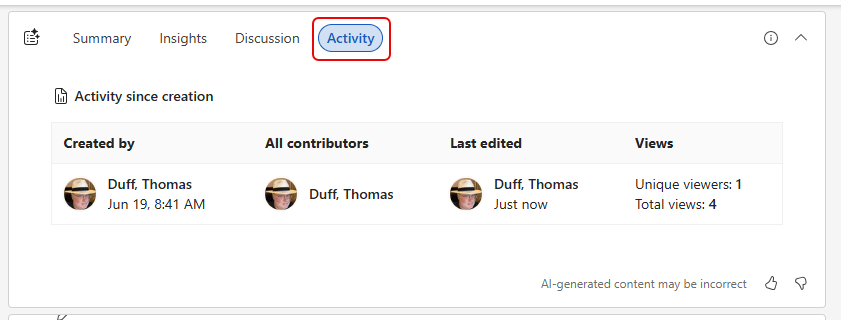
And finally, Activity will give a brief overview of what’s happened in the document since its inception:
For smaller documents, the summary may not be something that you really need. But when you get into longer write-ups, the Summary can save you a lot of time and provide context before you dive in.

 One Minute Office Magic