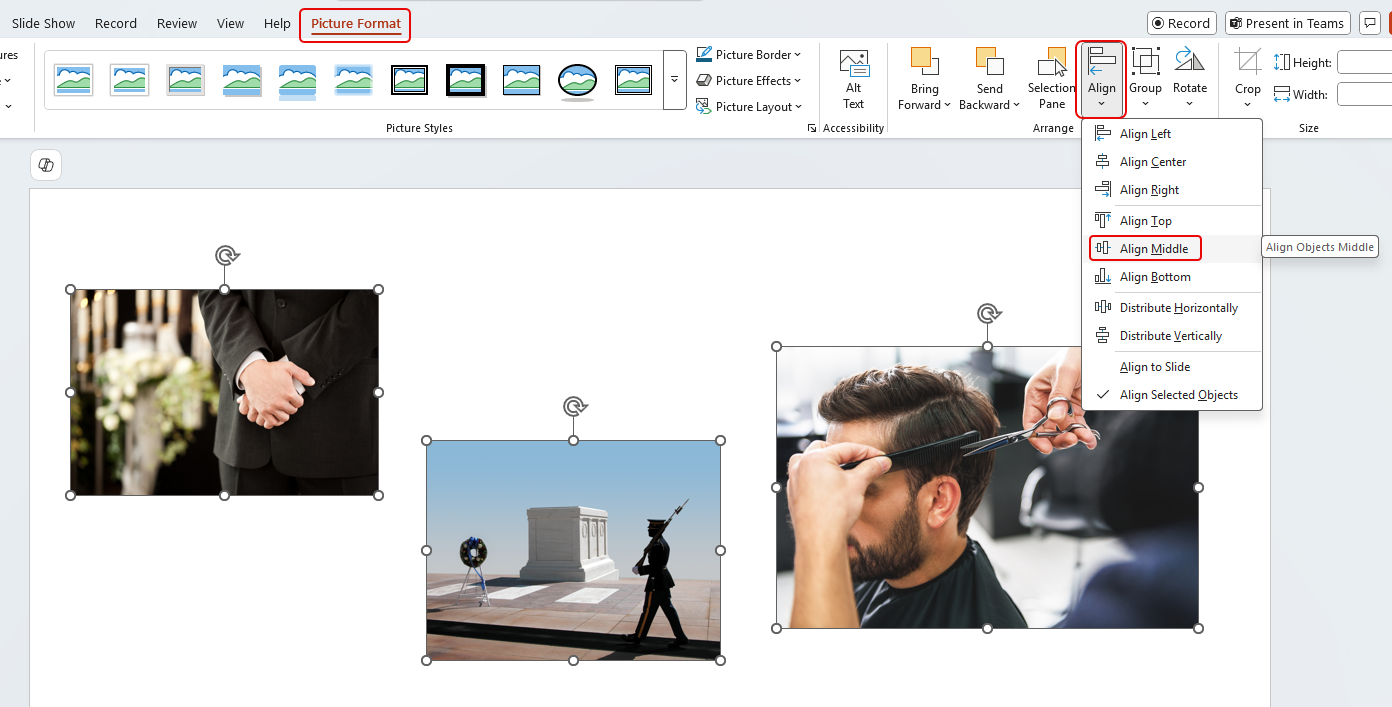
Have you ever had a number of images on a slide, and you’ve struggled to align them horizontally (or vertically)? You’ve spent way too much time moving things pixel by pixel, and then you wonder if it’s actually perfect? You can make that a lot easier by using the Align feature in PowerPoint (and it’s also available in Word). Thanks to Sandra for sharing this with me. Here’s how it works and looks…
In this example, I have three pictures that I want to align based on the center of the images. I select all three of the images, click on Picture Format, then select Align > Align Middle:
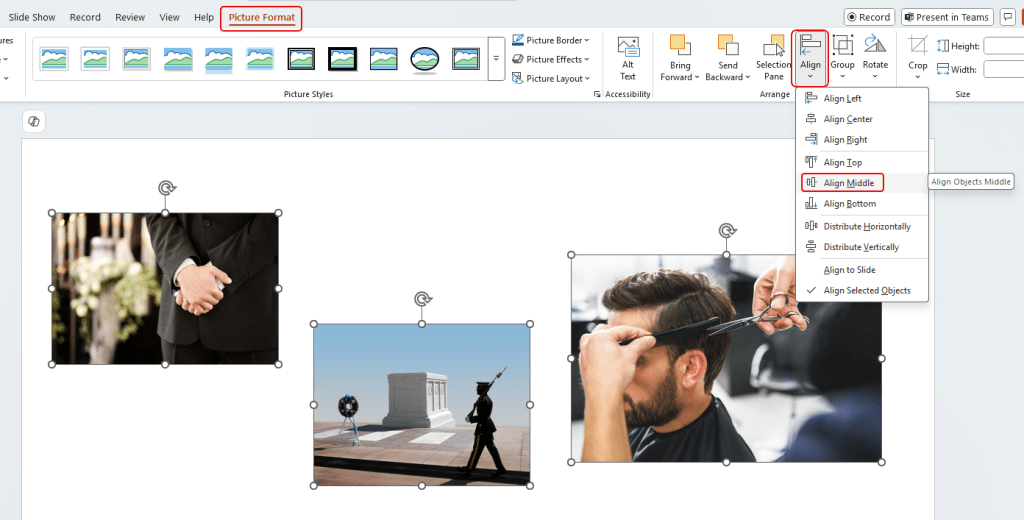
As you can see, the images are now properly aligned based on the center of the images:

In the second example, I have the same three images, but they are not evenly spaced out across the slide. Now I select all the images, click on Picture Format, and select Align > Distribute Horizontally:
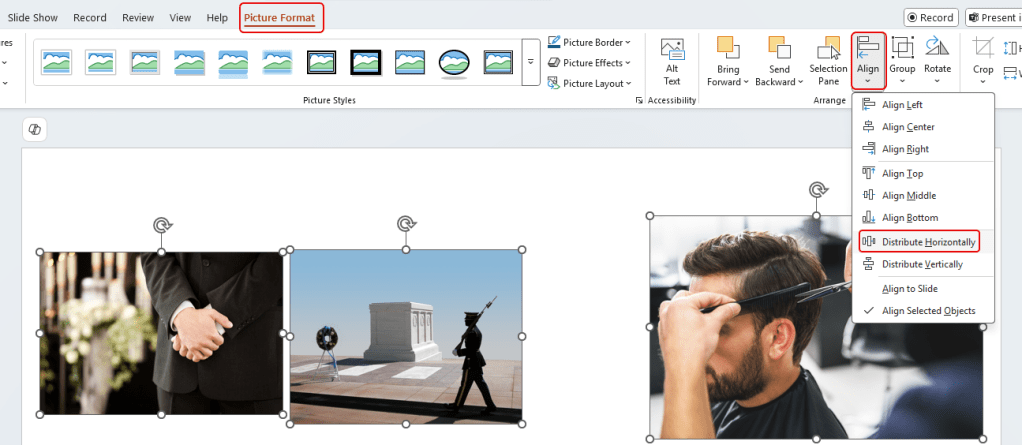
The spacing across the slide is now perfect:

And finally, I decide it would look best if I had all the images line up across the top of the pictures. This time, I’ll use the Align Top option:
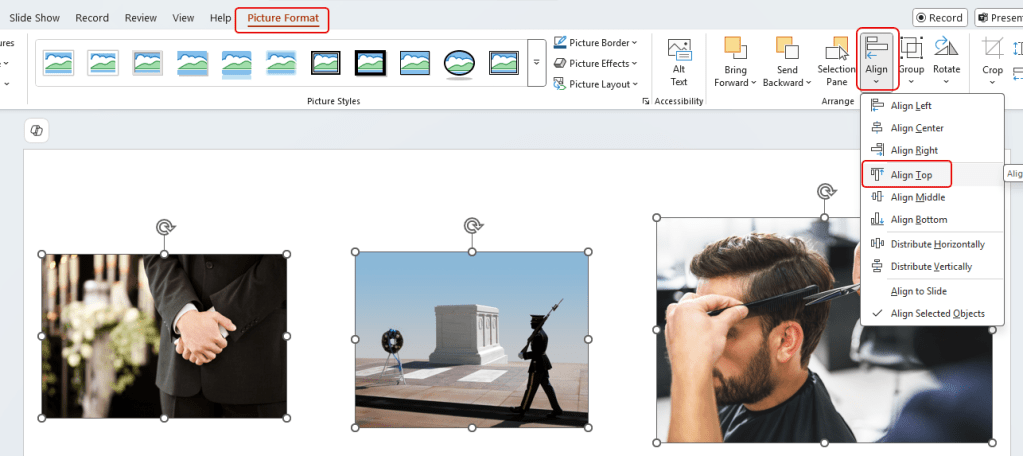
And the top of all the images are now lined up:

While the examples here are for horizontal alignment, you can also do all the same things with vertical alignment. And… you can do the same type of image alignment in a Word document also.
So next time, forget about trying to eyeball the layout and just use the Align feature.

 One Minute Office Magic