You’ve been able to schedule messages in Teams chat for some time, making sure that it doesn’t appear to the recipient until the specified time. But now you can also do that for messages in a Teams channel. Here’s how you can make that happen…
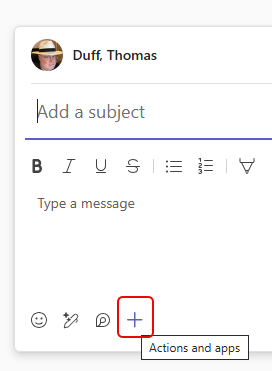
When you’re ready to post a message, click on the Plus icon for additional options:
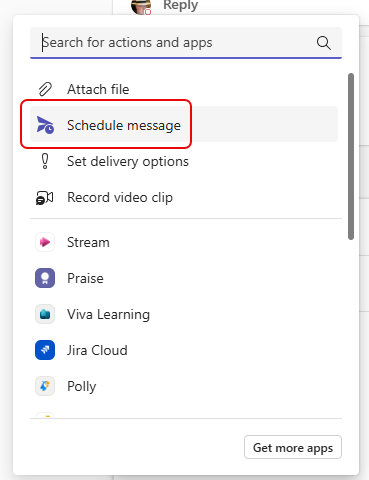
Click on the Schedule message option to start the scheduling process:
In this example, the scheduling panel set it to be sent tomorrow at 8 am. But fortunately I’m not stuck with that:

By clicking on the Date area and the Time area, you can change the date and time when it will be sent. When the date and time is correct, click Continue:

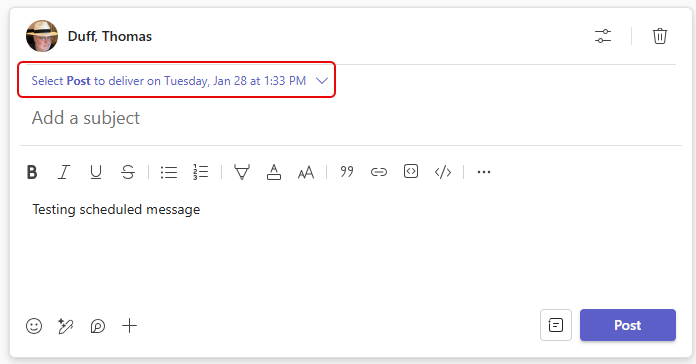
You can then complete the text of your message. Teams will show you that you have scheduled this to be sent at a date and time in the future. Click Post when you’re done:
The message will show up for you with a note saying when it will be sent. You will be the only person to see it:
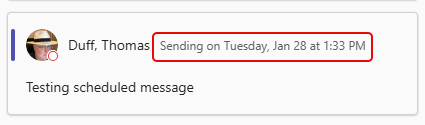
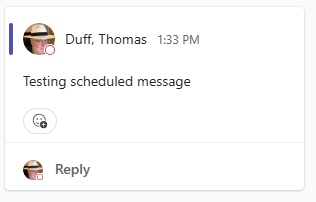
And when that date and time arrives, the message will appear to everyone, just as if you sent it in real time:

 One Minute Office Magic