One of the things that people really missed when we moved to New Teams was the ability to get a notification when someone’s status went from Offline to Available. When the Contacts in Teams went away, so did that functionality… but now it’s back! 🙂 You can now set notifications in Teams in two different ways. Here’s how that looks and works…
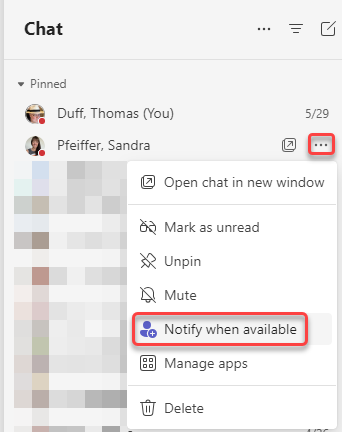
The first way to set notifications is in the Chat area. Next to a person’s name, click the ellipsis and select Notify when available. Then when the person goes from being offline to being available, you’ll get a pop-up notification in Teams much like you used to see in Teams Classic:
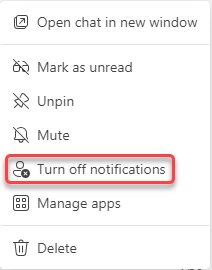
And if you want to turn off the notification for the person, click on the ellipsis again and select Turn off notifications:
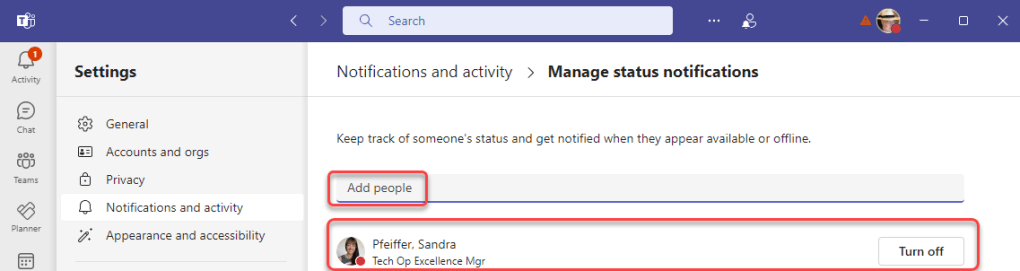
If you don’t have a chat going with that person, you can go into Teams settings and select Notifications and activity > People. Then click the Manage notifications button:

To add an availability notification for someone, select their name in the Add people field. They will then appear under that field with the rest of your notifications. And if you no longer want to be notified, click the Turn off button next to their name:
For more information from Microsoft, check out Get notified when someone’s status changes in Microsoft Teams.

 One Minute Office Magic