
If your Microsoft Teams space has a number of channels, you may have wished for a way to archive one or more of those channels without physically deleting them permanently. Now you can! Each channel in a Teams space has an archive option. Here’s what it looks like and how it works…
In your Teams space, click the ellipsis next to the channel you want to archive, and select the Archive channel option:

A pop-up will ask you to confirm that decision, and gives you the option to also put the back-end SharePoint folder for that channel into a read-only mode. When ready, click the Archive button:

The archived channel is now shown in italics with an archive icon next to it. You may also find that the archived channel becomes part of the hidden channels list for a particular Teams space:
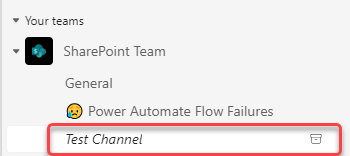
If you want to restore that channel so that conversations can continue, click on the Archive icon and select Restore channel:

For more information about this feature, check out Archive or restore a channel.

 One Minute Office Magic