
In the new version of Microsoft Teams, you’ll see a new screen sharing bar across the top of your screen letting you know that… you’re sharing your screen. It also comes with a Stop sharing button. However, it’s not uncommon that you need to access something underneath that screen sharing bar, and there’s no way to move it around the screen to display what’s underneath it. Here’s a quick workaround to hide that bar and still be able to stop sharing your screen when you’re done…
When you’re sharing your screen in new Teams, you’ll see this across the top of your screen:

To hide it, hover over the tool bar, click on the greyed-out Layout icon that pops up, and press CTRL-W to hide the bar for the rest of the session:

When you’re done sharing your screen, you can click on the Stop Sharing icon if you have the small meeting window:
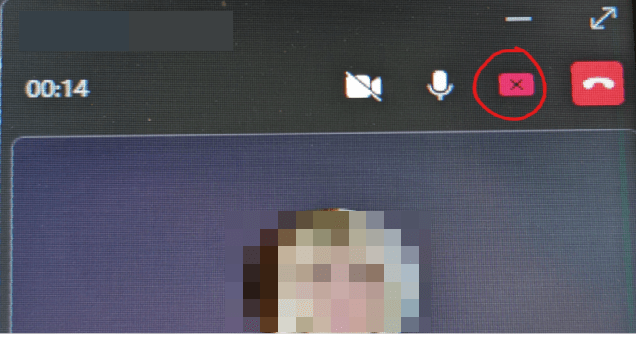
If you have the main meeting screen, you can also click on the Stop Sharing icon from there:


 One Minute Office Magic