Have you ever been reading an email and think that you really need to chat with that particular individual? That usually means switching over to Microsoft Teams to start the chat. But if you use Outlook on the web, you can start the chat from within Outlook! Here’s how that works…
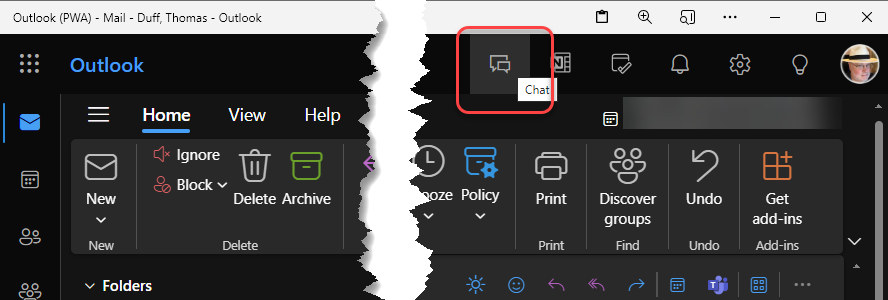
From within Outlook on the web, you’ll see a Chat icon in the upper-right corner. Click it to start the chat process:
The Chat panel will show your seven most recent chats. You can either start a new chat (the New Chat icon in the upper-right corner), click on an existing chat, or open Microsoft Teams to access additional chats:
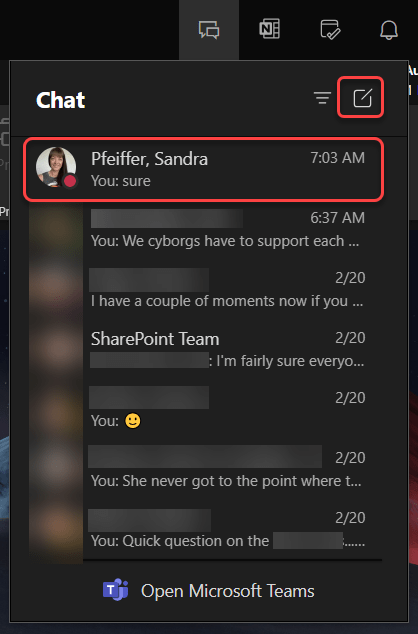
This is an example of a new chat in Outlook. The chat panel stays within Outlook, so you don’t have to switch to a different application to start a new chat:

This example is clicking on one of the seven listed chats. I can now continue to chat with that person just as if I were in Teams:
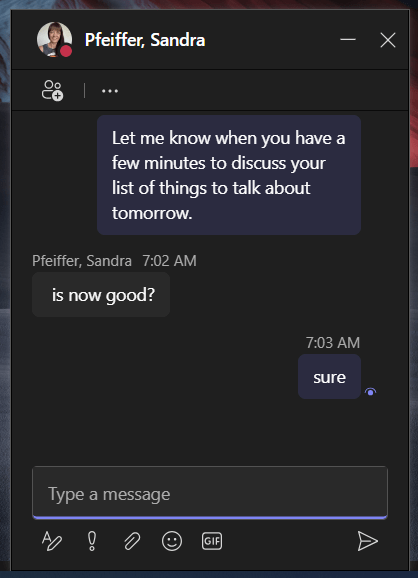
This is a really nice feature to start new chats while still keeping the email references on the same screen.

 One Minute Office Magic