
I ran across this feature from a video by Dr. Mitin Paranjape. He showed how to use the Compare feature in Microsoft Word to automatically get a comparison of two documents without having to try and pick out the changes yourself. I wasn’t even aware of this feature (it’s been there forever), but I think it might become one of my favorite ones moving forward. Here’s how it works…
Here’s my original document:

And here’s the revised version… good luck in spotting changes in a lorem ipsum document:

To use the Compare feature, go to Review > Compare and choose the Compare option:

Select the original and revised documents by using the Folder icon. I also suggest selecting the More/Less button to see all the various document elements that it can check for in the comparison. Once you have everything set, click OK:

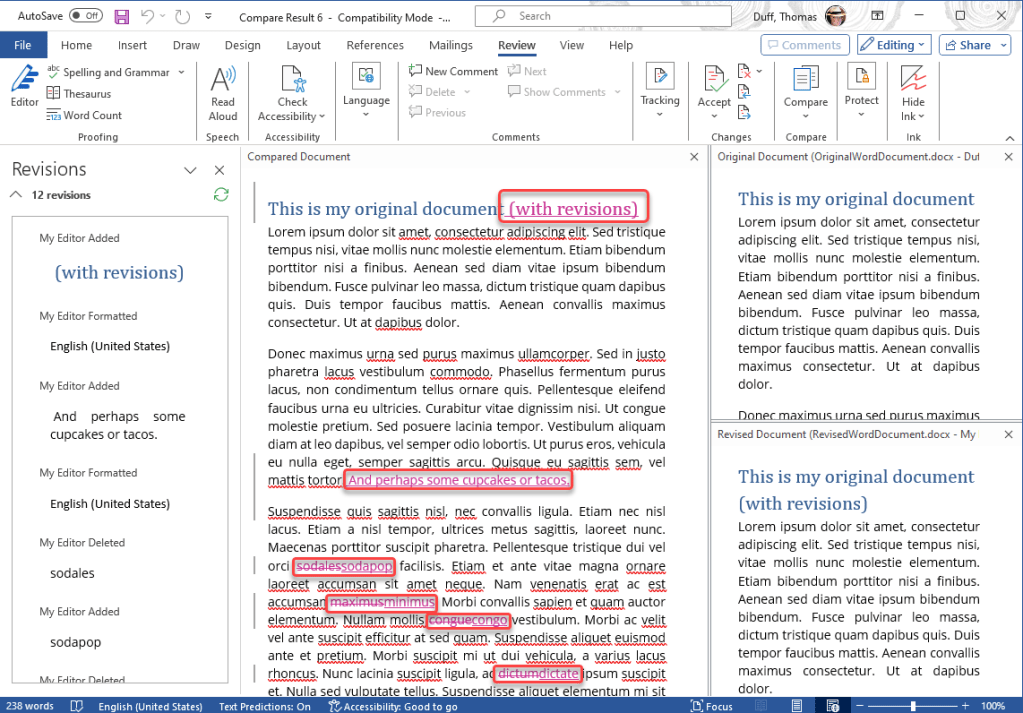
And here’s your comparison info! The point-by-point revisions are listed down the left side, with the compared document in the middle. All the changes are shown in a different color so you can easily see what has been added and removed:
This can be a time- (and life-) saver! If you’d like to see the full video by Dr. Nitin Paranjape, check out How to compare to versions of a document in Microsoft Word.

 One Minute Office Magic