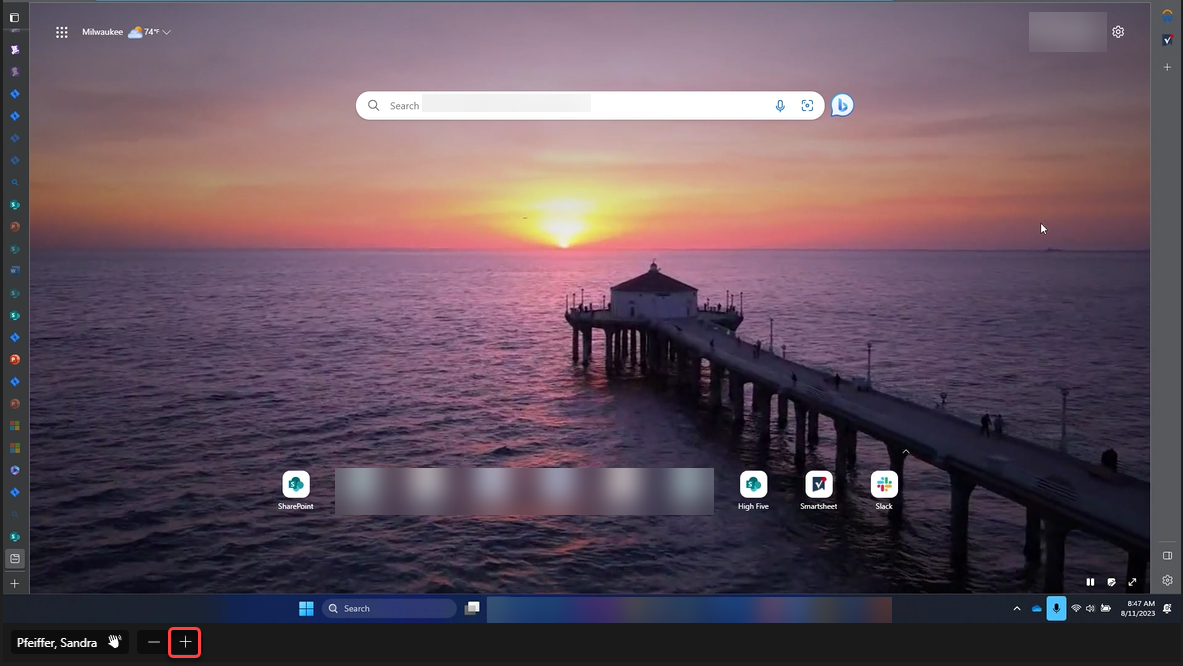
Have you ever been watching someone share their screen, and you’ve struggled to see the detail as everything is tiny. Well, now in Microsoft Teams, you can zoom in during a screen share and magnify the parts that need more definition. Here’s how that works…
In this example, Sandra is sharing her screen with me. I would like to zoom in on some section of the screen for more detail. In the lower left corner, there’s now a plus icon that will zoom you in up to 200%:
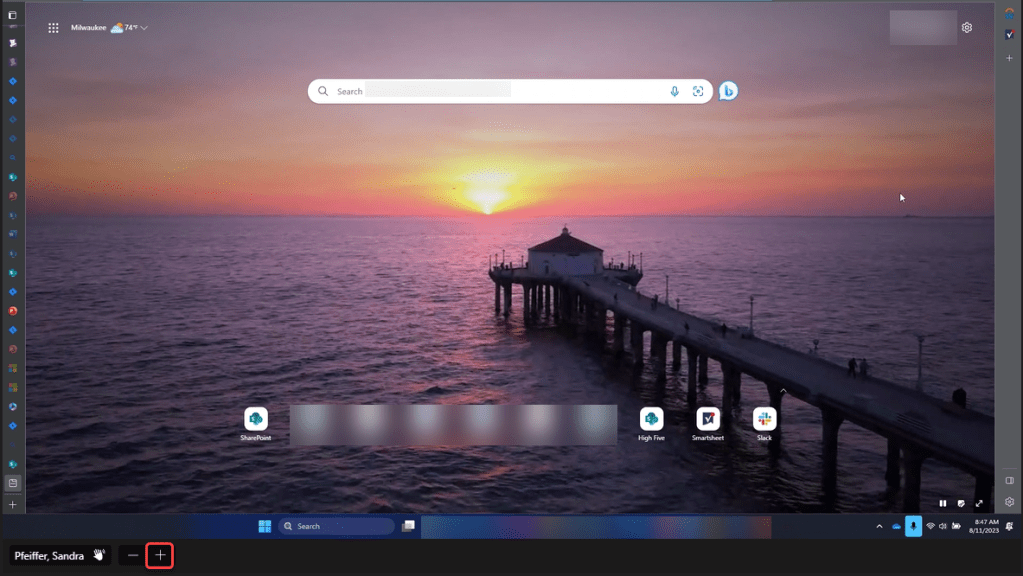
Here’s what the screen looked like after I zoomed in to 200%. If I was looking at text, it’d be a lot easier to read now. I can also click and drag the screen to see other parts of the screen. I can reduce the zoom by clicking the minus icon, or I can go back to the initial setting by clicking the full screen icon:

I’ve also been told that you can zoom in if you have a mouse with a wheel… just hold down the CTRL key while moving the mouse wheel up and down.

 One Minute Office Magic