
We just had this new feature roll out in our SharePoint tenant, and it’s pretty cool. When you filter your view on column values, you will now see what the filters are at the top of the view, as well as a button to clear all the filters at once! Here’s what it looks like…
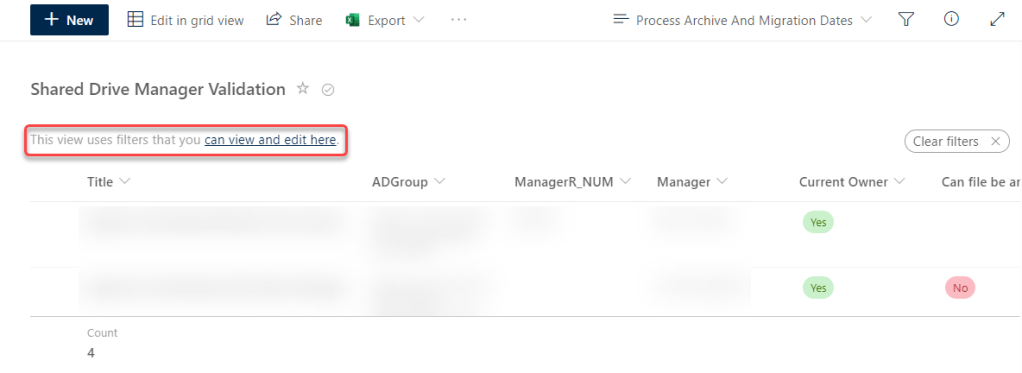
First, when you go to a view (and provided you have Edit permissions or higher), you’ll see a link that will take you to the setup page for that particular view so that you can change the settings and filters for everyone that uses that view:
However, the magic is when you go into specific columns to set a filter. In this example, I’ve clicked on the columns for Manager and Can File Be Archived to set some values to narrow down my view. I see the funnel icon at the top of the two columns, meaning a filter is active. It used to be that you’d have to go into each of those columns again to see the values and/or clear the filters. But now, the columns and filter values are displayed above the view on the left side. You can remove one of those filters by clicking on the X next to the filter values, or you can clear *all* the filters by clicking on the Clear filters button on the right side:

I really like this change, as it makes it a lot easier to notice that you have a filter that’s active in the view, as well as seeing what the values are.

 One Minute Office Magic