
Unlike Word, Excel does not have a Watermark feature that you can select from a menu. However, there is a way to get a watermark effect in Excel, and it’s ideal for spreadsheets that have confidential information. Here’s how you do that…
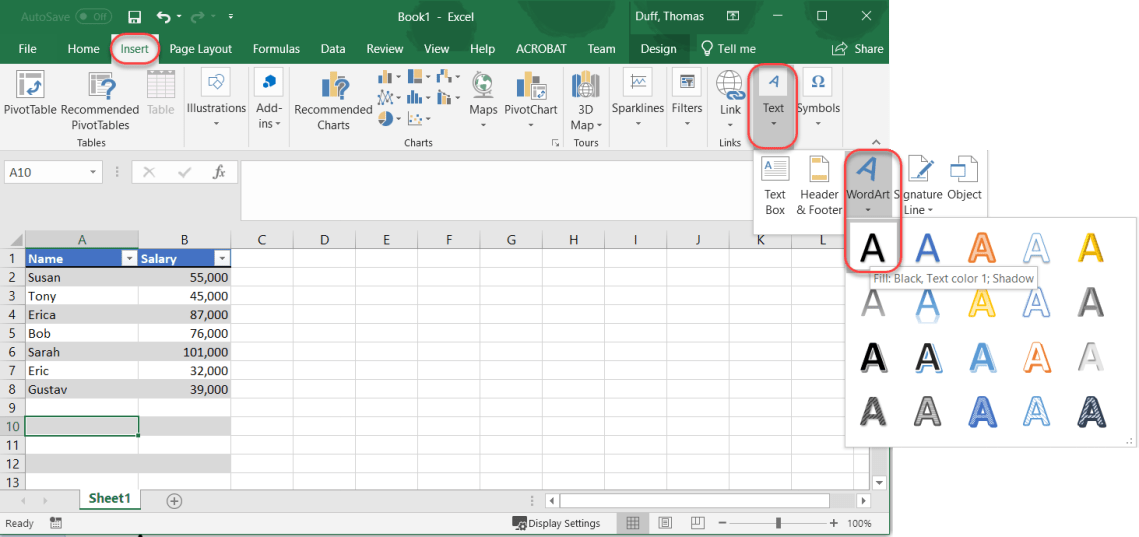
Here I have a spreadsheet of salaries, and I want a watermark that says “Confidential” on it. To start, I select Insert > Text > WordArt and choose the solid black font:
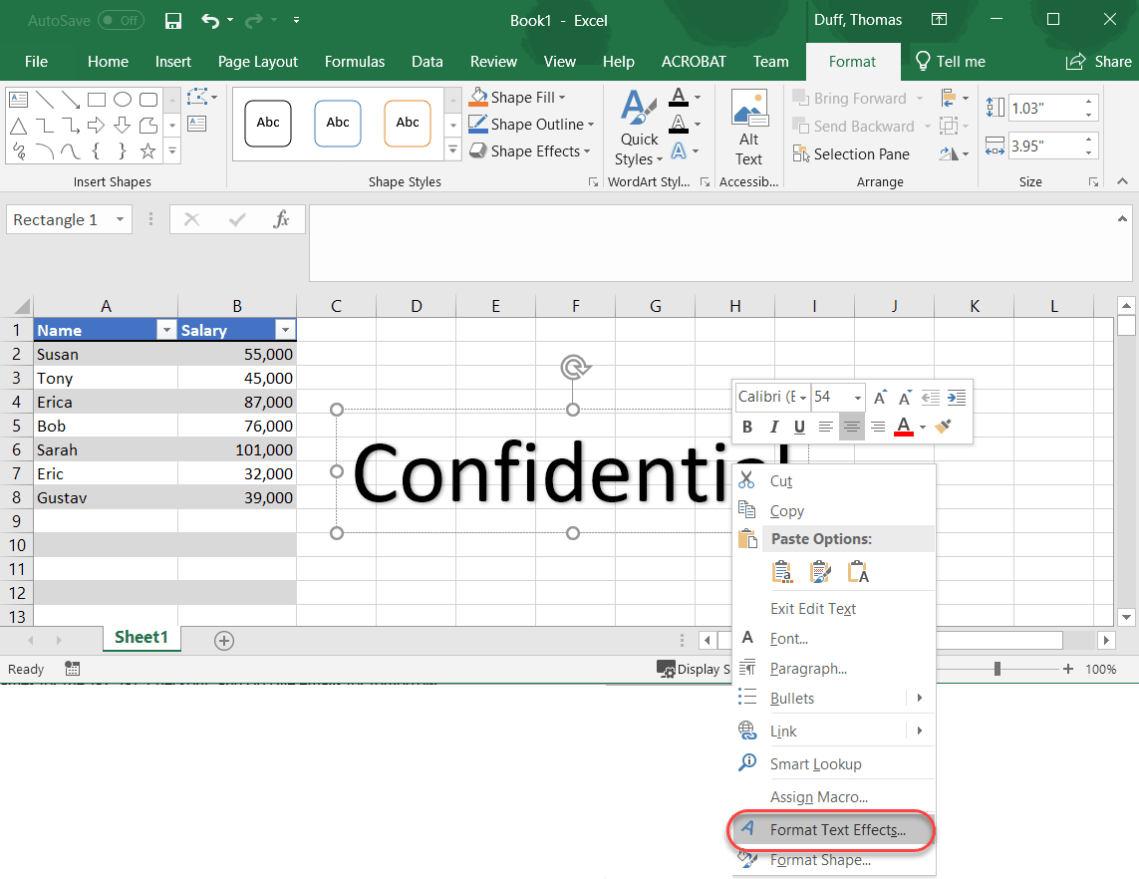
In the WordArt box that shows up, I type the word Confidential and right-click to get the Format Text Effects option:
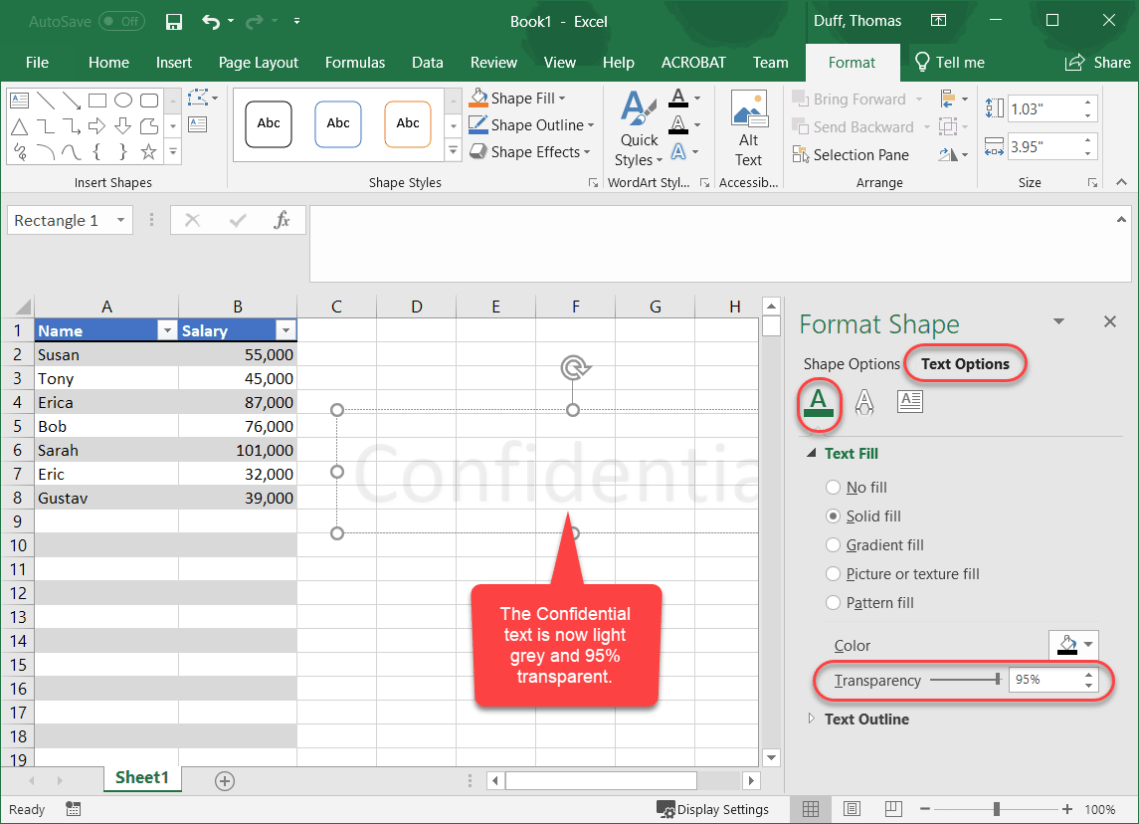
In the Format Shape panel, I select Text Options, the solid A icon, and set Transparency to 95%. That gives me a light grey look that is 95% transparent:
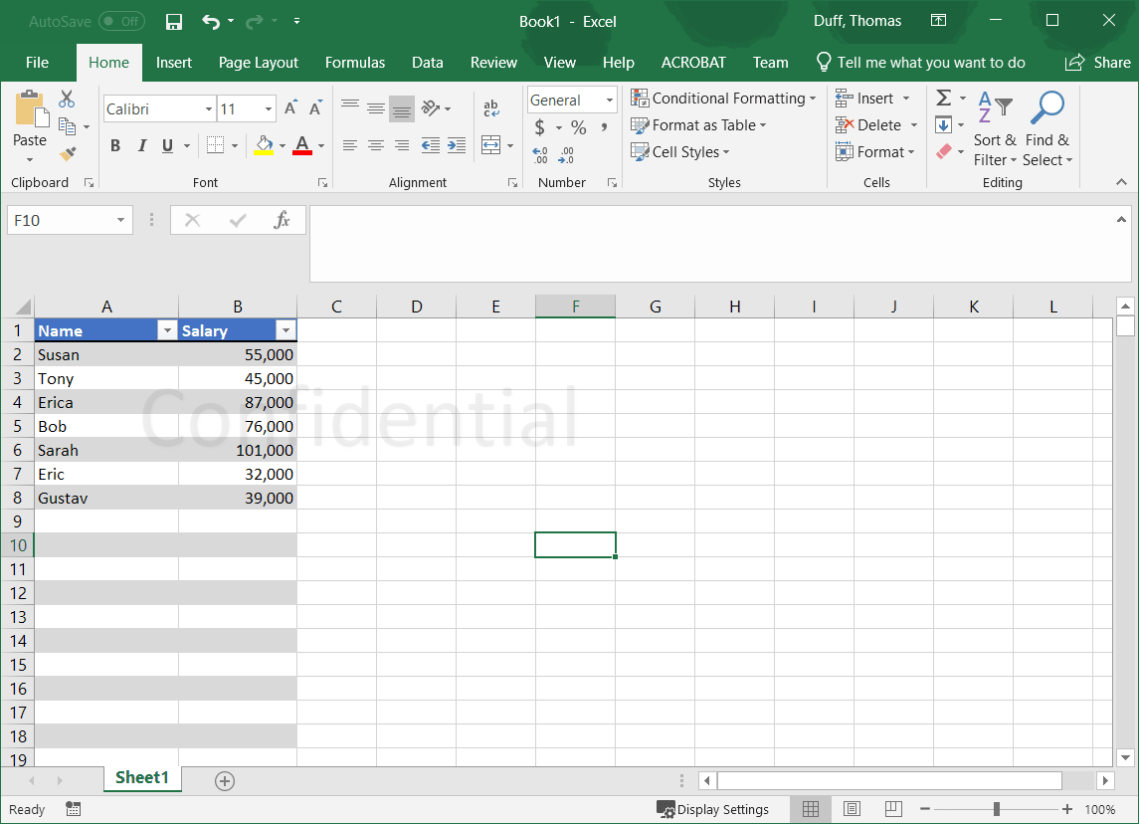
I can now reposition and resize the WordArt box to fit my spreadsheet, and I have a watermark!

 One Minute Office Magic
Greatt post thank you
LikeLike