Using the new Editorial Card web part on SharePoint pages

Microsoft has come out with a new SharePoint page web part that is rather interesting. It’s called an Editorial Card web part, and Microsoft describes it as “The SharePoint Editorial Card web part is a new feature designed to enhance content presentation on SharePoint pages and news. It allows for manual customization, enabling users to create visually appealing card-like containers tailored to specific needs.” Let’s dive in to see what it looks like and how it works…

Using the new Carousel option in the SharePoint page Hero web part

If you’ve been creating SharePoint pages for some time, you’re likely familiar with the Hero web part. It displays up to five tiles at the top of the page, and it allowed you to have the tiles laid out in a grid or layered down the page. Microsoft has added a new Carousel option for the Hero web part layout, and you might find it interesting to check out. Here’s how it works…

Changes to the Focal Point feature in SharePoint page banners

When you put an image in a SharePoint page banner, you have the ability to change the focal point of how the image is positioned. But you only see a narrow slice of the image, and you have to drag the focal point around without really seeing the full image content. The focal point feature has now changed, and you see the entire image when you’re selecting a focal point. That makes it a lot easier to get the effect you want, and here’s how that looks and works…

Using the Accessibility Assistant on SharePoint pages

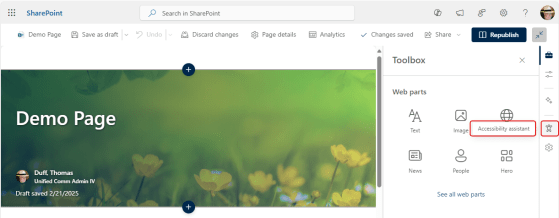
Making sure your SharePoint pages and content are accessible for the widest possible audience is important. However, few people are well-versed in accessibility guidelines and what to look for to make pages and content accessible to people who may have vision difficulties. Microsoft now has an Accessibility Assistant on SharePoint pages, and it makes the task of checking for accessibility issues much easier. Here’s how that works…

Pull Quotes on a SharePoint page

When you’re creating a SharePoint page with a moderate amount of text, you may want to have a particular line or two stand out for the reader. You can do this with Pull Quotes. When you’re formatting your text on a page, you can select from four different pull quote styles. Here’s how that works…

Removing the Header section from a SharePoint page

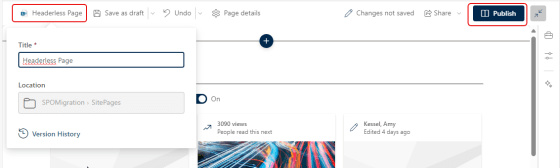
This is a good tip that Sandra sent my way today… Have you ever wanted to create a SharePoint page that didn’t have the normal page header at the top? It had been possible with using some hacks and workarounds, but now you can do it as part of editing your page in the browser. Here’s how that works…