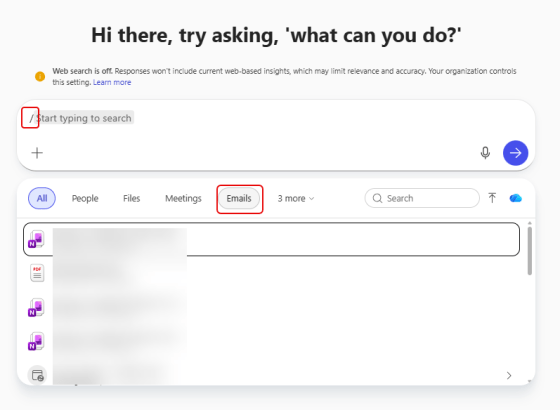
If you’re using Copilot Chat, you’re probably familiar with providing one or more files for grounding your prompt. You may not know that you can also ground your chat in emails. This means you can take an informational email and use it in your Copilot chat session for asking questions. Here’s how that looks…
Tag: Outlook
Using Copilot to create a meeting invite from an email thread
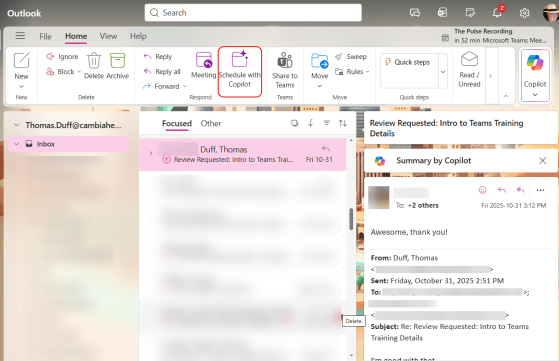
It’s not unusual to have a long email thread that is looking like a meeting needs to occur. But trying to find all the people, summarize the agenda, and find the best possible time can be a real chore. However, using the Schedule with Copilot feature in New Outlook/Outlook on the web can most of that work for you. Here’s how that works…
Custom Copilot Draft Instructions for New Outlook/Outlook on the web
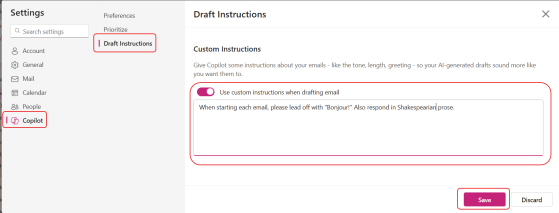
One of the best features of Copilot is that it can help you draft emails and replies based on custom instructions you provide Copilot in the New Outlook and/or Outlook on the web settings. Here’s how you can update those instructions and how it works…
Save a meeting invite as a draft in New Outlook and Outlook on the web
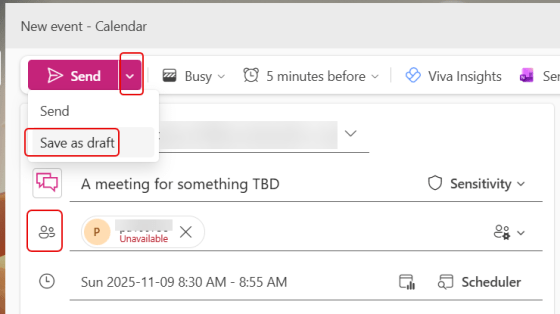
Have you ever needed to create a new meeting invite on your calendar, but you don’t quite have all the details yet? It’d be nice to be able to create a “draft” entry of that invite to flag it on your calendar so it doesn’t get overridden. Now you can! Here’s how that works…
Time zones in Outlook calendars (revisited)
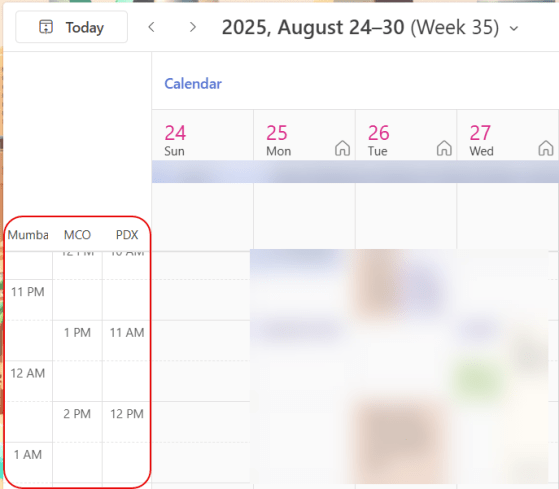
I did a tip on time zones in Outlook calendars back in 2022 when the feature first came out, but I wanted to revisit it given how certain work environments have changed. When you’re using the Outlook calendar (in the browser, New Outlook, or classic Outlook), you can show multiple time zones to the left of the time slots. While it’s easy to make one- or two-hour time zone shifts in your head, it’s a lot harder if your team is off-shore and scattered in different countries. Using this feature can be a lifesaver when it comes to knowing if and when to schedule a meeting for a certain time. Here’s how that works…
Turning on Smart Suggestions in Outlook in the browser
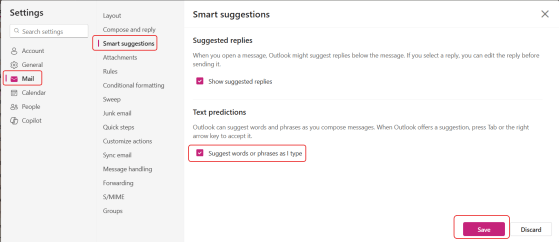
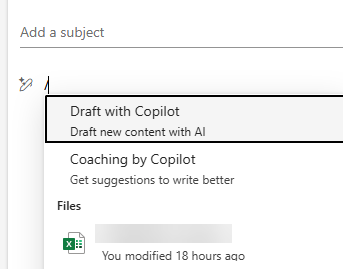
You may have noticed that starting around the first of July, Outlook (in the browser and New Outlook) stopped giving you type-ahead suggestions as you were typing. Looking into that, I found that Microsoft rolled out a change that turned that feature off, even if you already had it turned on. The reasoning was to “improve user control and reduce unintended suggestions.” Unfortunately, I personally liked it. Here’s how to turn it back on so that the text predictions show up again…
Adding Outlook Folders to your Favorites area
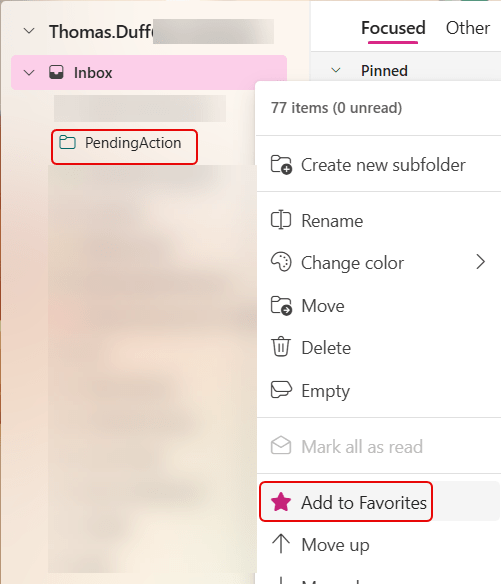
In Outlook, you likely have a number of folders that you use frequently. However, they might be buried somewhere in your navigation structure, and it takes some hunting to find them. You might want to consider flagging those folders as Favorites so they end up at the top of your navigation area. Here’s how that works…
Editing recurring events in Outlook with “This and all following events”
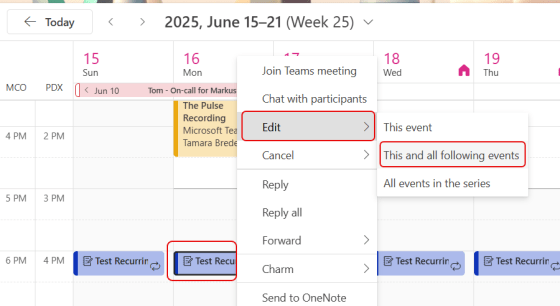
Recurring events in Outlook are great, until you have to edit them. All too often, you wanted to make a change to events going forward from a particular date, but Outlook forced you to also change all past events also, destroying any history of what you might have done at a particular time. Now you have the option to use the This and all following events option when editing recurring events. That preserves your past event history. This is how that looks…
Past calendar event color changes for Outlook on the web
So… this isn’t an earth-shattering change, but It’s sort of interesting. Sandra noticed yesterday that when viewing the Outlook calendar on Outlook on the web, meetings that were before the current date and time now appear in a lighter color gradient than current/future meetings. Here’s what that looks like…