If you get a phone call in Microsoft Teams and you use the default system greeting, there’s a recent change that gives you a bit more confidentiality for external callers. Here’s what’s going on…

Learning new Microsoft Office tricks in "just a minute"
If you get a phone call in Microsoft Teams and you use the default system greeting, there’s a recent change that gives you a bit more confidentiality for external callers. Here’s what’s going on…
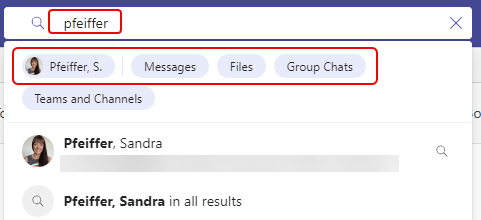
Microsoft Teams recently updated the Search feature when it comes to finding content related to specific people. You can now filter based on specific types of results instead of having to wade through everything. Here’s what that looks like…

In Microsoft Teams, everyone loves their emojis and reactions. But in terms of “skin tone”, you were pretty much stuck with yellow. Now, you can set a skin tone for the hand gestures and people emojis that is more representative of who you are. Here’s how that works…
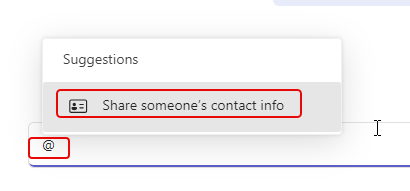
Imagine you’re in a group chat in Microsoft Teams, and you want to share some contact information for a person who is not in the chat. What’s the easiest way to do that? Use the Share someone’s contact info feature in Microsoft Teams. Here’s how that works…

Have you ever found yourself part of a Microsoft Teams post where you keep getting notified when someone replies in the post, and you really don’t want to be bothered to get any more notifications on just that one post? Now you can turn off (or back on) notifications in an individual post in Teams. Here’s how that works…

If you’ve been around Microsoft Teams for any length of time, you’ve probably heard (or made) the request to be able to change the name of the General channel to something more descriptive or useful. While you’ve been able to change channel names on other channels, the General channel has always been locked down… until now! It’s now possible to change the name of the General channel to something that better suits your needs. Here’s how that works…
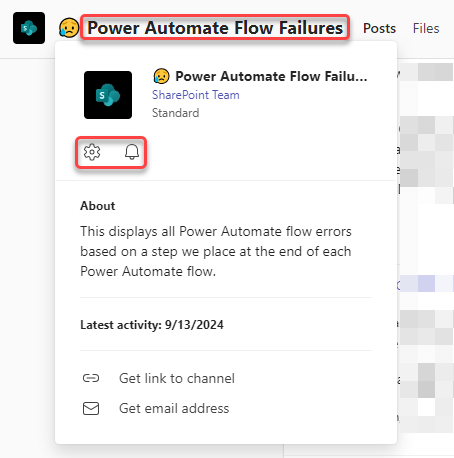
Here’s a nice new feature in Microsoft Teams… you can hover over the name of a channel and a channel card will pop up with useful information about the channel. Here’s how that works…
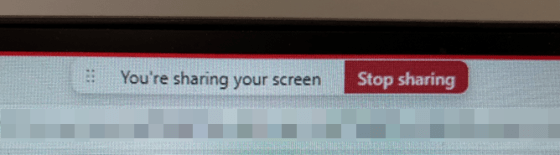
Ever since the advent of New Teams, there’s been complaints about the Screen Sharing Bar and where it appears when you’re sharing your screen in Microsoft Teams. You’d go to click on part of your screen that occupied the same area as the bar, and the bar would appear. There was not an easy way to reposition the bar so you could access whatever occupied the same space. Now you can move that bar around, and it’s SO much easier to work with. Here’s how that works… and please forgive the quality of the screen “captures”… my screen capture tool wouldn’t capture the bar, so I had to use my cell phone… 🙂
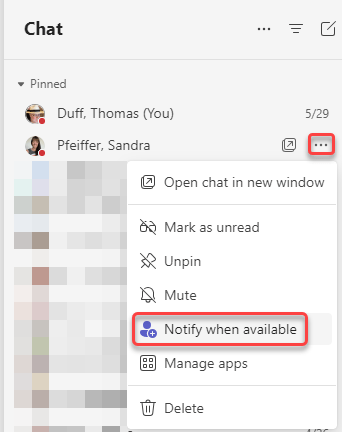
One of the things that people really missed when we moved to New Teams was the ability to get a notification when someone’s status went from Offline to Available. When the Contacts in Teams went away, so did that functionality… but now it’s back! 🙂 You can now set notifications in Teams in two different ways. Here’s how that looks and works…

