If you’re part of a group chat in Microsoft Teams, you’ll notice that the icon for that chat is a mix of three profile pictures of the group participants. But it would be nice if you could change that icon to be more representative of the group… or perhaps just more fun. Well, now you *can* change that picture, and here’s how you can do it…
Category: Microsoft Teams
Archiving channels in Microsoft Teams
If your Microsoft Teams space has a number of channels, you may have wished for a way to archive one or more of those channels without physically deleting them permanently. Now you can! Each channel in a Teams space has an archive option. Here’s what it looks like and how it works…
Using combined emojis, GIFs, and stickers in Microsoft Teams
It used to be that Microsoft Teams had separate icons for adding emojis, GIFs, and stickers to your chats and conversations. But now those three features have been combined into a single icon to select them. Here’s what that looks like and how it works…
Retaining Microsoft Teams meeting recordings longer than the auto-expiration time frame
In Microsoft Teams, there is a policy setting that controls the auto-expiration of Teams meeting recordings. Microsoft has stated that over 99% of videos are never viewed after 60 days, and they take up storage that you pay for as an organization. However, there are videos that you may need to retain for various purposes, such as training classes. Here’s how you can change the retention period for a Teams meeting after the recording has been processed.
Turning off Activity Feed calendar alerts in Microsoft Teams
In the new Microsoft Teams, there’s a feature to have any calendar invites, updates, and cancellations show up in your Activity Feed. However, you might find that it adds a lot of clutter to your feed, making it harder to find the things that are more important. Here’s a way to shut down those calendar notifications so that your Activity Feed won’t get those posts…
Hiding the screen sharing bar in Microsoft Teams
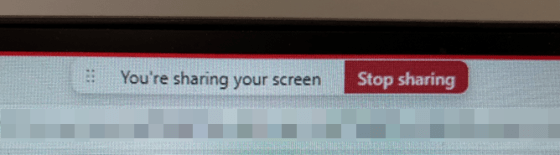
In the new version of Microsoft Teams, you’ll see a new screen sharing bar across the top of your screen letting you know that… you’re sharing your screen. It also comes with a Stop sharing button. However, it’s not uncommon that you need to access something underneath that screen sharing bar, and there’s no way to move it around the screen to display what’s underneath it. Here’s a quick workaround to hide that bar and still be able to stop sharing your screen when you’re done…
Forwarding chat messages in new Microsoft Teams
Have you ever been part of a one-on-one or group chat in Teams, and there’s a particular message that you’d like to forward to another group/one-on-one chat/channel? Now you can with the Forward feature in the new Microsoft Teams. Here’s how that works…
Using Portrait Blur in new Microsoft Teams
I generally use the Blur feature when I’m using my camera on a new Teams call, as I don’t think people want to see the junk on top of my dressers. But the regular Blur is pretty blocky and doesn’t always look great. There’s now a more refined version of Blur called Portrait Blur, and I like it much better. Here’s how it works and looks…