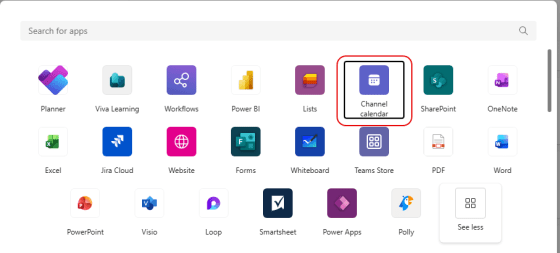
Microsoft has a calendar feature in Teams that is often overlooked. It’s called a Channel Calendar, and it allows you to set up a calendar that is specific to a channel in a Teams workspace. Here’s how that works…
Learning new Microsoft Office tricks in "just a minute"
Microsoft has a calendar feature in Teams that is often overlooked. It’s called a Channel Calendar, and it allows you to set up a calendar that is specific to a channel in a Teams workspace. Here’s how that works…
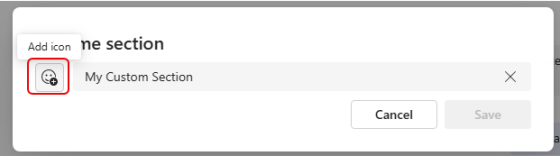
If you use custom sections in your Microsoft Teams client, it can get a little difficult to quickly pick out which custom section name you’re looking for. Now it’s a bit easier, as you can use emojis in those names. Here’s how that looks…
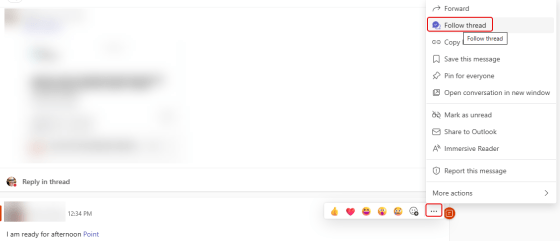
In Microsoft Teams, you will see a Followed Threads option in the Activity pane. This automatically shows you any Teams conversations you’re part of when looking at the Teams option. But you can also use that to follow threads where you’re not explicitly mentioned. Here’s how that works…
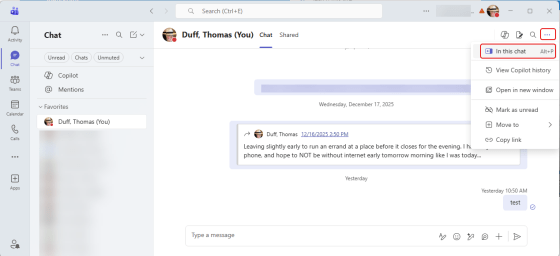
Have you ever been in Microsoft Teams looking for something that you know you chatted with a colleague about, and you’re having a hard time scrolling through all the chat content to find that particular file or link? If you use the chat pop-out icon in a Teams chat, you’ll have a much easier time finding what you’re looking for. Here’s how that works…

While you’ve been able to forward messages from Microsoft Teams for some time, there was always a problem in trying to get the context of the message. All you saw was the forwarded message and that was it. Now when you forward a message, the recipient also gets a link to the message so that you can see the surrounding context. Here’s how that works…
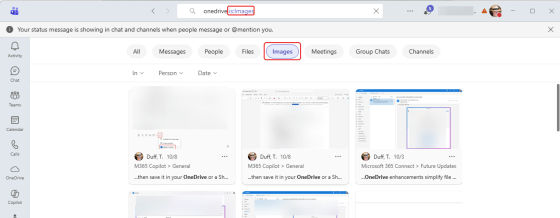
You’re probably used to using the search feature in Microsoft Teams to find words and such in various chats and channels. But now you can also search for images. Here’s what that looks like…
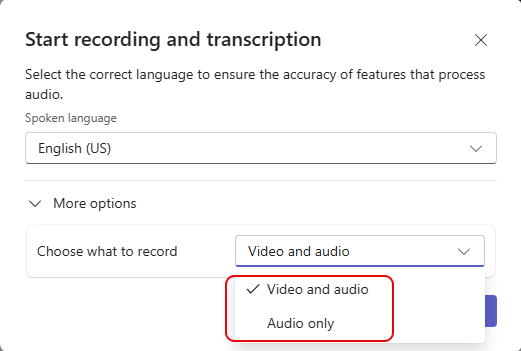
When you think of “recording a meeting” in Microsoft Teams, you normally envision recording both video and audio. But what if you’re sharing content during the meeting where you don’t want to have data shared via screen share to be part of the recording? Now you can choose to record Video and audio or just Audio only. Here’s how that looks…
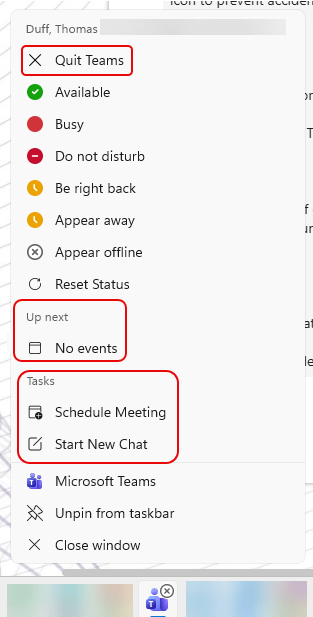
If you’re a Windows user, you are probably aware that you can right-click on an application icon in the Windows Task bar to see shortcuts to various options for that particular application. The Microsoft Teams desktop application has had some changes to the jump list that might save you some time. Here’s what it now looks like…
 One Minute Office Magic