Scheduling a meeting from an email thread in Copilot

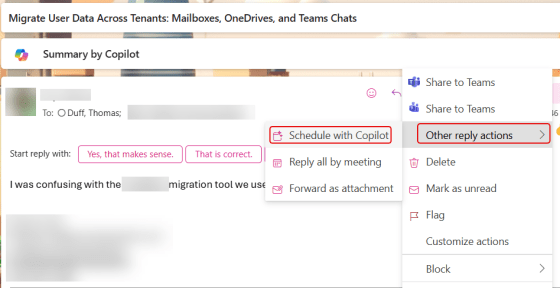
One thing I really dislike doing is trying to turn a lengthy email thread into a meeting. You have to find all the people who were involved in the thread, try to find a time that works for *most* of the people, try to somehow come up with a summary and agent… But with Copilot, you can let it do most of the heavy lifting for you, turning email threads into cohesive meetings with little effort. Here’s how that works…

GPT-5 is now the default model for Microsoft Copilot

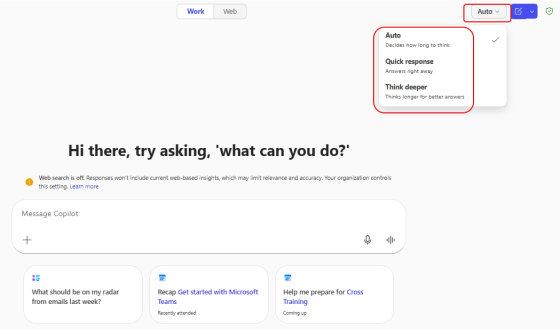
For the last few months, when you are in Copilot Chat you’ve been asked if you want to try the GPT-5 model for your Copilot interactions. When you clicked the button, Copilot would look at your question and decide whether a quick response or a reasoning response would be best. Now you have the ability to expressly determine which type of interaction you want. Here’s what that looks like…

Using email to ground a Copilot chat

If you’re using Copilot Chat, you’re probably familiar with providing one or more files for grounding your prompt. You may not know that you can also ground your chat in emails. This means you can take an informational email and use it in your Copilot chat session for asking questions. Here’s how that looks…

Getting Audio Recaps from Microsoft Teams meetings

With everyone’s busy schedules, it’s not unusual to have to miss meetings where you are double- (or TRIPLE-) booked. Then you need to try to find time to listen to the recording, sometimes at double-speed to save time. Now if you have Copilot, you can use the Audio Recap feature to get a concise synopsis of the meeting in a fraction of the time. This is how it looks and works…

Opening your Copilot prompt output in Microsoft Word

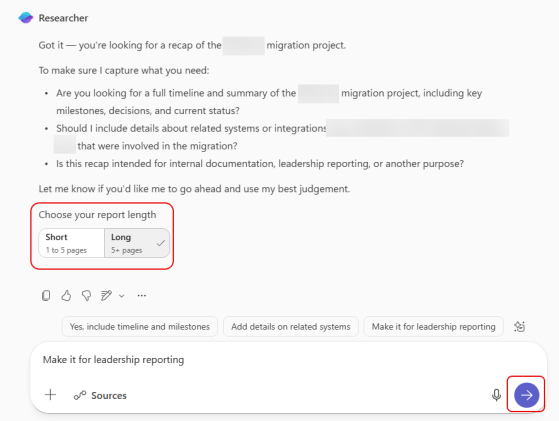
When you’re using agents like Researcher in Microsoft Copilot, you can end up with a LOT of output… pages of it. It’s likely that you’ll want to put that into a file like a Word document, but just doing copy and paste may lose some of the formatting and fidelity. An easy way to get that into Word is to use the Open In Word option. Here’s what that looks like…

Providing reference images when asking Copilot for an image

When you’re on the Copilot home page, you can prompt it to give you an image that you can use for your project or page. But as with all prompts, you may not give it enough context or information to get what you want. One way to fix that is to provide a reference image in your prompt. Here’s what that looks like…

Getting a document summary in web-based Microsoft Word

If you are looking at a large document in the browser-based version of Microsoft Word, you might feel a bit overwhelmed when it comes to getting an overall understanding of what it contains. Copilot can help with a Summary at the top of the document, along with a variety of options to tailor your overview to what you need. Here’s what that looks like…