This is a classic tip that I had someone ask me about this last week. They wanted to be able to have files in their SharePoint site open in client applications instead of the browser. I was able to show them how to make a change to the Document Library settings to make that happen. Here’s how that works…
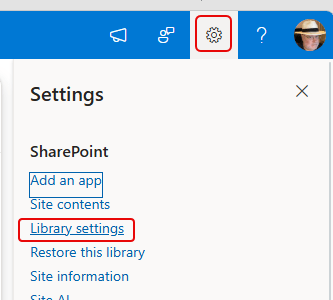
In the Document Library of the SharePoint site, click on the Settings icon and then click on Library settings:
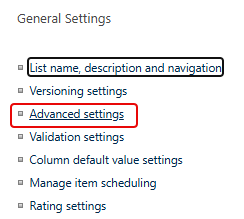
Once you get to General Settings, click on Advanced settings:
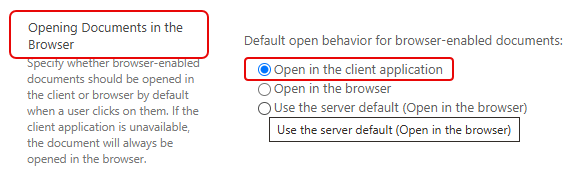
Scroll down to the setting for Opening Documents in the Browser. By default, the option for Use the server default (Open in the browser) will be selected. Change the selection to Open in the client application, and then scroll to the bottom of the sessions to click OK to save the change:
From this point forward, all the files in that document library will open in the client application. PLEASE NOTE: This setting affects ALL users who use that library. This option is not one that can be set differently for different people. Make sure that before you change the setting, all the people who might be using the library are OK with the new behavior.

 One Minute Office Magic