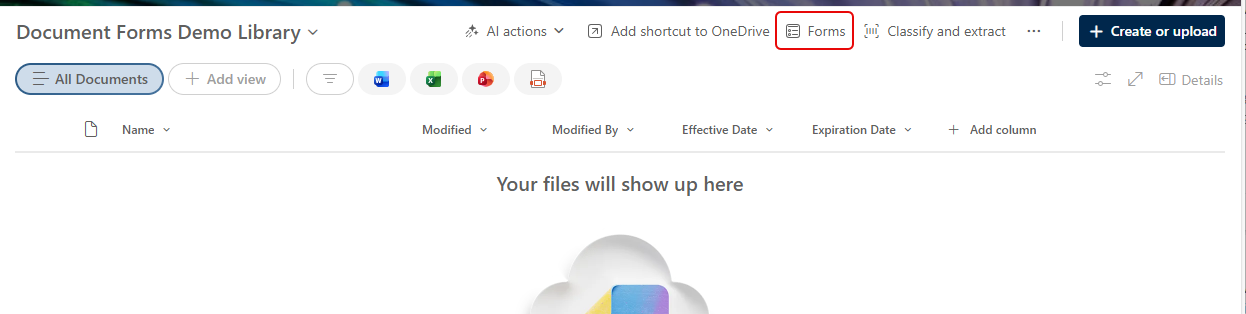
You may be used to using the Forms feature in a SharePoint list as a quick way to gather initial information for a list item. Now, you can use that same feature to collect a file and associated metadata in a SharePoint document library. This is a great way to make sure people enter the associated metadata for a file without having to take extra steps. Here’s how that works…
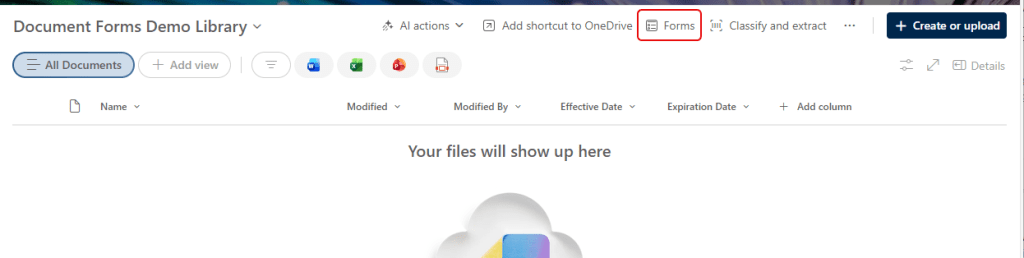
Here I have a document library where I want to use the Forms feature to collect data. To start the Forms creation, click on the Forms option:
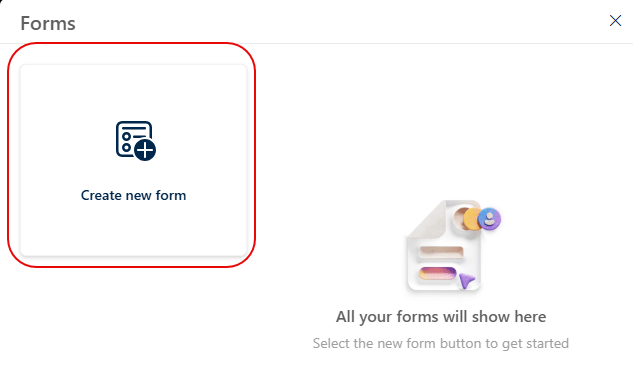
Click on Create new form to start a new Form, or click on an existing form to modify one:
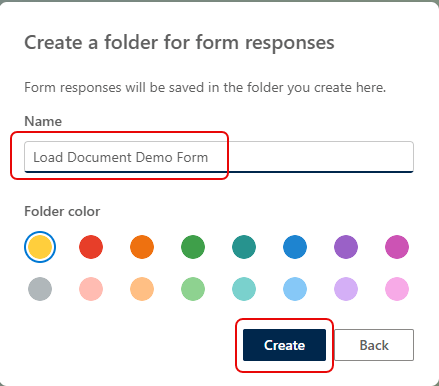
Indicate which document library folder you want the data to go to. Please note that you have to specify a folder… you cannot have it go to the document library without a folder:
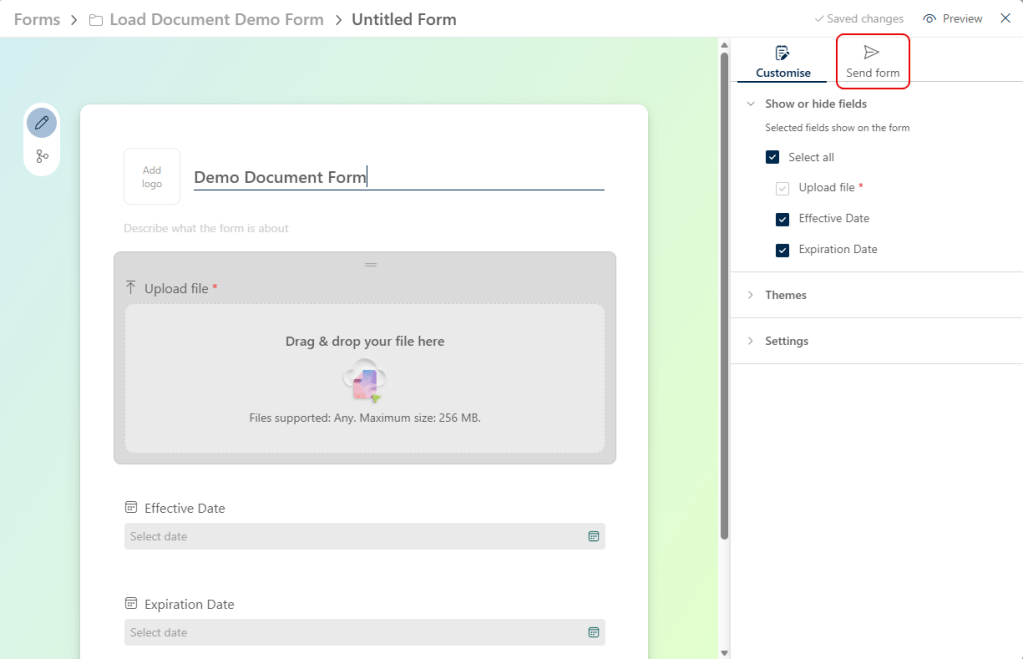
Here’s the initial Form that is created for you. Fill in the title of the form and alter any of the metadata fields you might have in the document library. It will automatically be saved when you update the form. To allow someone to use this Form to enter data you will have to send them the URL of the Form. Click on Send form:
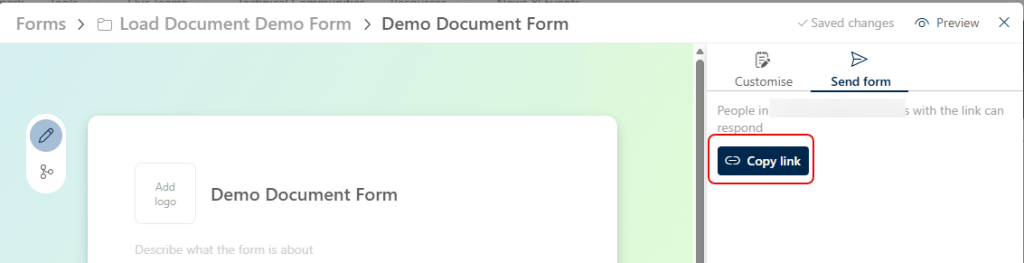
Click on Copy link to get the URL of the Form. You can put this on a SharePoint page, send in an email, post in a Teams chat, or any other option you might want:
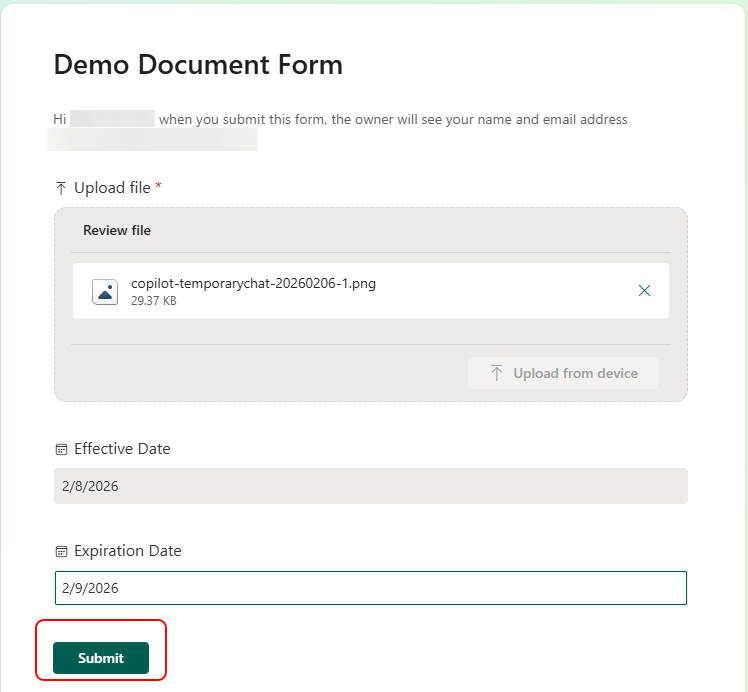
When you click the link, you’ll see the Form for entering data. You select the file and fill in the metadata fields. Once the form is completed, click Submit:
When you look at the document library, you’ll see the newly entered item in the folder you selected:

If you haven’t used Forms before in a SharePoint list, there are some caveats you should be aware of:
- Storing files at the library root is not supported.
- You can have multiple Forms to have data loaded into different folders if needed.
- Each Form will have a different URL.
- The Form is only used for data entry. You will not see that Form if you open the file in the document library.
- Anyone in the organization should be able to use the link to enter data, even without access to the document library.
- Submitters cannot edit or view their submission unless they already have access to the library.
- External or guest sharing of Forms is not supported.
- Document library forms respect existing sharing settings. If a site or library is configured to disallow shareable links to the organization, the Forms feature will not be available on that library (similar to Microsoft Lists forms).

 One Minute Office Magic