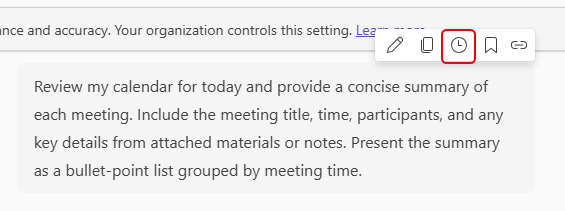
It’s not uncommon to have prompts that you run reach morning (or at other parts of your day) to gather information that you will need for various events. Instead of triggering each of those prompts manually, you can schedule those prompts to run at a set time every day (with a few caveats). Here’s what that looks like…
To schedule a prompt, find where you last used it and hover over it. That will show a pop-up menu bar. Click the Schedule icon:
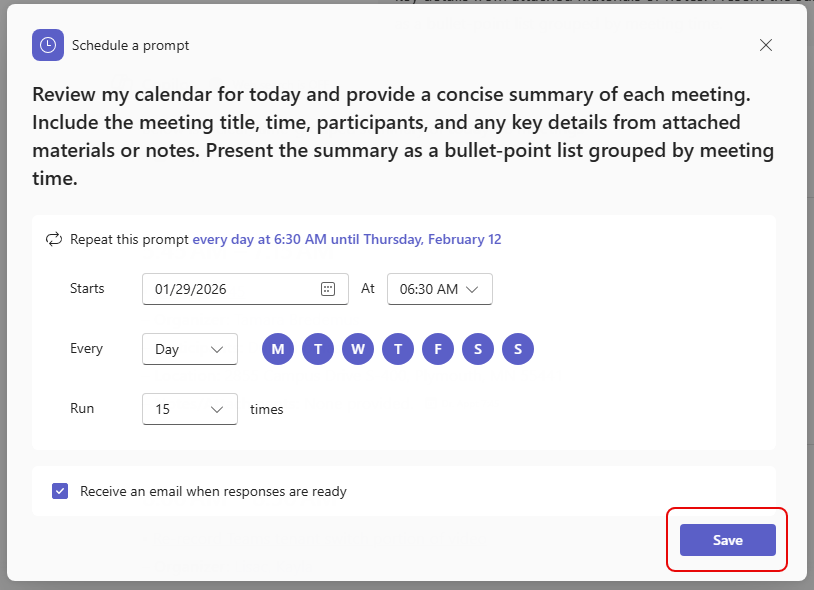
The scheduling panel allows you to set the start date and time, the frequency of the schedule, and how many times you want to run it (maximum of 15 times). You can also have it notify you via email when the prompt finishes. Once you’ve made all your selections, click Save:
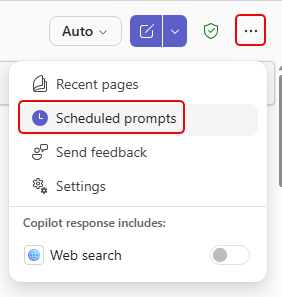
If you want to see what scheduled prompts you have, click on the Settings ellipsis on the Copilot page and select Scheduled prompts:
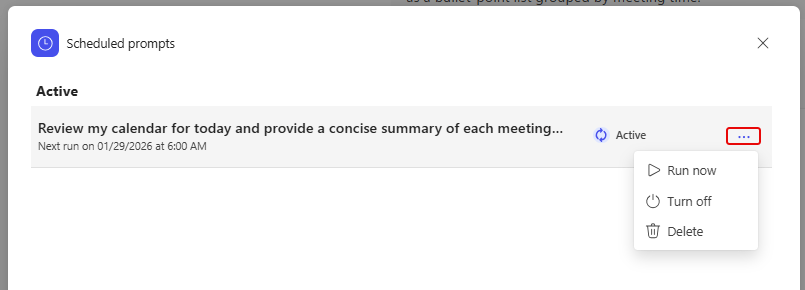
This will show you the status of all your scheduled prompts, along with the ability to run it immediately, turn it off, or delete it:
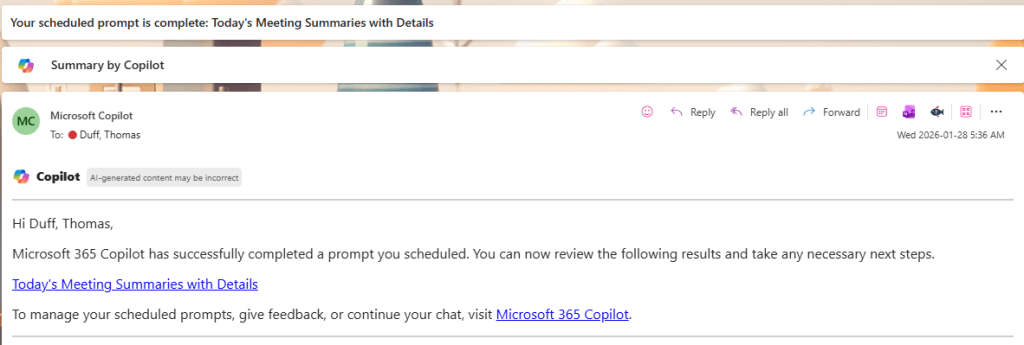
Here is a sample of the email I received when my scheduled prompt finished:
Now for the caveats… As you saw, you can only have 15 iterations of a scheduled prompt before it stops running. I understand that they don’t want people running endless scheduled prompts that they no longer need, but it’s not easy to remember to reschedule the prompt every 15 cycles. However, there is a scheduled update due out shortly that will enable you to edit the schedule once you submit the prompt (instead of having to create a new one). I hope that will allow you to also reset the cycle count.

 One Minute Office Magic