
One of the best features of Copilot is that it can help you draft emails and replies based on custom instructions you provide Copilot in the New Outlook and/or Outlook on the web settings. Here’s how you can update those instructions and how it works…
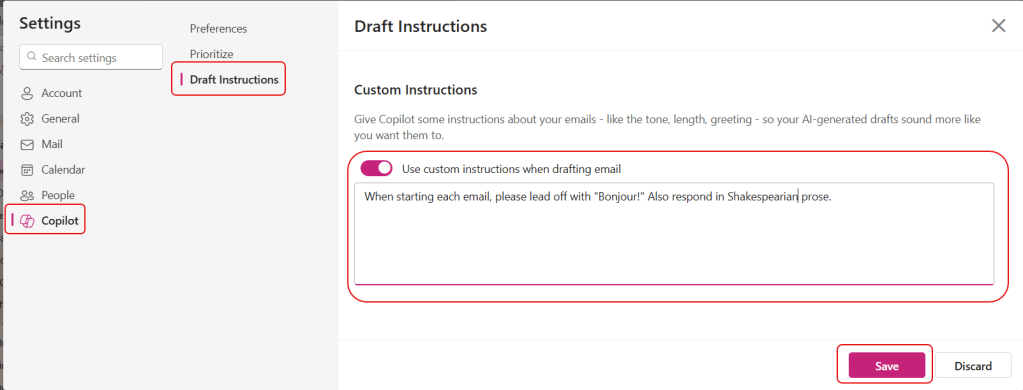
In the Outlook Settings, go to Copilot > Draft Instructions. Under Custom Instructions, add whatever instructions you would like Copilot to use when creating draft emails or replies. I used something a bit outlandish so it would be obvious as to whether Copilot used the instructions:
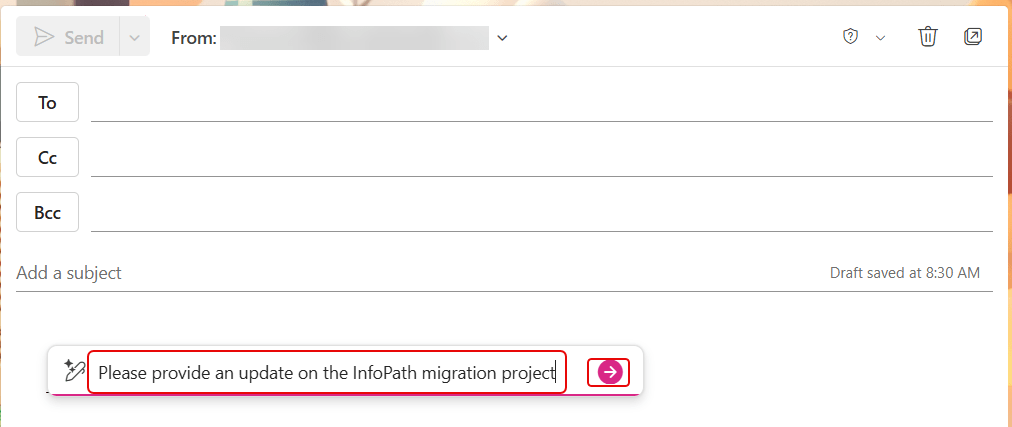
In a new email, I asked Copilot to ask for an update on our InfoPath migration project:
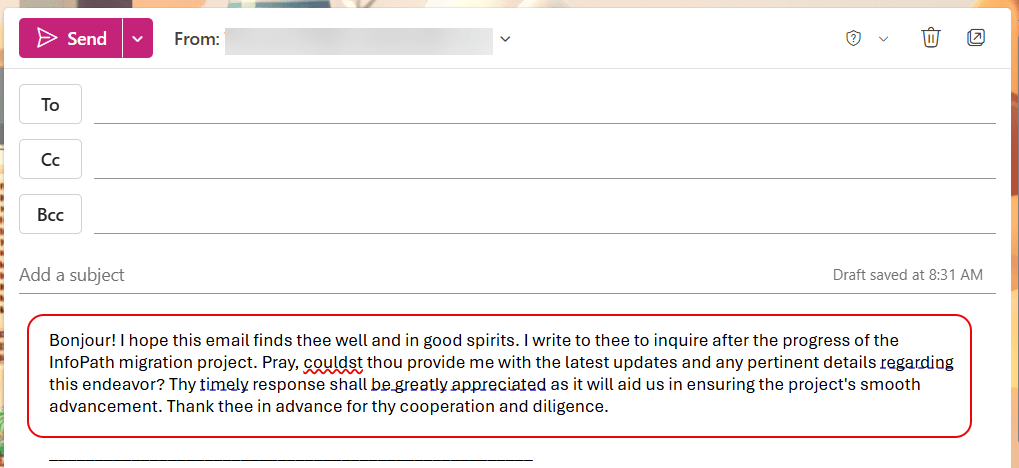
And here is what Copilot generated… it started off with the word “Bonjour!”, and then generated the text based on Shakspearian prose:
Obviously, you’ll be using instructions based on what type of tone you’re after, how to start and end the emails, and other criteria. But this feature is perfect for giving your Copilot content a voice that matches how you normally work.

 One Minute Office Magic