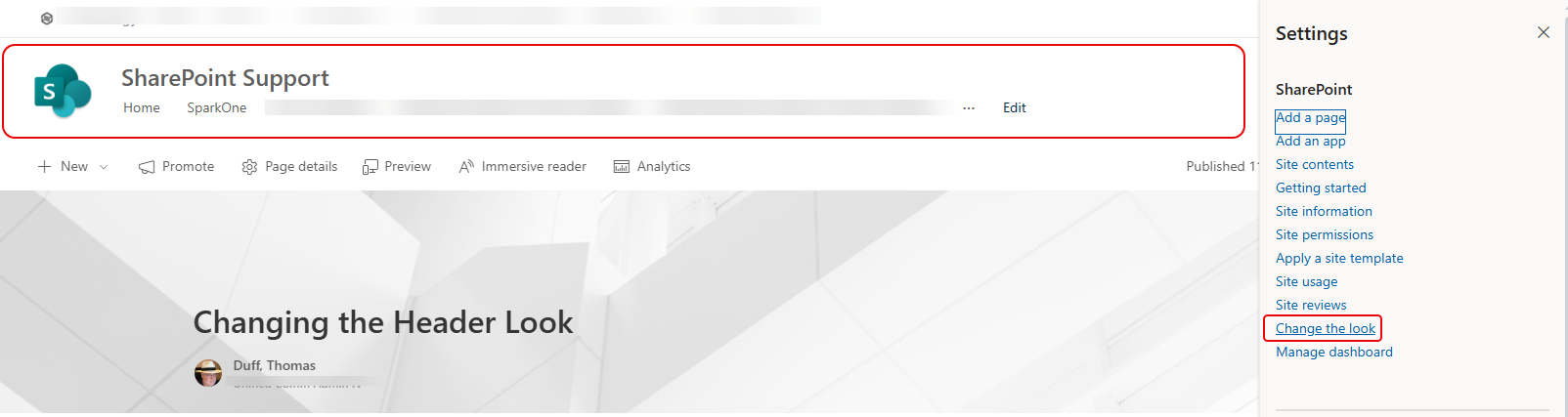
Out of the box, the header on your SharePoint site pages are pretty plain. But there is a way that you can add some flair to it, especially if you want to make it stand out or apply a bit of theming. You do this using the Change the look option. This is now it works…
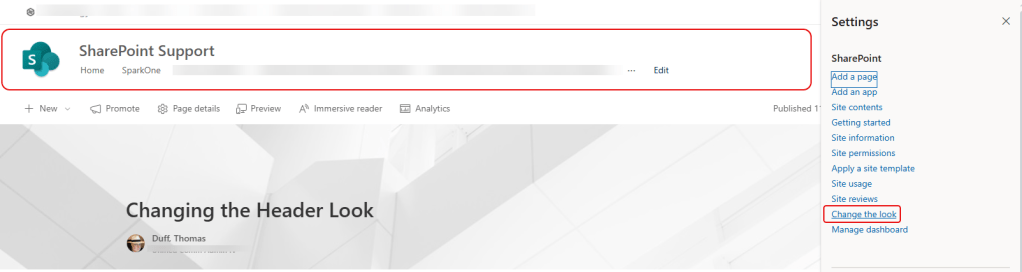
Here’s the default header on one of my SharePoint sites. When in one of the pages, I go into the SharePoint Settings and select Change the look:
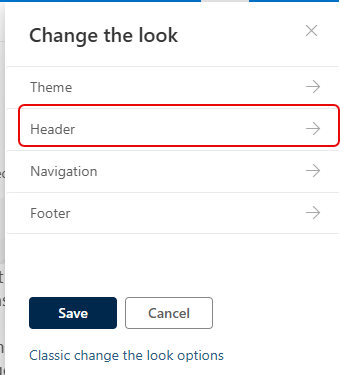
In the Change the look panel, I select Header:
In the Design tab, I have the option to Change image. When I click that, I get the standard options to pick images:
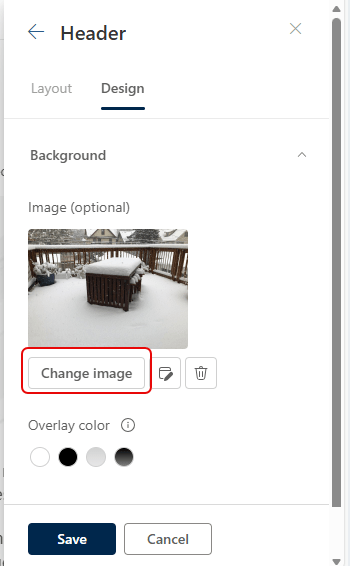
In this case, I selected an image that had some interesting visual appeal. As you can see, it takes a sliver of that image and applies it to the site header. I can also play with the Overlay color and Overlay opacity to make the header lighter or darker. Once I get it the way I want, I click Save:
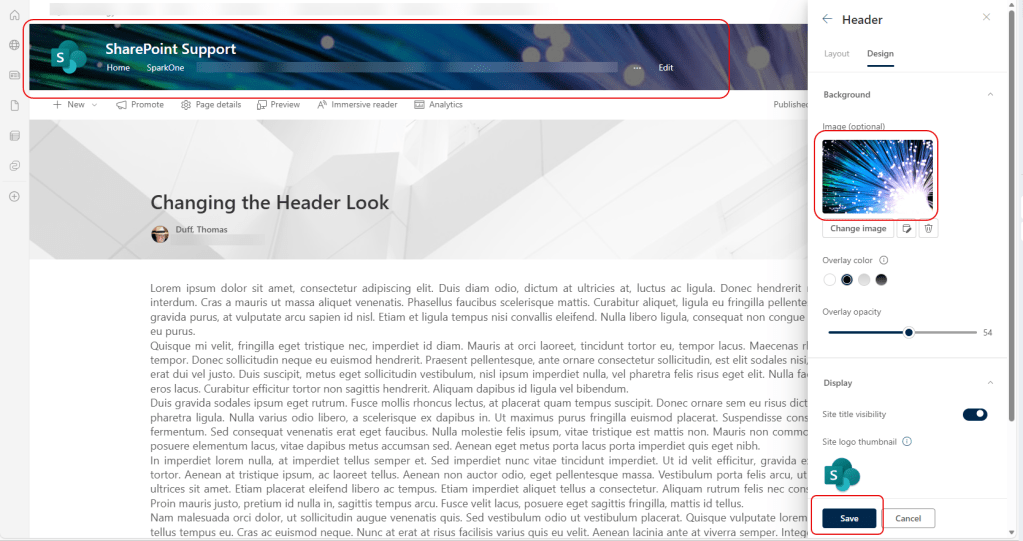
Now the header of my SharePoint site stands out:

Just make sure you test out your image against any of the menu options that show up in the header. Based on the image, the text might be somewhat difficult to see.

 One Minute Office Magic