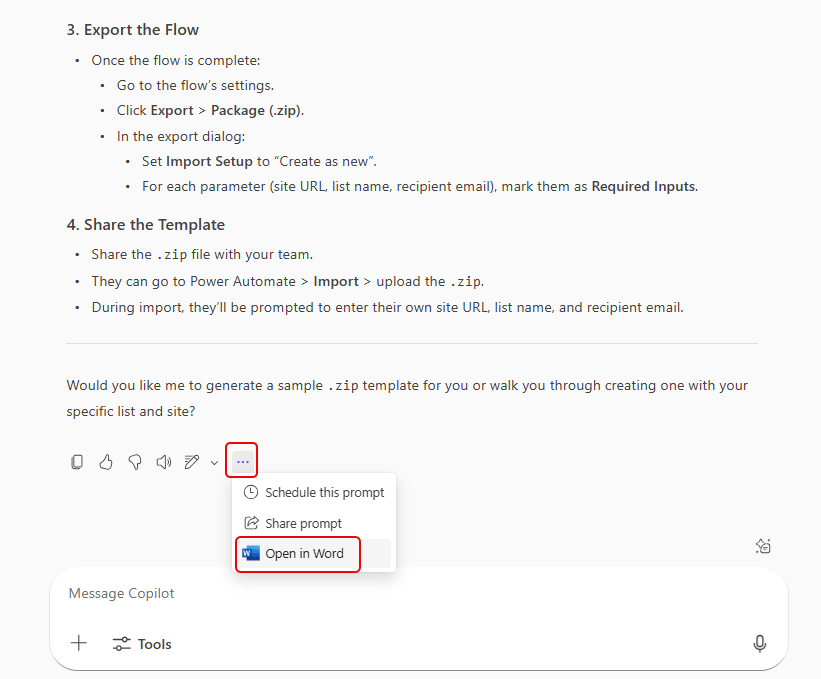
When you’re using agents like Researcher in Microsoft Copilot, you can end up with a LOT of output… pages of it. It’s likely that you’ll want to put that into a file like a Word document, but just doing copy and paste may lose some of the formatting and fidelity. An easy way to get that into Word is to use the Open In Word option. Here’s what that looks like…
In this example, I had prompt output related to building a Power Automate workflow. When I go to the bottom of the output, I can click on the ellipsis and select Open in Word:
All the output from that prompt goes into a Word document, maintaining all the formatting, footnote links, and everything else:
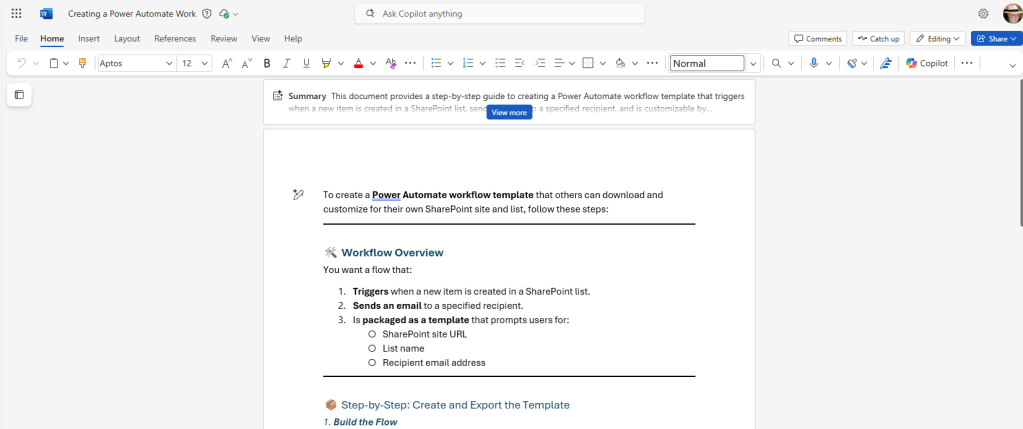
You can then save it in your OneDrive or a SharePoint document library. This can be a great way to start building out a guide or documentation on how to accomplish a task.

 One Minute Office Magic