You may have noticed that starting around the first of July, Outlook (in the browser and New Outlook) stopped giving you type-ahead suggestions as you were typing. Looking into that, I found that Microsoft rolled out a change that turned that feature off, even if you already had it turned on. The reasoning was to “improve user control and reduce unintended suggestions.” Unfortunately, I personally liked it. Here’s how to turn it back on so that the text predictions show up again…
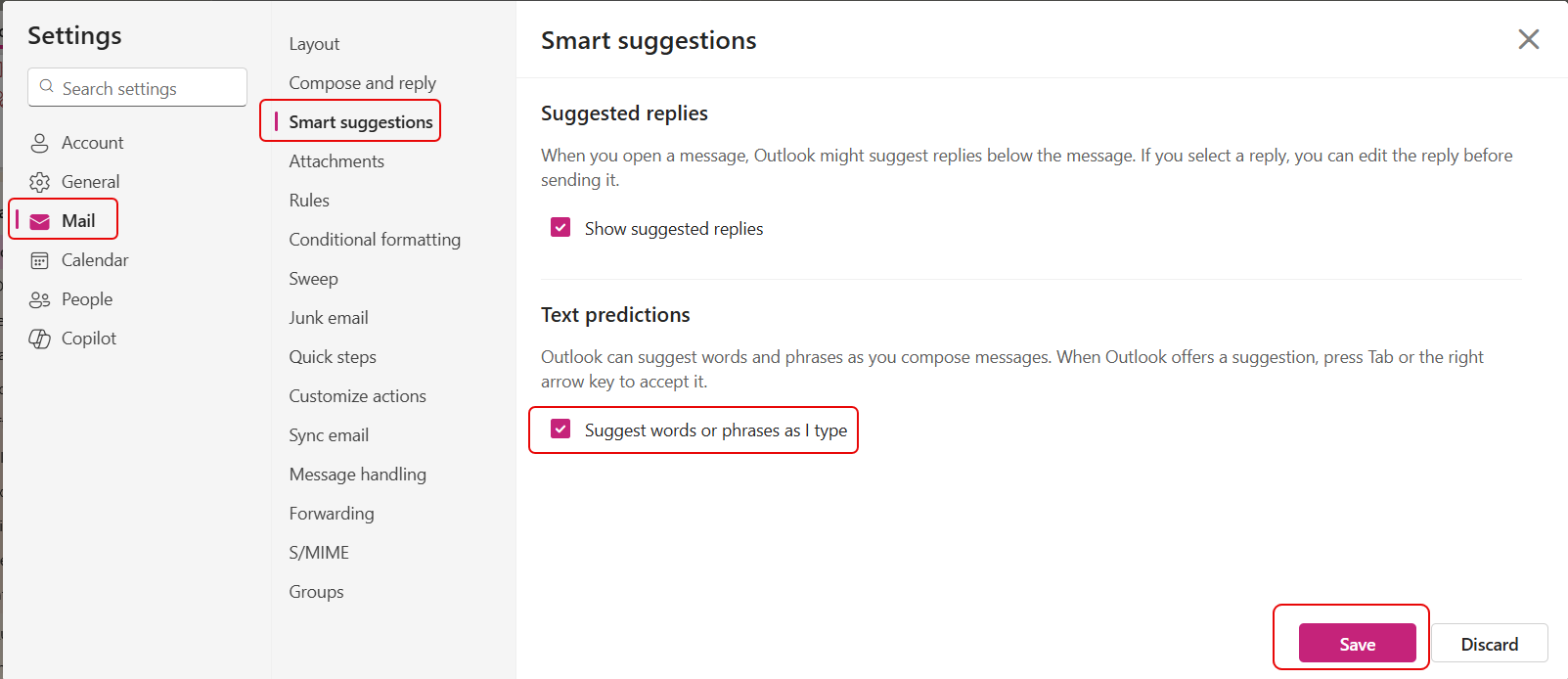
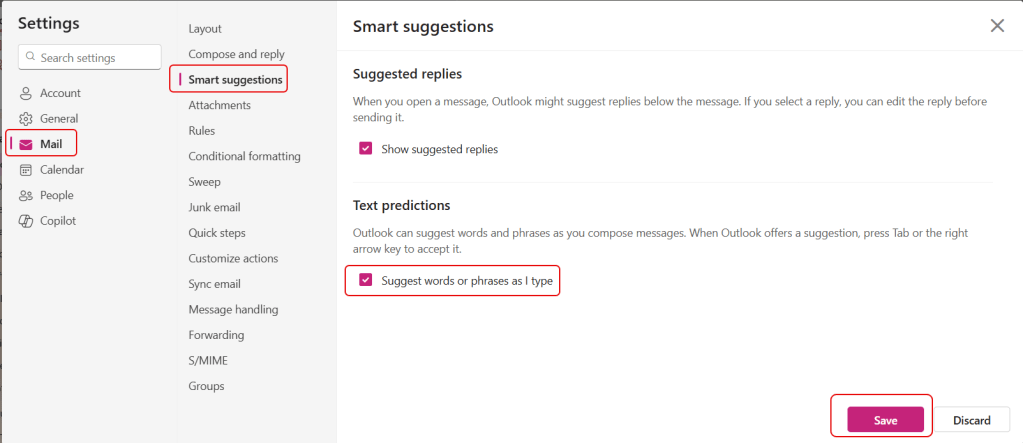
To get to the option, go to Settings > Mail > Smart suggestions, and then select the option for Suggest words or phrases as I type. Then click Save:
You may have to close and restart Outlook at this point to get the option to take effect. Now when I type, I see suggestions that I can use by pressing the Tab key:


 One Minute Office Magic