As a regular user of Copilot, you may have certain prompts that you run every day, such as “summarize my inbox” or “review my calendar”. You can save those prompts and run them manually, but now you have an additional option… setting them up as a scheduled prompt. Here’s what that looks like and how it works…
Go out to your Copilot Chat home page and enter the prompt that you want to run. Go ahead and manually kick it off:

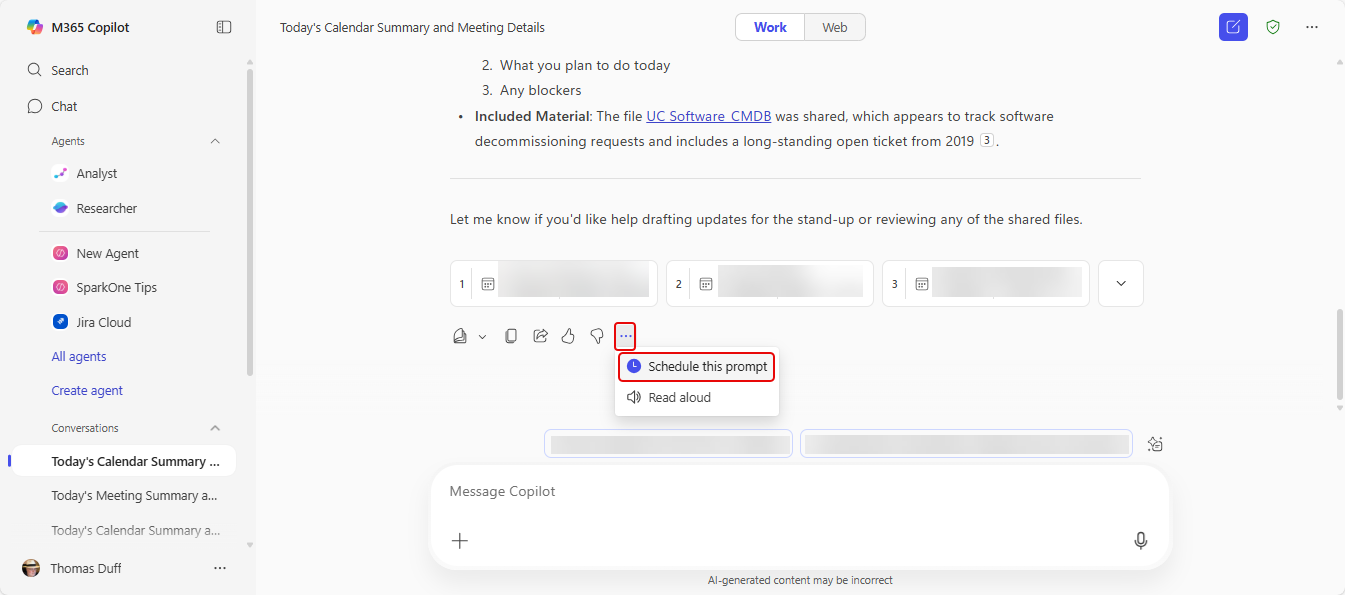
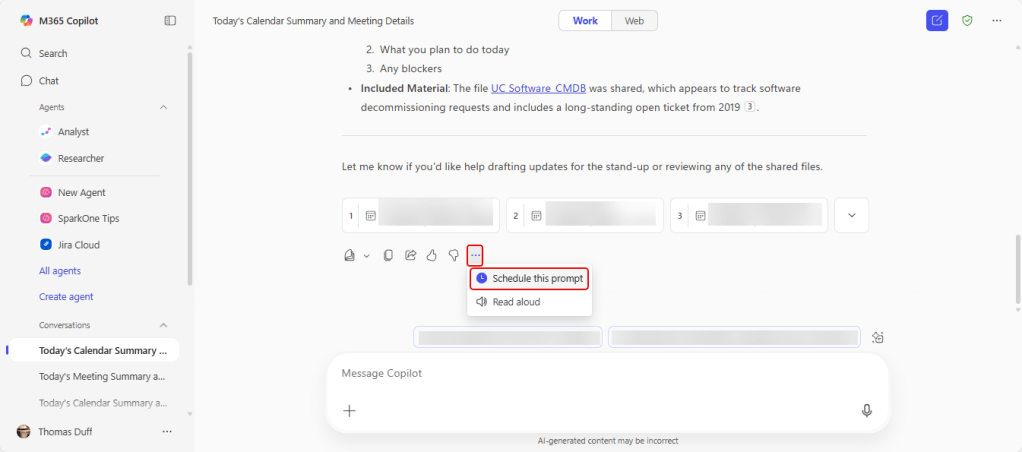
Once it runs the first time, scroll to the bottom of the output, click on the ellipsis, and select Schedule this prompt:
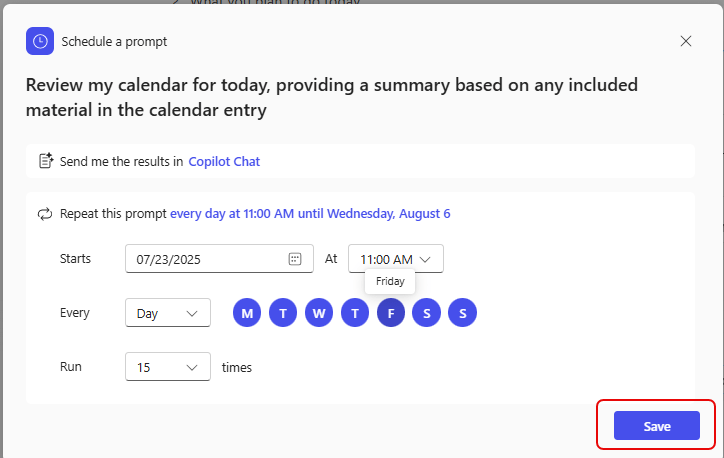
You’ll see the Schedule a prompt panel, and you can fill in the parameters for when it should run and how often. At this point in time, the schedule will only allow you to run it for up to 15 days:
You’ll then see all your scheduled prompts you’ve set up (maximum of 10):

When the scheduled time arrives, the prompt will run. You can see the output by clicking Conversations in the left-side navigation and selecting the specific prompt, or click on All conversations to see a list of all prompts that have been run. The green icon shows that it’s a scheduled prompt that you haven’t viewed yet:
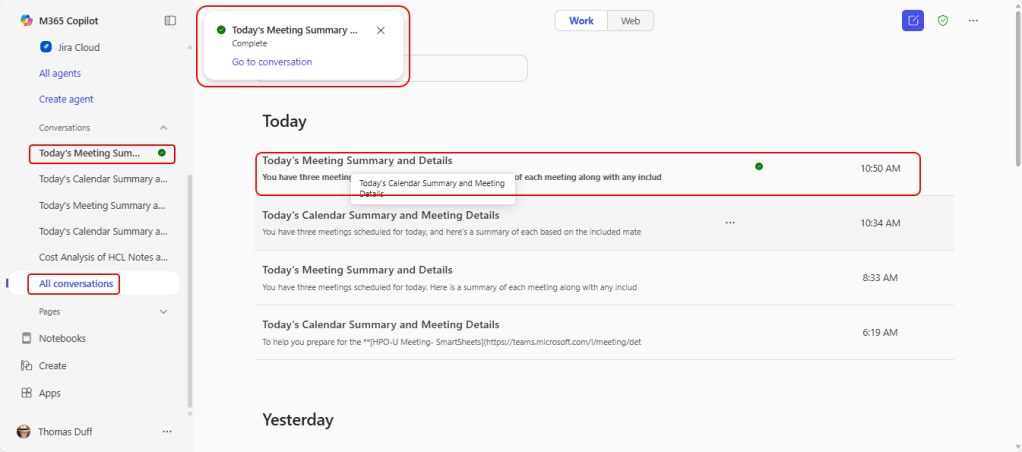
I have noticed that the scheduled time for the prompt to run seems to be “about” that time. I’ve had them run a few minutes after the scheduled time, and in this case it ran 10 minutes early.
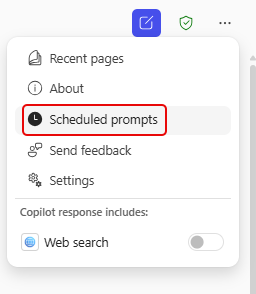
If you want to see all your scheduled prompts, click on the ellipsis in the upper-right corner and select Scheduled prompts:
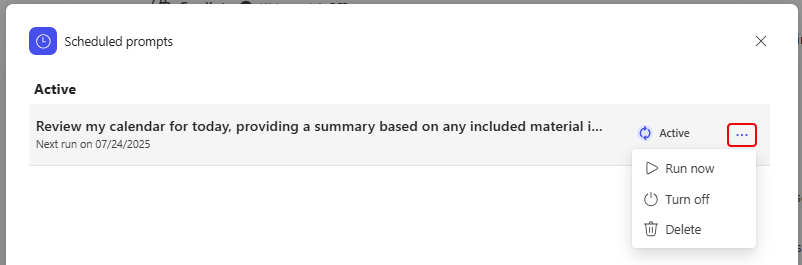
From here, you can click on the ellipsis for any specific prompt and either run it manually, turn it off, or delete it:
For more information, check out Schedule Copilot prompts.

 One Minute Office Magic