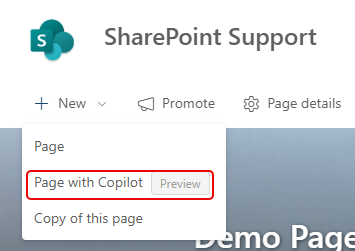
Have you ever sat in front of a blank SharePoint page and struggled to get even the barest amount of content on the screen? With Copilot, you can prompt your way to a starting design and content, and then refine things based on what it provides you. Here’s how that works…
When you’re on a SharePoint page, click the dropdown for the New option and select Page with Copilot:

The Create with Copilot screen gives you the option to describe the page you’d like to build, or you can select a Copilot template and fill in some prompts to get you started:
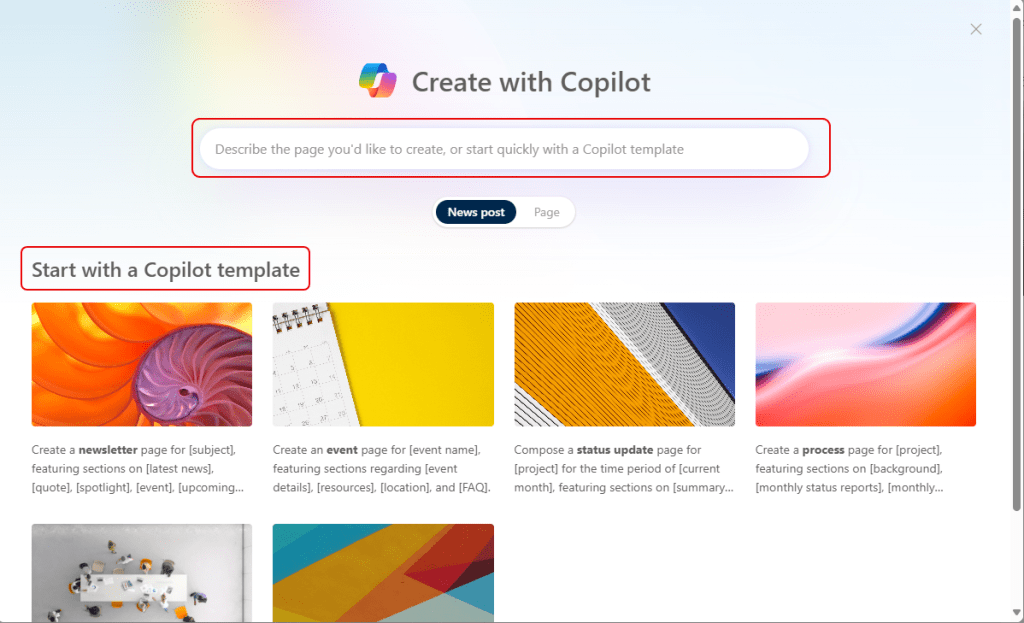
Here’s what the prompt page for a News Post looks like. Describe what you’re looking for, and click the submit arrow to get going:
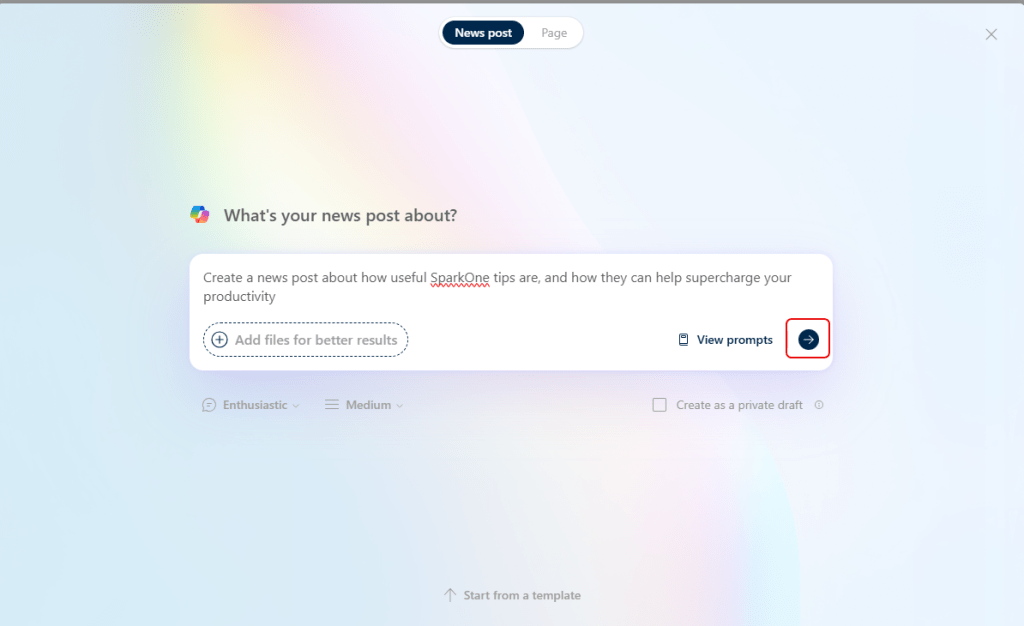
If you select the Template option, you fill in a few fields to guide Copilot, select what the tone and volume of content should look like, and click Create:

Across the bottom of the screen, you’ll see Copilot walking through the creation of the page and where it’s at in the process:

After a pretty short period of time, you have a page with starting points for banner images, page title, and perhaps a Stream web part for a video:
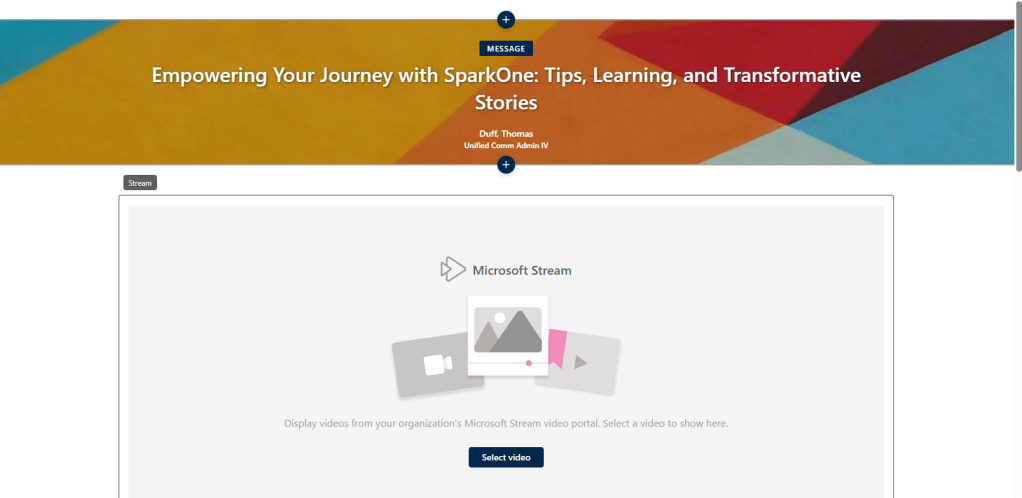
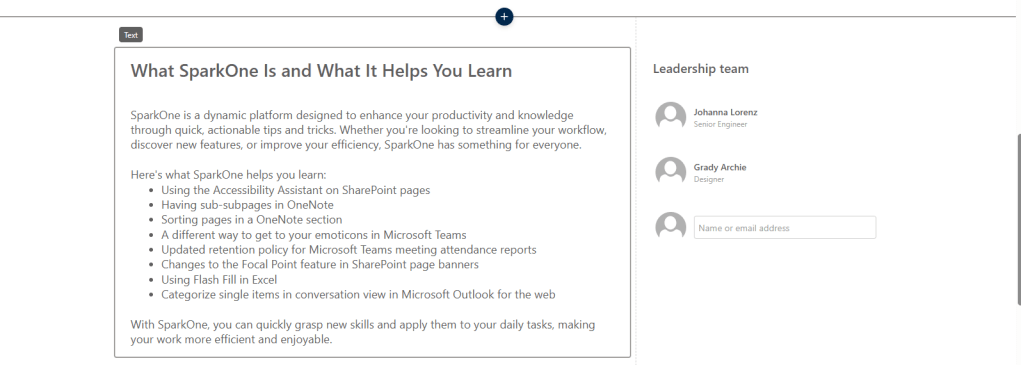
It continues on with some content (and it even found and used information from our SparkOne SharePoint site):
And it even made up some really cool quotes about how SparkOne has “changed my life”. 🙂
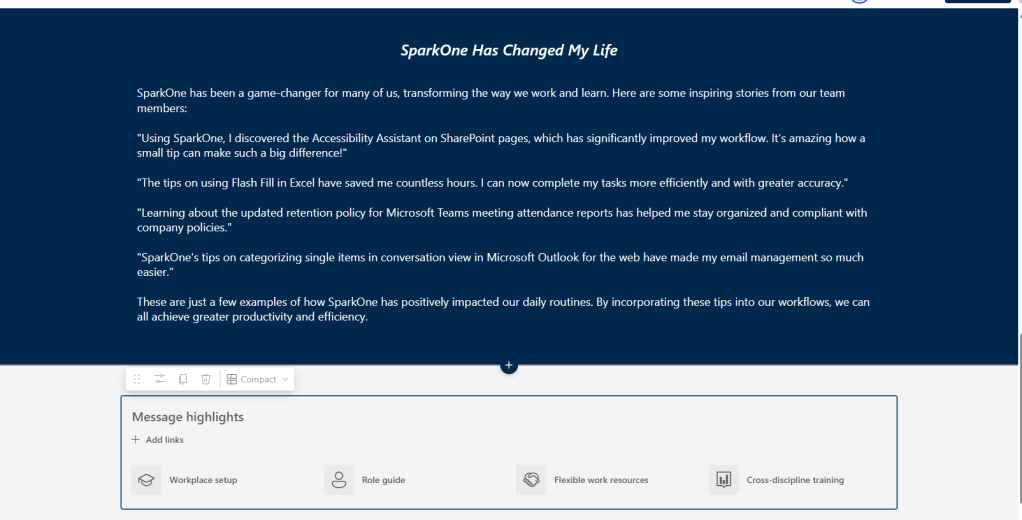
Let’s be clear… this is not a page that you’d hit Publish and go with it “as is”. Obviously it made up some quotes, summarized information, and so forth. But… two minutes ago, you were still staring at a blank screen with no good ideas on how to proceed. Copilot has given you a great starting point for layout and content, and now you can go back and start working on content that more actively reflects the information you want to convey.
I know I’ll be using this when it comes to creating new pages, as I’m not great in coming up with good layouts. 🙂
For more information, check out Create pages with Copilot in SharePoint.

 One Minute Office Magic