
Microsoft has come out with a new SharePoint page web part that is rather interesting. It’s called an Editorial Card web part, and Microsoft describes it as “The SharePoint Editorial Card web part is a new feature designed to enhance content presentation on SharePoint pages and news. It allows for manual customization, enabling users to create visually appealing card-like containers tailored to specific needs.” Let’s dive in to see what it looks like and how it works…
To add the new web part on your page, search for Editorial and click on the icon:

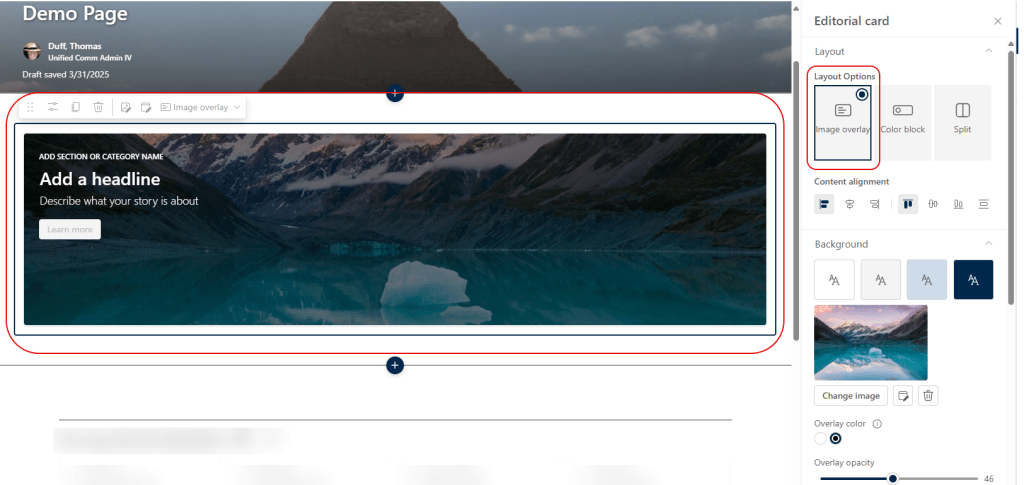
The web part is added to your section, and will take up the width of the column. The default is Image Overlay, and you have the ability to adjust the alignment, any background color, the image to use, the overlay color, and the overlay opacity:
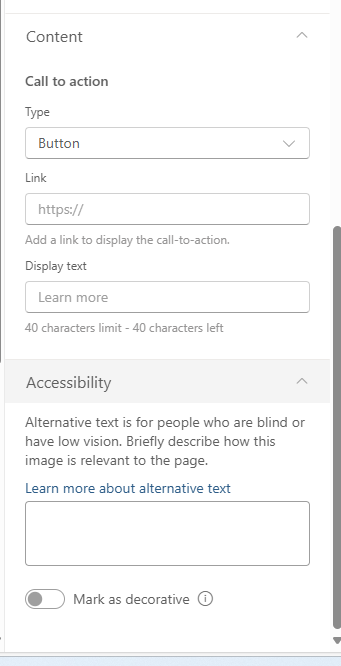
If you scroll down further in the right-side configuration panel, you’ll find the Call to action section which controls the clickable link on your image to get your reader to go somewhere:
In this example, I’ve set a call to action button to go to the Google web site. I can also update the content on the image by clicking on the line of text and typing in what I want:

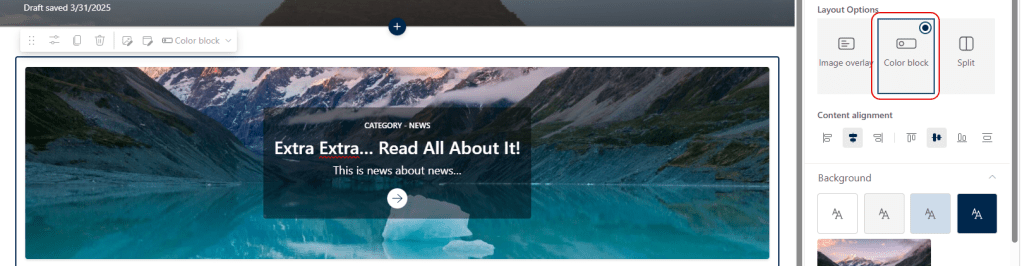
While the default is Image Overlay, you can also have your text box be a solid color block:
Or… you can use the Split option to have the image on one side, and all the text and call to action on the right:

For more information, check out Introducing Editorial Card web part for SharePoint.

 One Minute Office Magic