Have you ever had a column of data in Excel (like full names) and wanted to split out the first name into one column and the last name into another? Furthermore, are you less than adept when it comes to formulas in Excel? Perhaps the Flash Fill feature can be your knight in shining armor! Here’s how that works…
Here’s my example spreadsheet of full names. I want to get the First Name and the Last Name columns populated without having to hand type anything:

Excel can sense patterns which can allow it to use flash fill to populate things for you. In this case, I put Sandra’s name in the First Name column so that Excel can sense that the First Name column should be populated with the first word in the Full Name column:
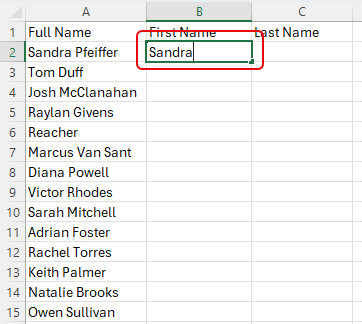
I then highlight the rest of the First Name column and select Data > Flash Fill:

I now have all the first names filled in without having to know anything about expressions and formulas!

I’ll do the same thing with the Last Name column, but this time I’ll use the keyboard shortcut of CTRL-E to flash fill that column:

And there you have it… my Last Name column is completed!

As you may have noticed, it doesn’t necessarily handle edge cases very well. A single full name of Reacher ends up in both the first and last name columns, as it’s truly the first and the last word in the full name column. And for last names that have two words, it only picks up the last word in the full name.
If those types of edge cases are common in your data, you may have to bite the bullet and figure out a formula that will work in all cases. But if those cases are few and far between, Flash Fill can get you nearly all the way there with very little time and effort.

 One Minute Office Magic