
When you put an image in a SharePoint page banner, you have the ability to change the focal point of how the image is positioned. But you only see a narrow slice of the image, and you have to drag the focal point around without really seeing the full image content. The focal point feature has now changed, and you see the entire image when you’re selecting a focal point. That makes it a lot easier to get the effect you want, and here’s how that looks and works…
Here’s a page banner I have where I’d like to change the focal point. When I would click on the focal point icon below, I was still looking at the image in the banner layout, and I couldn’t see the whole picture at once:

Now when I click the focal point icon, I see the entire image on the screen so that I can make decisions about what should show in the banner in context of the entire picture:
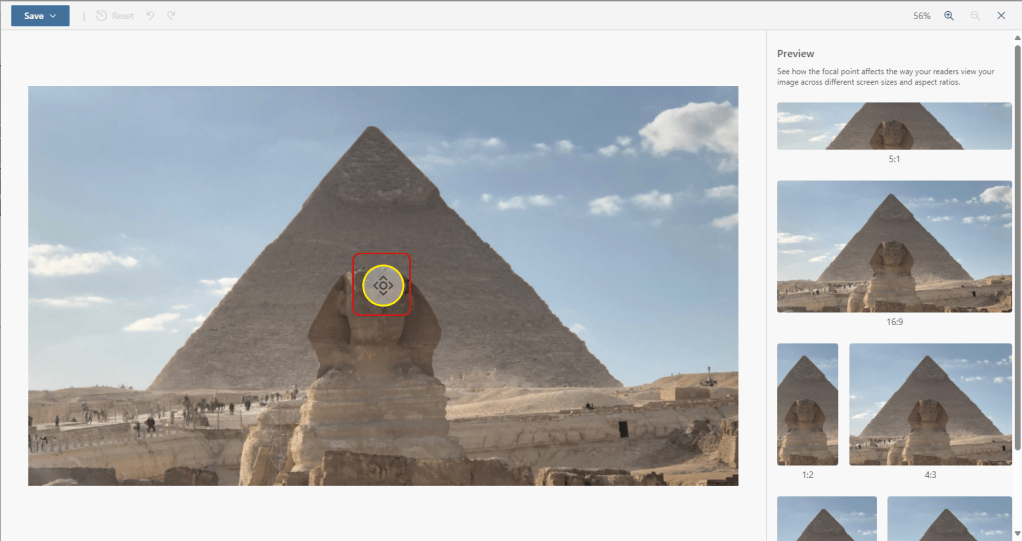
In this example, I moved the focal point to the top of the pyramid and clicked on the Save button:
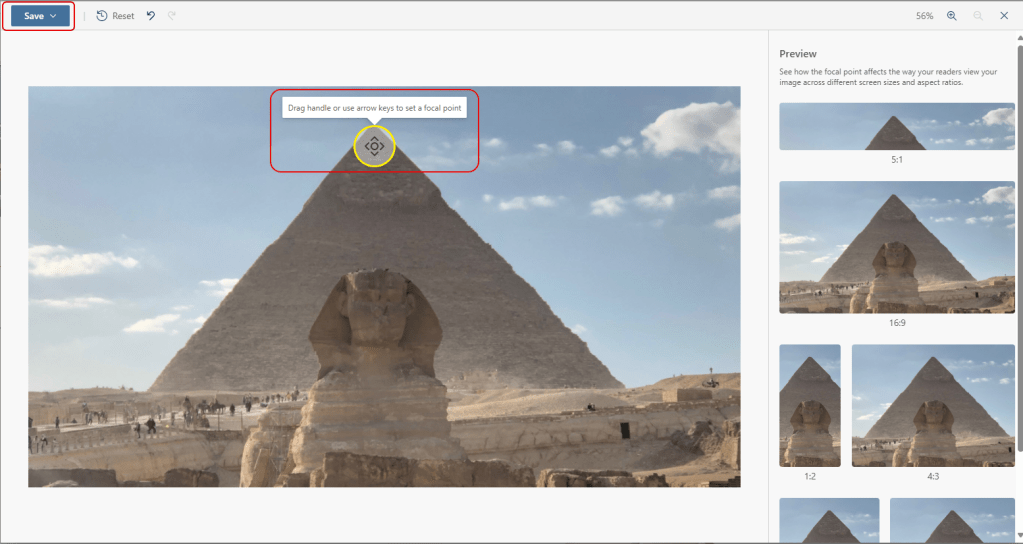
And the banner now reflects the changed focal point:

This change doesn’t affect the setting of the focal point… it just makes it a lot easier to see the entire image you’re using so that you can make better decisions.

 One Minute Office Magic