Making sure your SharePoint pages and content are accessible for the widest possible audience is important. However, few people are well-versed in accessibility guidelines and what to look for to make pages and content accessible to people who may have vision difficulties. Microsoft now has an Accessibility Assistant on SharePoint pages, and it makes the task of checking for accessibility issues much easier. Here’s how that works…
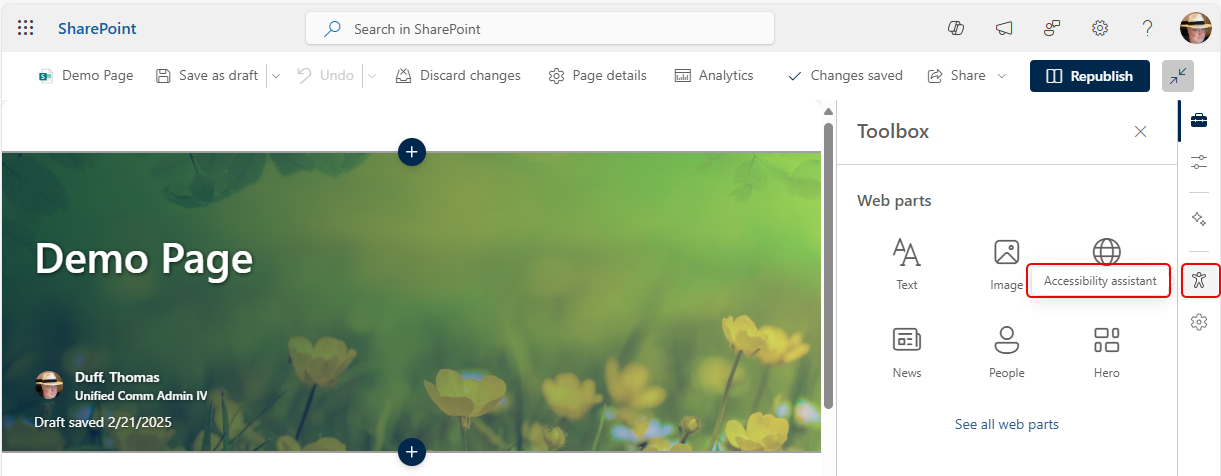
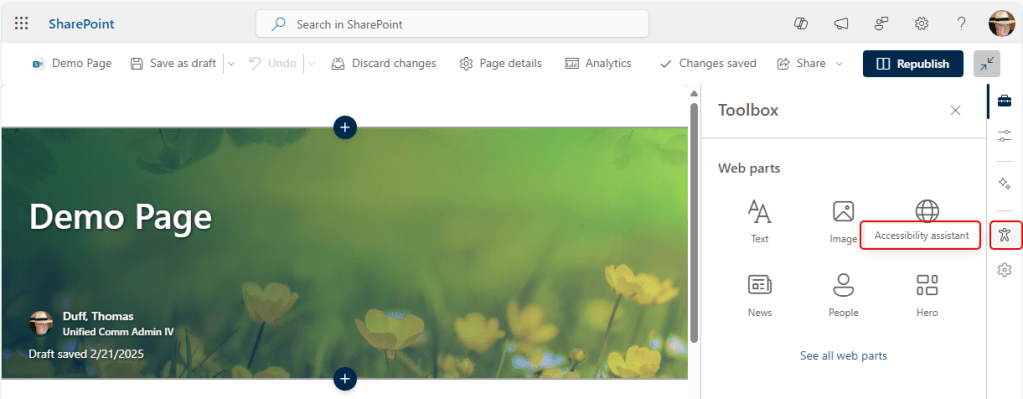
When you have a SharePoint page open in edit mode, you should see the Accessibility Assistant icon on the right-side option rail:
When you click that, SharePoint does an accessibility check on the page and displays the results:

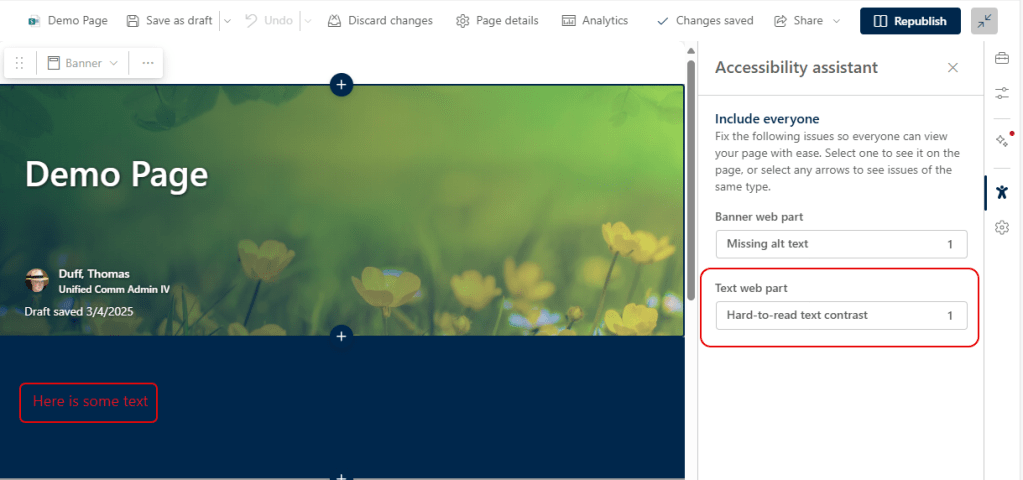
To give a better example, I took this page and made some changes. I removed the alternative text in the banner and made a font color change (red) on a dark blue background. As you can see, the Accessibility Assistant wasn’t overly pleased with my choices:
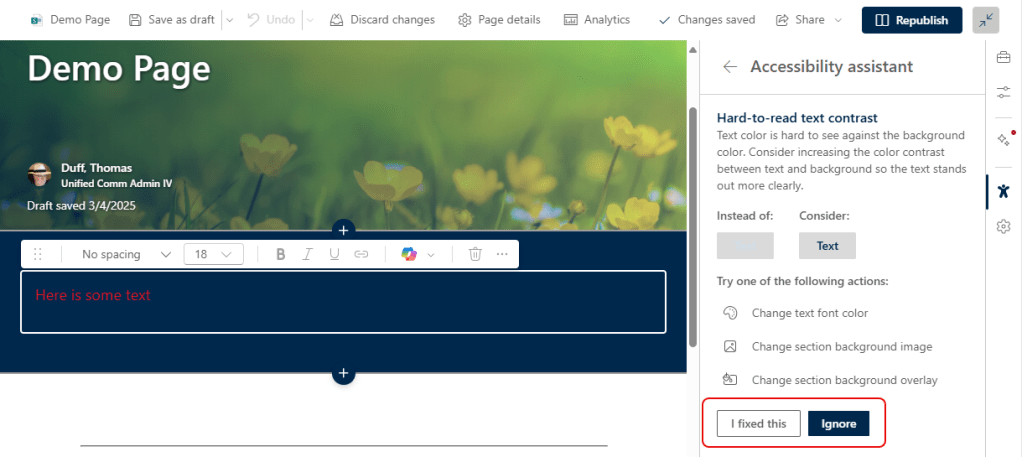
If you click on the error, it will either take you to the web part/page options to fix the item, or it will offer up suggestions on how to rectify the issue. You can make your changes and then say that you fixed it or you want to ignore the error:
The Accessibility Assistant works on a number of page elements… far more than I’ve shown here. To see a more comprehensive overview of the feature, check out Use the SharePoint Pages Authoring Accessibility Assistant.

 One Minute Office Magic