A question that is often asked is how to sort pages in a OneNote section. You can always drag and drop the pages in whatever order you want, and you can create new pages under an existing page by right-clicking on the existing page. But what if you want to sort the entire list alphabetically or by created order. You can do that by using the Sort icon at the top of the list of pages. Here’s how…
The Sort Pages icon is in the upper-right corner of the page list:

When you click the icon, you can choose None (the default), Alphabetical, Date Created, or Date Modified:

In this example, I clicked on Alphabetical, and all my pages sorted in ascending alphabetical order:
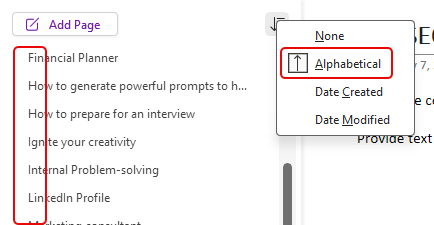
What’s cool is if you go back in and click Alphabetical one more time, it changes the sort order to descending:
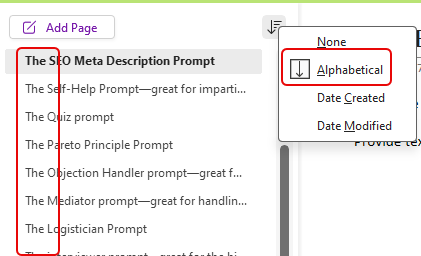
As a side note… if you have subpages or sub-subpages, those will stay under the main page. You will not lose your subpage nesting.

 One Minute Office Magic