
This is a good tip that Sandra sent my way today… Have you ever wanted to create a SharePoint page that didn’t have the normal page header at the top? It had been possible with using some hacks and workarounds, but now you can do it as part of editing your page in the browser. Here’s how that works…
Here’s a normal starting point for a page in SharePoint. At the top, you have the Title section of the page, and that’s what we want to get rid of:
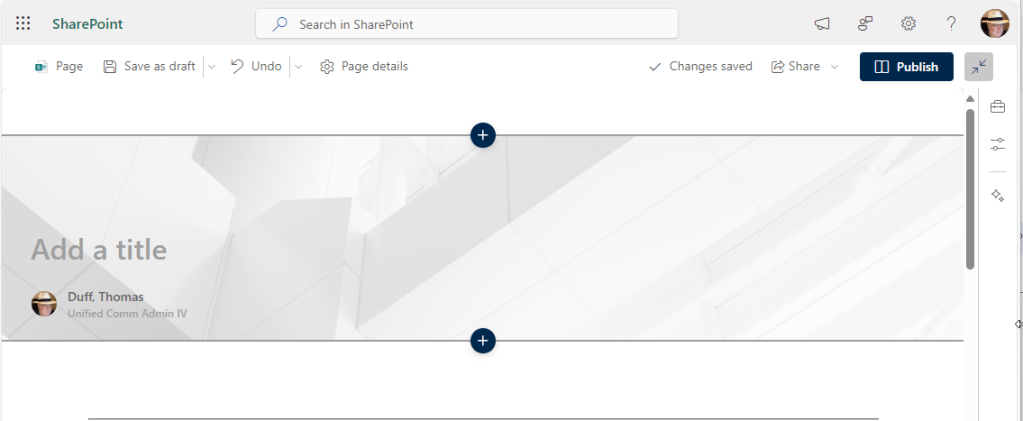
Click within the web part and click the Delete icon:

The web part is now gone. Next, we need to delete the entire full-width section. Click into the section and then click the Delete icon:

The Title section of the page is now gone! You can now click Publish:

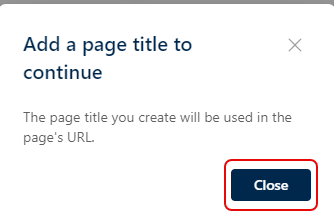
Normally, the page title comes from the area you just deleted. Since the page needs a title for use in the page URL, you are asked to provide a page title. Click Close on the pop-up box:
In this panel, you can put the page title you want it to be:
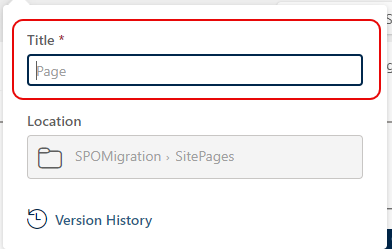
The new title of the page is in the ribbon bar (“Headerless Page”), and you can now click Publish again:

And in the URL of the page, you can see the page name you selected:

Thanks to Joao Ferreira for the post that he made on this topic: How to Hide the SharePoint Page Title in a Modern SharePoint Page

 One Minute Office Magic