If you struggle with coming up with nice layouts on your SharePoint Pages, the new Design Ideas feature will be of interest to you. It can help you come up with design options that you may not have thought of (or like me, are incapable of). Here’s how that works…
To open the Design Ideas feature when your page is in Edit mode, click on the Design Ideas icon on the right side of the screen:

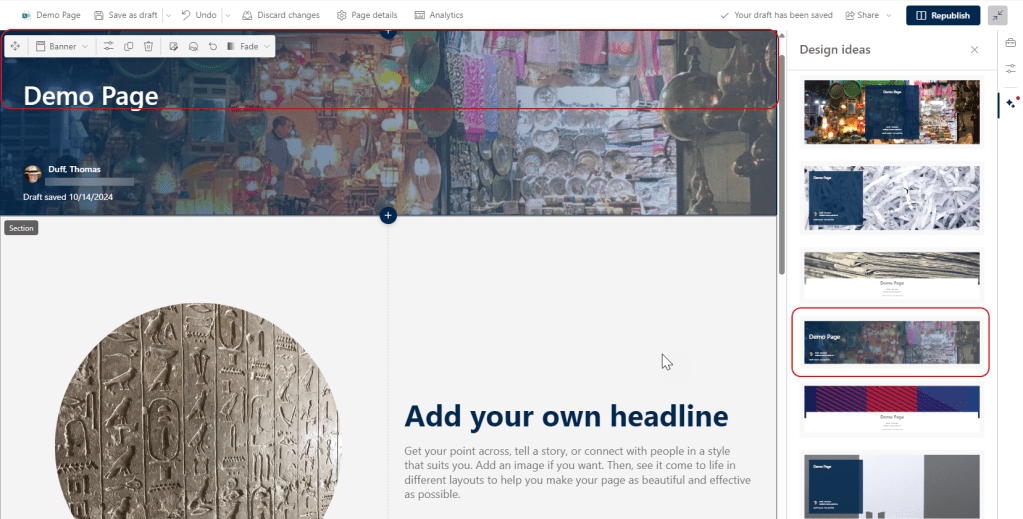
To use it in the Banner section, click somewhere in the Banner section and Design Ideas will offer up some various images and text layouts that would work well on the page:
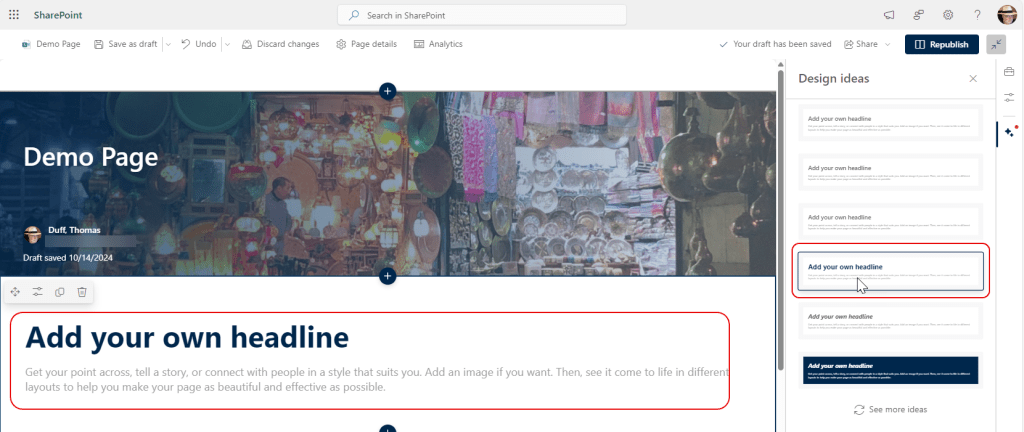
For text design, click in your text web part and Design Ideas will come up with some various color and font options that are better than just the out-of-the-box look:
Finally, click in an Image web part to get some options for various image and text layouts that are extremely helpful in creating unique and pleasing page layouts:

At this current time, Design Ideas only works with banner, text and image webparts. If you click on one of those web parts and Design Ideas are available, you’ll see a small red dot next to the Design Ideas icon.

 One Minute Office Magic