
Do you often have short repetitive emails that you send out, and you wish there was an easier way to create the emails without having to retype them or use copy and paste? You might want to check out the My Templates feature in the Outlook client. Here’s how it works…
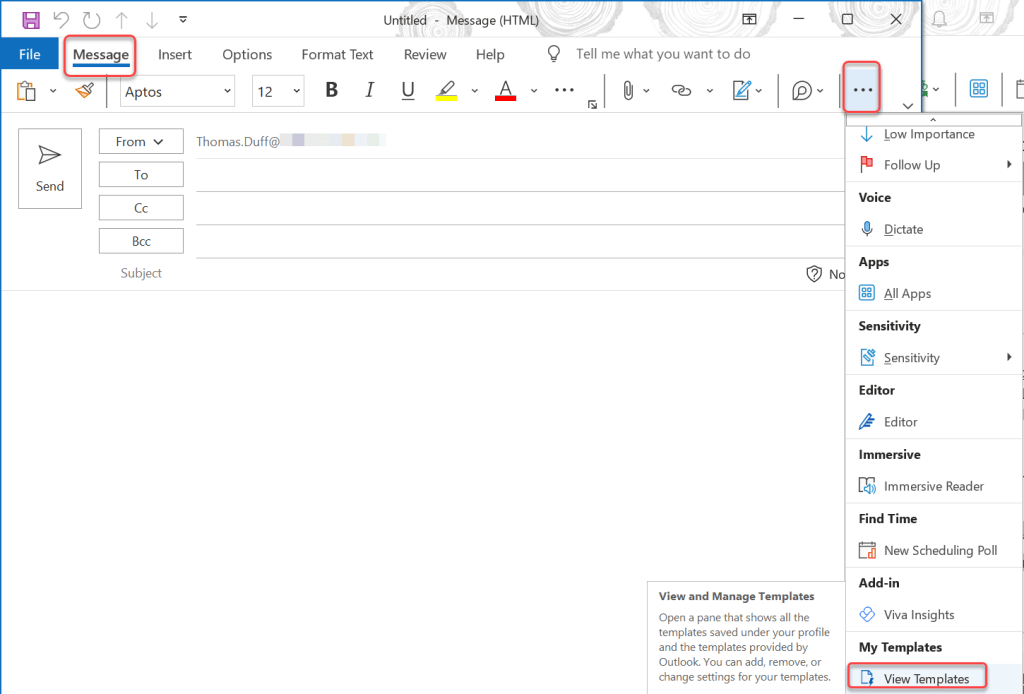
To get to the Templates feature, open up a new email and go to Messages > My Templates > View Templates:
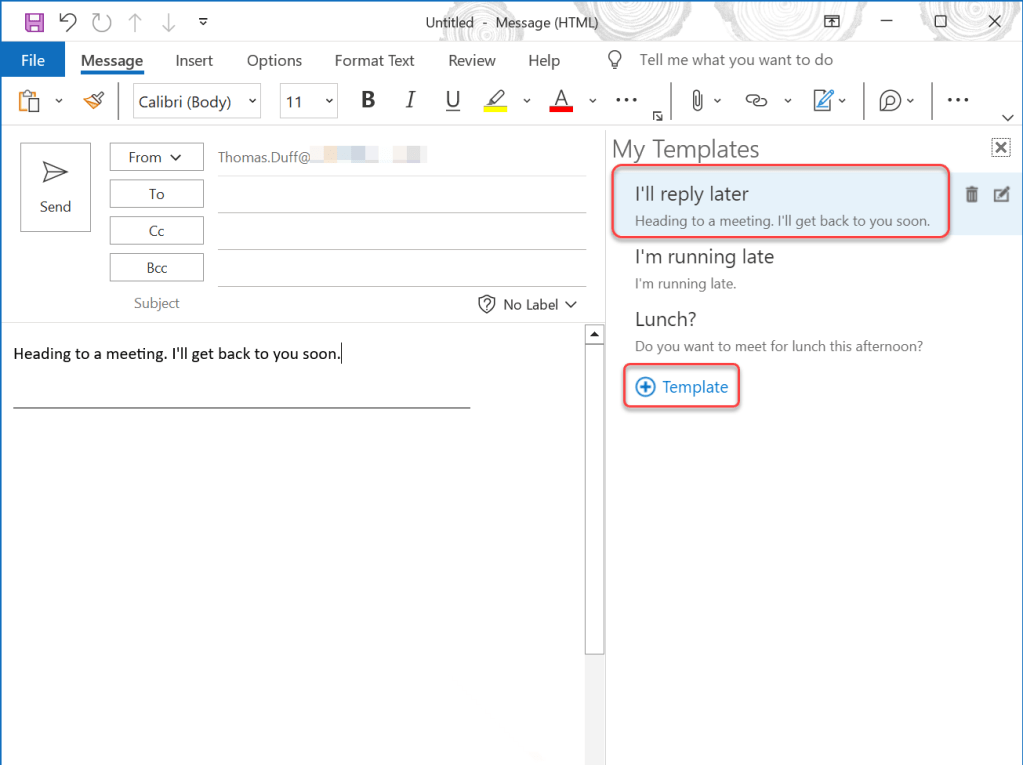
If it’s your first time with My Templates, you’ll see three sample templates you can choose from. You can click the template, and it will pre-load the body of the email with the template wording as in the example below. Or, you can click on the Template link to build your own:
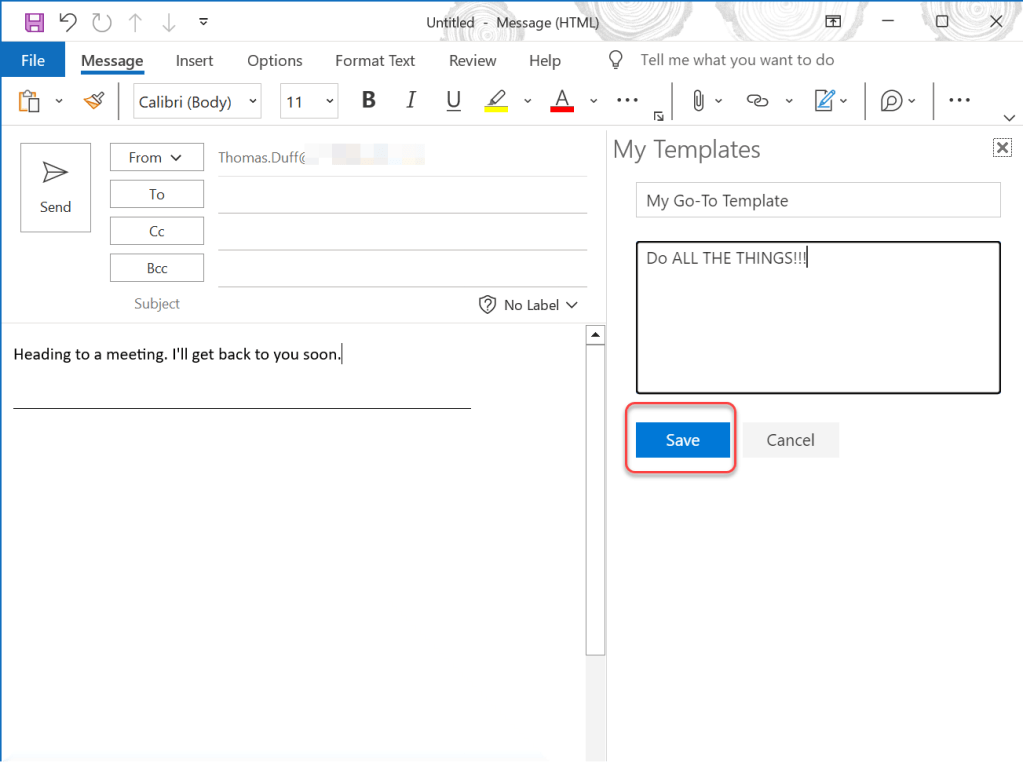
I built a template titled My Go-To-Template with Do ALL THE THINGS!!! as the body of the email. I clicked Save so I can use it in the future:
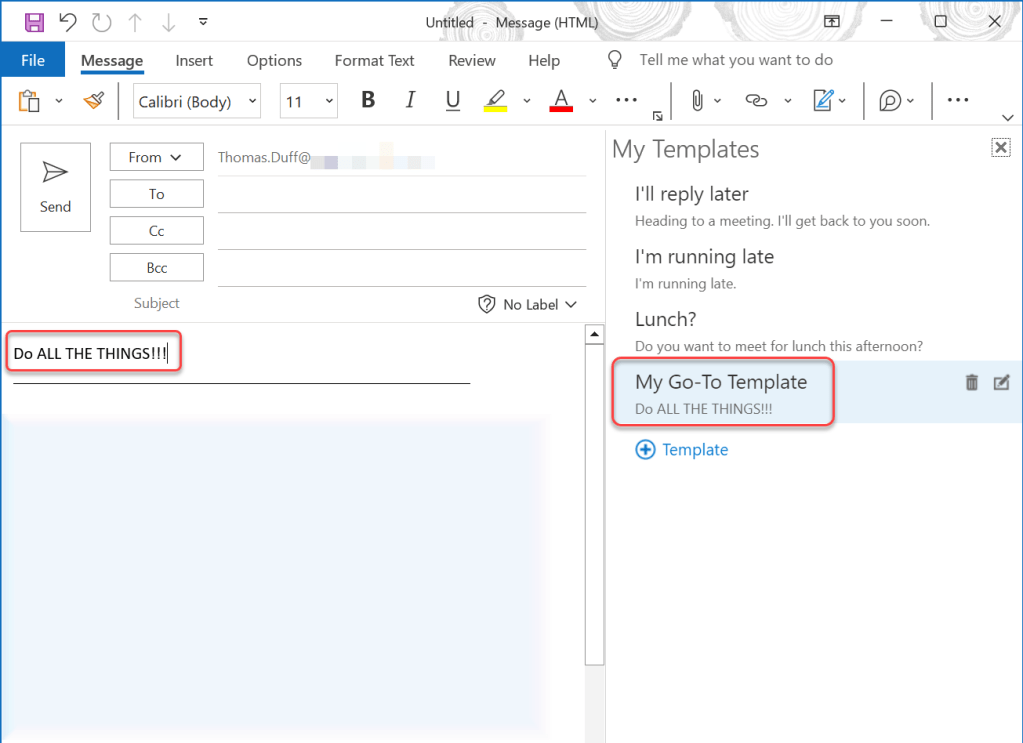
Now when I click that template option, I get my template wording in the email:
This is a great way to save some time as well as wear and tear on your fingers…

 One Minute Office Magic