
If you have a lot of emails in Outlook on the web, you might wish you had a way to make emails that fix a particular category stand out from the others. Now you can do that with Conditional Formatting, Here’s how that works and looks…
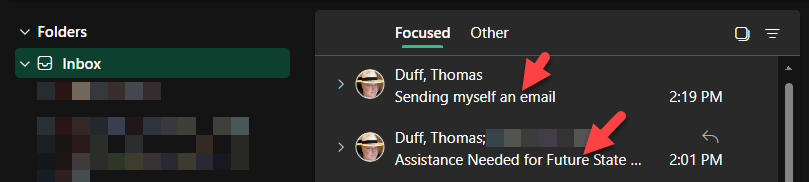
Here’s a snippet of my inbox with a couple of emails that I sent, and I’d like those to stand out a bit more so I can pick them out more easily:
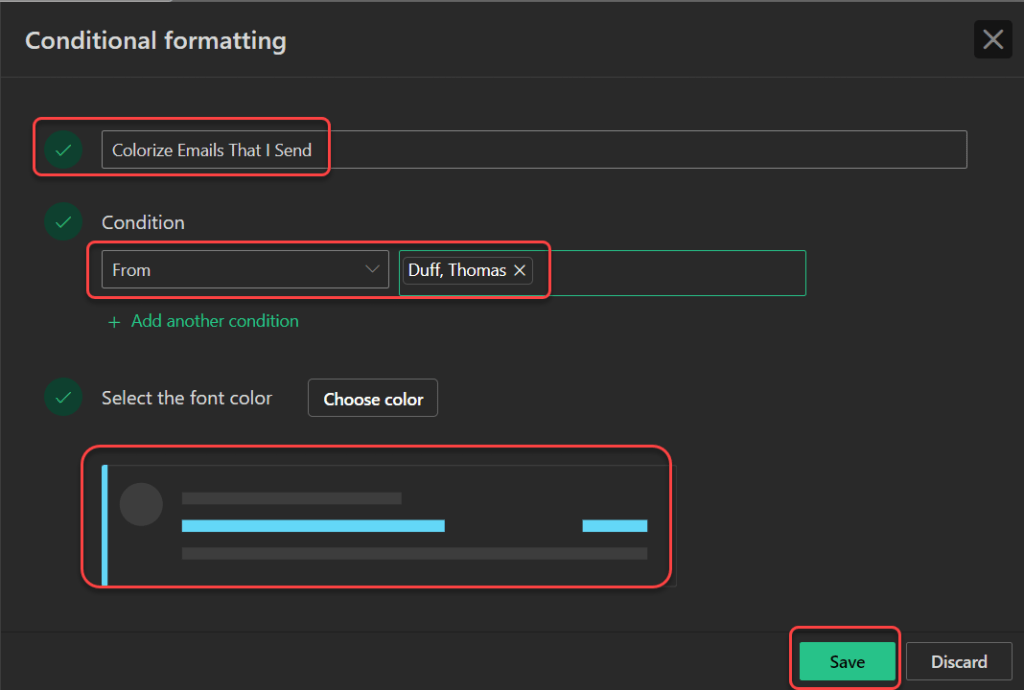
Going into Settings > Conditional Formatting, I can create a new rule to change the title and date of the item in the folder:

In this case, I picked a title for the rule, picked the condition I want to check for, and the font color that I want to have used for the title and date of the item. I can select People conditions such as From, the name being on the To and/or CC line (or the name NOT being on the To or CC line), and keywords being found in the Subject:
Once I click Save, I can see the rule out there, and it’s now active:

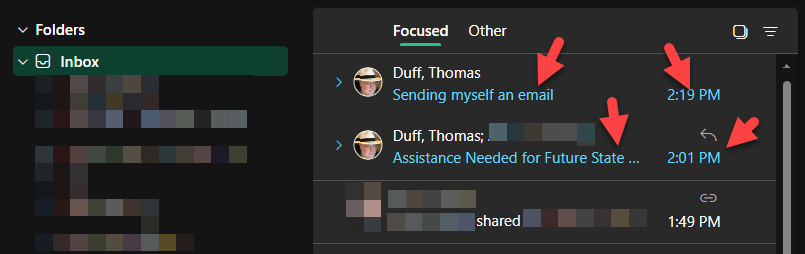
Going back to my inbox, I now see emails that I sent show up with blue text in the title and date field. That formatting also carries over to other folders, such as Deleted:
Definitely take a look at this feature if you need a better way to have certain emails have more visual impact to get your attention.

 One Minute Office Magic