
It’s not unusual for a SharePoint site to be focused on a particular project with an upcoming deadline, and it would be nice to see how much time is remaining before the deadline. You can do that with a Countdown Timer web part on your SharePoint page. Here’s how you set that up and how it looks…
On a modern SharePoint page that you’re editing, click the web part selector and scroll down to the Countdown Timer web part:

The default counter shows up in the page, and you can click the Edit (Pencil) icon for the web part to configure it:

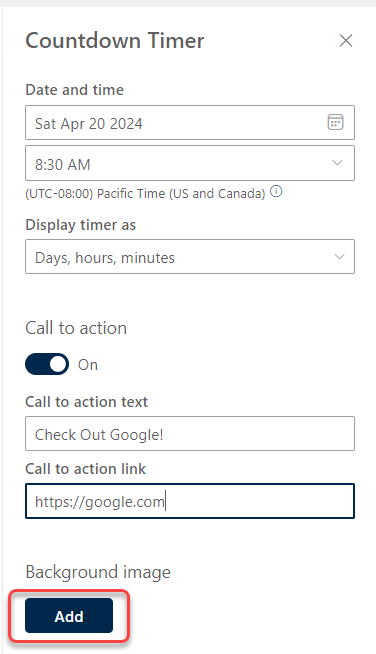
In the configuration panel, you have a number of options. You can set the date and time of the deadline, and you can display the timer as either just days, days/hours/minutes, or days/hours/minutes/seconds. You can add a Call to action button on the counter, with a short phrase and a link that opens when you click the button. And finally, you can add a background image to your countdown timer so that it give a bit of “pizazz” on the page:
And here you have the final result… in my case 20 hours and 58 minutes until I go to see a particular movie!


 One Minute Office Magic