It’s not uncommon to have a SharePoint page that celebrates some gathering or holiday celebration. You have a lot of pictures of the event, and you’re wondering how best to share those on a SharePoint page. Look no further than the Image Gallery web part. Here’s how that works…
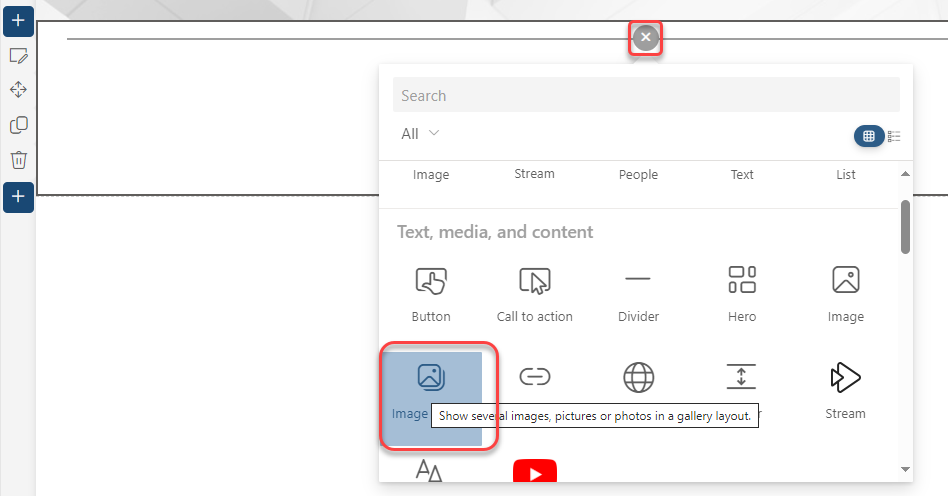
On your SharePoint page, select the Image Gallery web part:
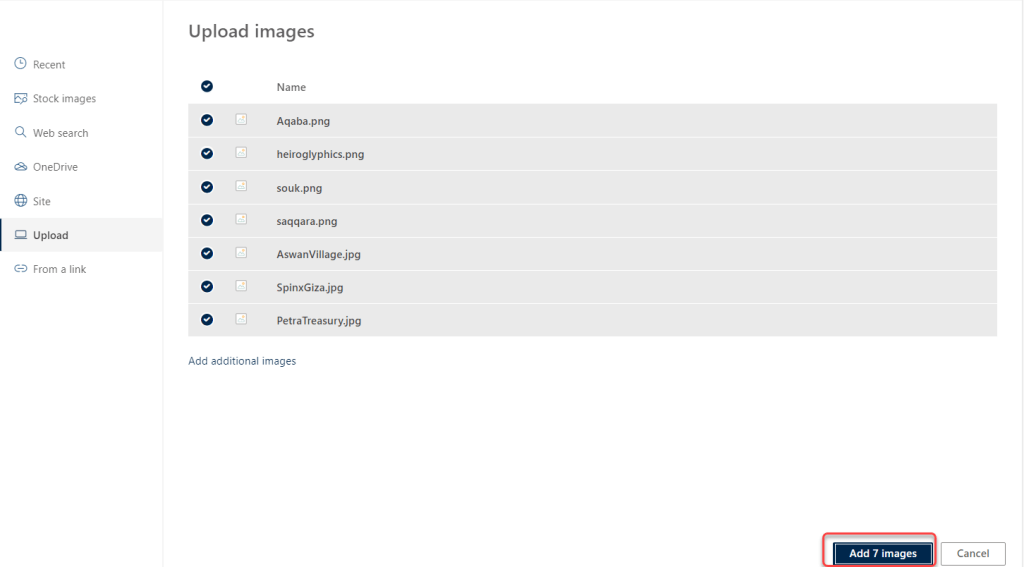
When the web part appears, click on the Add Images link to pick the photos you want to use:

Once you’ve selected your images, click the Add x images button to add them to the web part:
By default, they are laid out in the Grid format:

However, you can also choose a Brick format:

Or, you can use a Carousel format, complete with automatic cycling through the images with a time delay of your choosing:

If you click on the Edit icon for a specific photo, you can add a title and caption to the image that will show up when you click on the video:
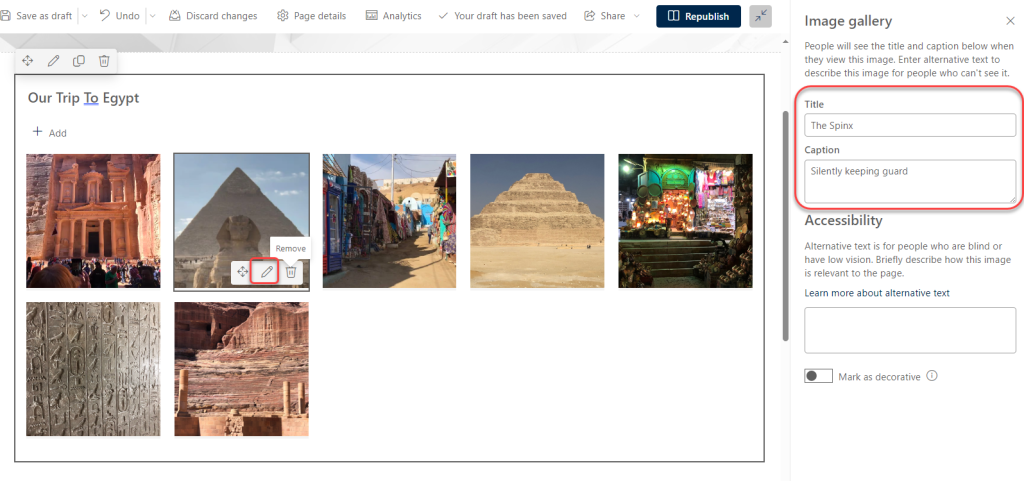
Like so…

The Image Gallery is a great way to make your images viewable in a way that is easy for others to navigate.

 One Minute Office Magic