
A Microsoft 365 colleague posted a short while back about some new options for adding text overlays to images on a SharePoint Online page. These provide some interesting options for adding text to an image without having to necessarily use an image processing tool. Here’s how it works…
Once you add an image to a SharePoint Online page, you will see the editing toolbar at the top of the section. Select the Text overlay option to get the text box on the top of the image:
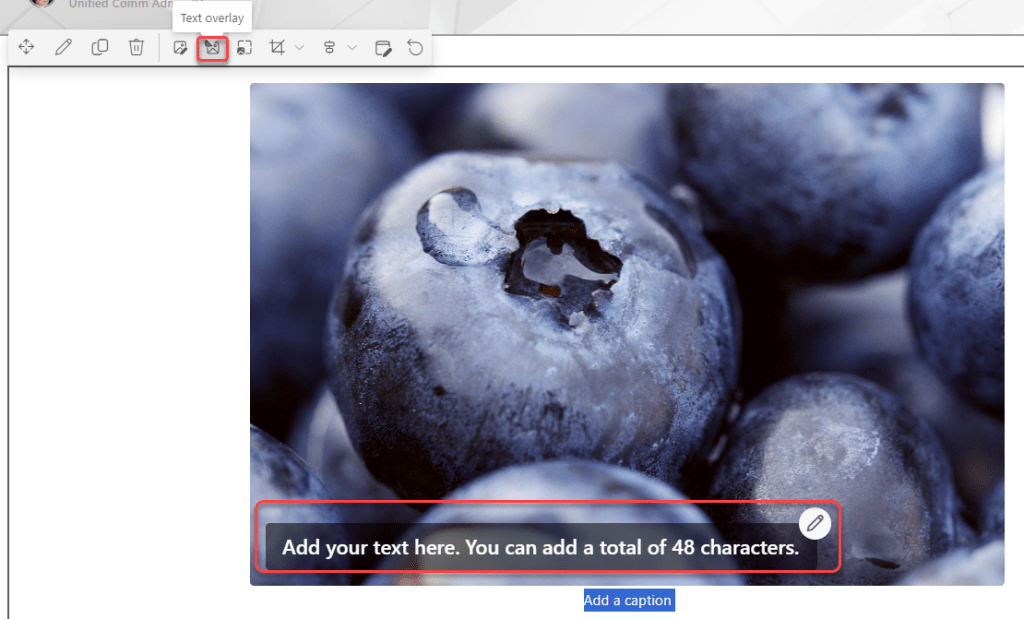
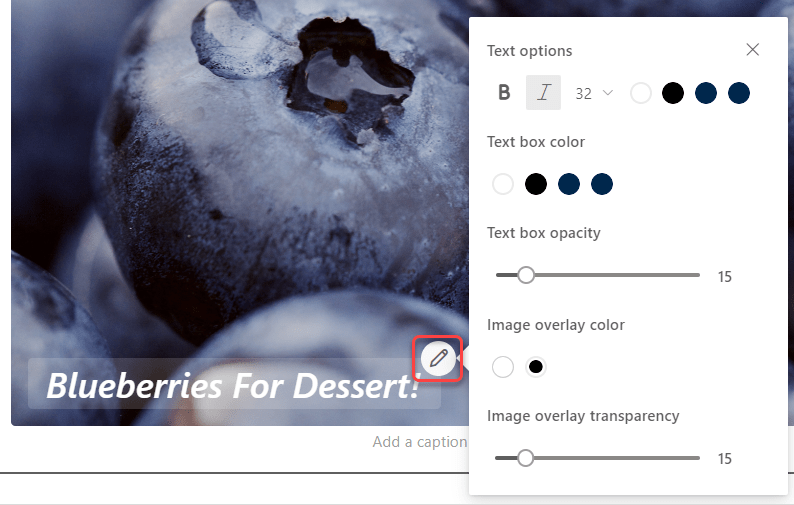
You can type in the 48 characters of text into the box, and now there’s a Pencil edit icon to make changes to the design of the text overlay:
You have options for font style, size, and color, as well as the opacity and transparency of the image and text box:
Even better… you can click and drag on the six dots to move the overlay anywhere on the image instead of being stuck with it in the lower corner:

Do keep in mind that this is just a text overlay, not a clickable link…

 One Minute Office Magic