
Throughout OneDrive and SharePoint, you probably have a number of “favorite” documents that you reference on a regular basis. But how do you keep them in a place where you can easily reference them on an ongoing basis? You can use the Favorites feature in OneDrive to “bookmark” those documents in a single list to refer back to them when needed. Here’s how that works…
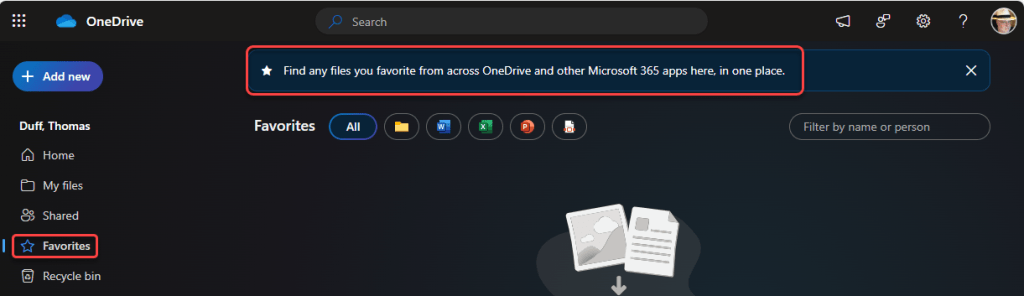
In OneDrive, you’ll find a navigation link for Favorites. This is a list of all the files you’ve favorited in both OneDrive and SharePoint:
In this example, I’ve decided to favorite a file in my OneDrive. To do so, I click on the empty Star icon to mark it as a favorite:

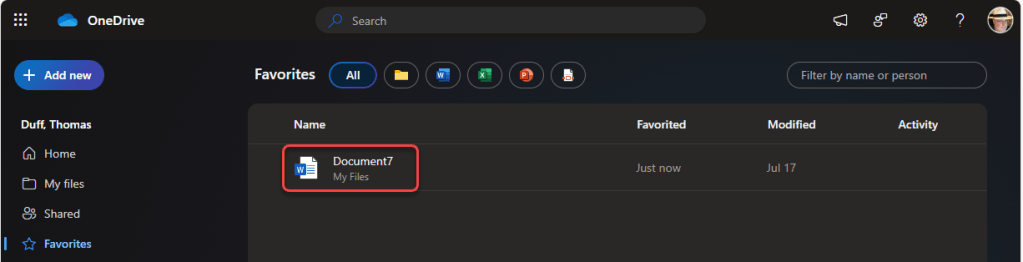
When I look at the Favorites list, I now see that document listed here, as well as the reference (My Files) to where it actually lives:
In this example, I went into a SharePoint site and marked one of the folders in the Document Library as a favorite. To do that, I hover over the ellipsis and select Favorite from the pop-up menu:

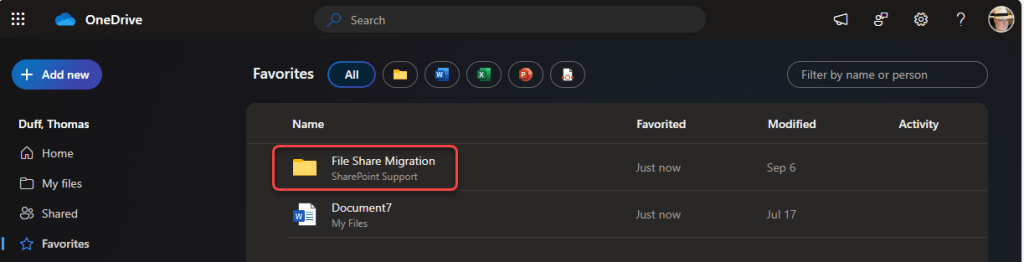
And now when I go back to Favorites in OneDrive, I see that folder along with the name of the site where the folder resides:
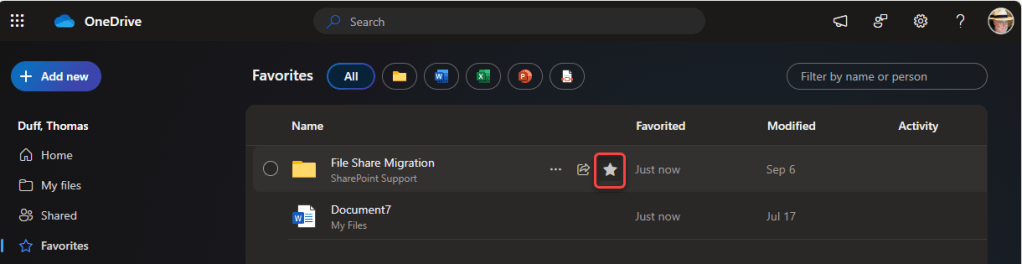
And if I no longer need to have that show up in the Favorites list, I can just click the Star icon, and it will be removed from the Favorites list:
To be clear… this does not move any files into OneDrive, nor does unfavoriting a file delete it from where it lives. This is nothing more than a bookmark to those files you use most often or need to get back to quickly without having to dig around to find it each time.

 One Minute Office Magic
1 Comment