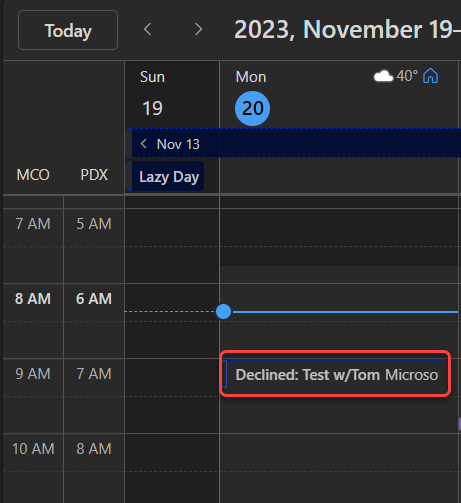
If you’re using Outlook on the web, you have a new feature that can be very useful. You can now choose to have meetings that you decline show up in your calendar, but not mark that time as busy. This is great when you want to be able to get back to a meeting invite that may have files or agenda information that you need to view at a later time. Here’s how that works…
To activate this setting (remember, it’s only for Outlook on the web – https://outlook.office.com/), go to Settings > Calendar > Events and invitations > Save declined events:

Now when you decline a meeting (once again, when using Outlook on the web), you will see the declined meeting show up in your calendar. This doesn’t mark that time as busy, so it won’t block others from seeing that time as available:

Again, let me reiterate… this does *not* work in the classic Outlook client. You cannot set that option in classic Outlook client settings, and meetings declined from the classic Outlook inbox will not show up on your calendar. For more information, check out Show declined events on the calendar.
This may be a reason to start looking into making the switch to the web-based version of Outlook. 🙂

 One Minute Office Magic