
It’s not unusual to have emails appear in the Junk Email folder in Outlook. However, you may find that a particular sender or an email domain that’s going to Junk Email should really be considered a “safe sender” and appear in your Inbox. Here’s how to make that happen in Outlook, both for the Outlook client and for Outlook on the web.
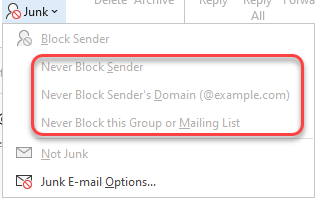
To alter the Junk Email settings for a particular email already in the Junk Email folder, select an email in that folder and select Home > Junk:

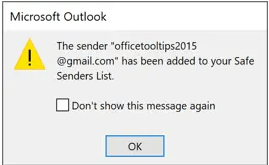
You will see the options to Never Block Sender, Never Block Sender’s Domain, and Never Block this Group or Mailing List (side note: I didn’t have any Junk Email to demo this, so the options are greyed out for me). In this example, imagine I had selected an email from officetooltips2015@gmail.com and selected Never Block Sender:
This message will pop up letting you know that particular email address should bypass the Junk Email folder going forward:
If you want to review or manage your Junk Email options as a whole, you can select the Junk Email Options setting from Home > Junk. From here, you can Add, Edit, or Remove email addresses or domains from the Safe Senders list. This is a good way to review your list periodically to make sure you’re still receiving or blocking items that you intended:

If you’re using the browser-based version of Outlook, you can do the same thing for Junk Email. Right-click on an item in the Junk Email folder to get the options to change the settings for a particular email. If you want to review and make changes on a larger scale, go into Outlook settings and select Mail > Junk email. You can then add or remove people from the Blocked senders and domains list as well as the Safe senders and domains list:

For more information, check out How to unblock a sender in Outlook.

 One Minute Office Magic