Microsoft has been hard at work recently in making sure that the Microsoft 365 offerings have consistent commenting capabilities. Whiteboard is the latest with the updated commenting feature, and here’s how it works…
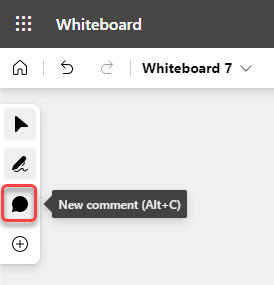
When you’re in a Whiteboard, you’ll see a Comment icon that you can click on to start a new comment:
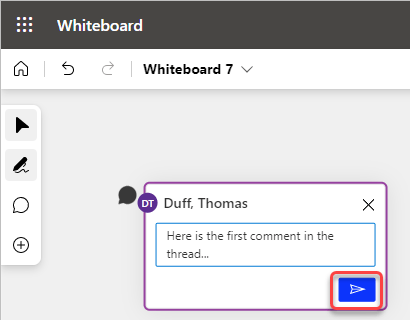
The comment will appear in a box with the name of the person who started the comment. You can type your comment into the text box and click the Send icon:
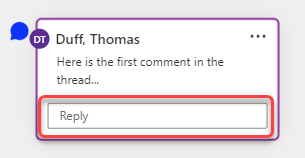
Once the comment has been entered, there’s a text box to allow for replies to the comment:
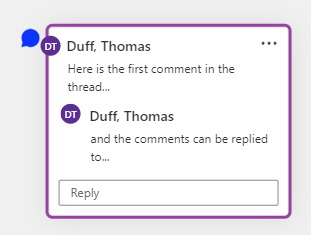
And here’s what the comment box looks like with a comment and a reply in it:
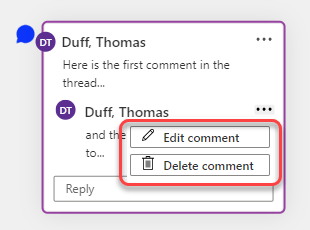
You can edit or remove an entry by clicking on the ellipsis next to the message and selecting Edit comment or Delete comment:
If you click anywhere outside the comment box, the box disappears, but the comment bubble remains on the screen with a picture of the person who started the comment. Click on that bubble icon to open the comment back up. You can also click and drag the comment box on the screen to position it out of the way of other content if needed.


